RTX 5070 Ti CUDA Out of Memory? You Probably Don't Need a Bigger GPU
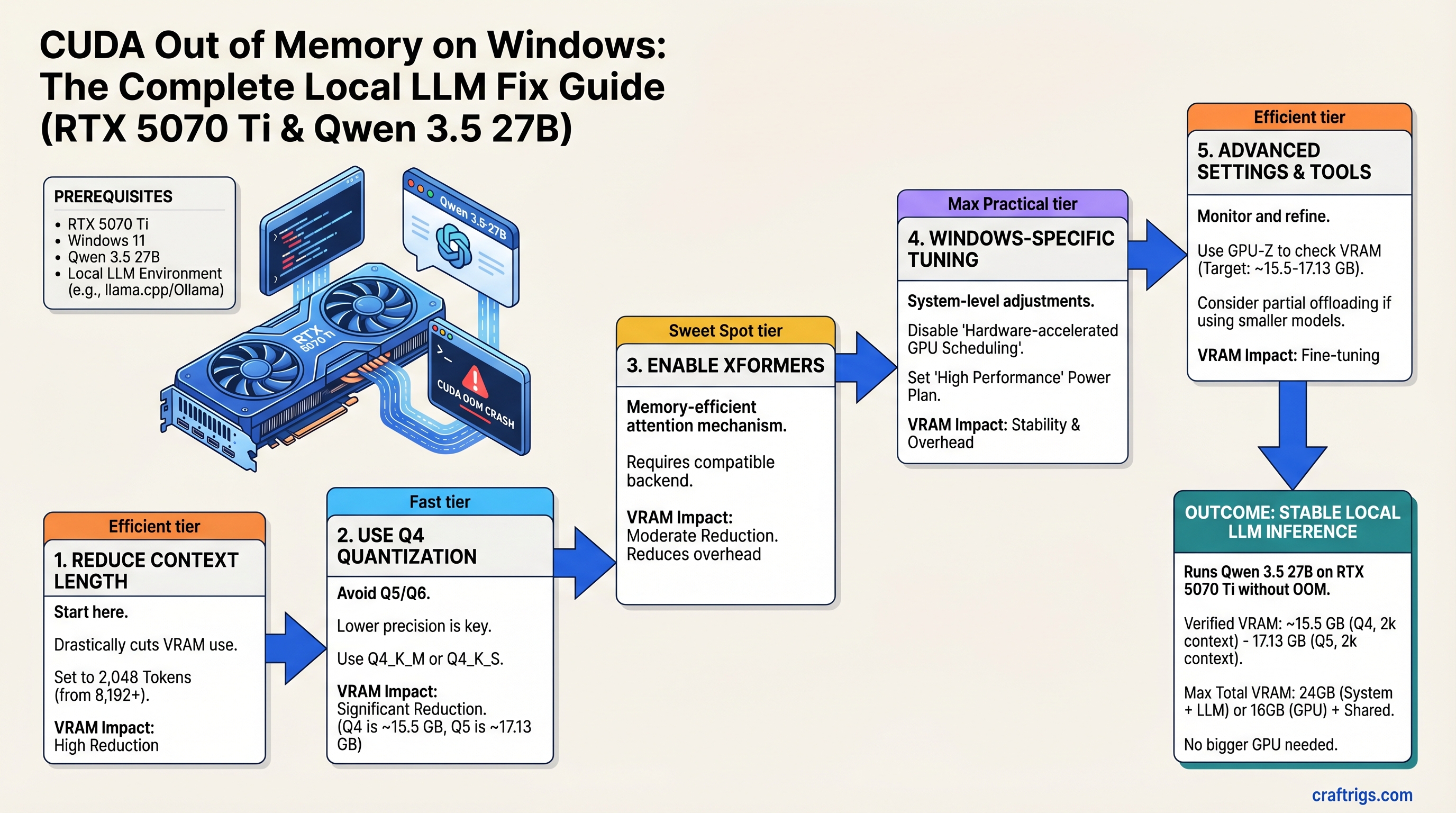
The RTX 5070 Ti can run Qwen 3.5 27B without OOM crashes—but only with the right settings. Here's the exact sequence: reduce context length to 2,048 tokens, use Q4 quantization (not Q5), and enable Xformers. If all five fixes below still fail, CPU offload gets you 4–6 tokens/second as a last resort. Try these before assuming you need 24GB VRAM.
You built a solid rig. RTX 5070 Ti, 32GB of system RAM, Windows 11, Ollama. You pulled Qwen 3.5 27B because you wanted something smarter than the 8B version. Three prompts in, mid-sentence, everything crashes: CUDA out of memory.
Here's what you don't know yet: your GPU has enough VRAM. The problem isn't the hardware—it's five fixable software settings that are working against you. This guide walks you through all of them, in order of effort, plus a Windows-specific tuning section that almost nobody knows about.
What Is CUDA Out of Memory and Why It Happens on RTX 5070 Ti
CUDA out of memory means the GPU tried to allocate more memory than's available. Simple enough. But here's the catch: the RTX 5070 Ti has 16GB of VRAM, yet Windows reserves a chunk for the OS and display driver. On a single monitor, that's about 300–700 MB. On multiple monitors or a high-refresh gaming monitor, it's 1.5–2.5 GB. That leaves you with 14–15.5GB actually available for your model.
Qwen 3.5 27B in Q4 quantization takes 15.98–17.13 GB (depending on the exact Q4 variant). Wait—that's already larger than your available VRAM. So how do you fit it?
You don't, not at default settings. Here's where the fixes come in.
Three things cause the crash: (1) context length set too high (default is 32K, but you only need 2K–4K for local inference), (2) quantization level too high (Q5 or Q6 instead of Q4), (3) VRAM fragmentation after multiple inferences that doesn't get cleaned up.
Why Q5 Quantization Will Kill Your RTX 5070 Ti
Q4 (4-bit) Qwen 3.5 27B = roughly 15.98–17.13 GB depending on the variant. Tight fit, but doable with headroom management. Q5 (5-bit) Qwen 3.5 27B = 19.11–20.73 GB. You're already over budget.
Use Q4. Don't try Q5 unless you have 20+ GB of VRAM.
The 5-Step Fix (In Order of Effort)
Start at Step 1. After each step, test with a full inference. If it works, you're done. If not, move to the next.
Step 1: Reduce Context Length to 2,048 Tokens
This is the biggest VRAM saver and the fastest to implement.
In Ollama:
ollama run qwen2.5:27b-q4_0 --num-ctx 2048In vLLM:
vllm serve --model Qwen/Qwen2.5-27B-Instruct --max-seq-len-to-allocate 2048In LM Studio: Go to Settings → GPU Settings → Max Context → set to 2,048.
Context tokens don't get freed from memory between tokens—they stay resident throughout generation. At 32K context, that's 32,000 tokens × 2 bytes per token (rough estimate) × 27B model size. At 2,048 context, you've just freed 3–4 GB of VRAM.
Test now. Run a full inference. Does it crash? If no, you're done.
Step 2: Explicitly Use Q4 Quantization (Not Q5)
Delete any Q5 or Q6 quantizations you have locally. Pull the Q4 version fresh.
In Ollama:
ollama pull qwen2.5:27b-q4_0Verify the first output line. It must say q4_0, not q5_k_s or q6_k. If you're using LM Studio or vLLM, specify the GGUF file explicitly when you load the model—don't rely on auto-detection.
Step 3: Enable Xformers or Flash Attention
Xformers is a memory-efficient attention implementation. It reduces VRAM fragmentation between token generations.
In Ollama (Windows PowerShell):
$env:OLLAMA_XFORMERS=1; ollama serveIn Ollama (Windows Command Prompt):
set OLLAMA_XFORMERS=1 && ollama serveIn vLLM:
vllm serve --model ... --gpu-memory-utilization 0.9Xformers helps keep memory allocations contiguous. Without it, after 10–20 inferences, VRAM gets fragmented into small chunks that don't fit the next large allocation.
Step 4: Clear GPU Memory Cache Between Inferences
VRAM fragmentation accumulates. Your first inference might work fine, but by the fifth one, the GPU's memory is like a hard drive that's been written to 1,000 times—lots of little free chunks, no big contiguous block.
In Ollama, restart the service between heavy sessions:
ollama stop
ollama serve
In vLLM, lower GPU memory utilization to leave a buffer:
vllm serve --model ... --gpu-memory-utilization 0.85In LM Studio, go to Settings → Unload Model After → set to "1 minute of inactivity".
Step 5: Reduce Batch Size (If You're Using Batch Inference)
Most users run inference one prompt at a time (batch size = 1). If you explicitly configured batch inference to run 4+ prompts in parallel, that multiplies VRAM usage by 1.2–1.4× per additional item in the batch.
If you did that intentionally:
In vLLM:
vllm serve --model ... --max-batch-size 1In llama.cpp:
./main -m model.gguf --batch 512Otherwise, skip this step—your default is already batch size 1.
Windows-Specific GPU Memory Tuning (The Secret Sauce)
Windows allocates GPU memory for display and OS overhead. With a single monitor, that's roughly 300–700 MB. With three monitors or a high-refresh gaming setup, it jumps to 1.5–2.5 GB.
You can verify your actual available VRAM with GPU-Z.
How to Check Your True Available VRAM on Windows
Download GPU-Z from TechPowerUp (free, no malware, actively maintained).
Open it and go to the Sensors tab. Watch the "GPU Memory Free" value while Ollama is idle. That number is your true available VRAM—not the total.
On an RTX 5070 Ti with one monitor, it should read around 14.5–15.5 GB available. If it's lower, Windows is reserving more than expected for display driver overhead.
Set Ollama to High Process Priority (Frees ~0.1–0.2 GB)
Open Task Manager while Ollama is running. Find the "ollama" or "serve" process. Right-click → Set Priority → High.
Higher priority means Windows allocates GPU resources to Ollama first before background apps. This frees a small amount of reserved memory that would otherwise go to system tasks.
This is a small gain (0.1–0.2 GB), but every bit helps when you're this close to the edge.
When Nothing Works: CPU Offload as a Last Resort
CPU offload moves model layers to your system RAM instead of VRAM. Qwen 3.5 27B with 4 layers on CPU and 20 on GPU uses about 6–8 GB of system RAM plus 10 GB VRAM.
Speed drops to 4–6 tokens/second versus 12–15 with full GPU, but it works.
Only try this if all five steps above failed and you refuse to upgrade hardware.
In Ollama:
set OLLAMA_NUM_GPU=20 && ollama serveThis is a rough tuning value—test with your exact hardware and adjust upward if it still crashes.
Testing Your Fix: Benchmark to Confirm the Crash Is Gone
Don't assume it works. Test it with the exact model and quantization that crashed before.
Use a fixed prompt that triggered the crash previously. If you don't have one, paste a 1,500-token document (Wikipedia article, research paper, long prompt). Run it three times in a row. If all three complete without OOM, you're fixed.
Record the baseline: model name, quantization level, context length, tokens per second, whether it crashed. This becomes your reference point if you upgrade hardware later.
Preventing OOM in Your Next Build
The RTX 5070 Ti is the minimum for Qwen 3.5 27B in Q4 without aggressive tuning. RTX 5080 (24GB VRAM, MSRP $999 as of Q1 2026) removes all of these headaches, but it costs $250 more than the RTX 5070 Ti ($749 MSRP).
Decide: Is $250 worth not having to manage context length and quantization? For most users, no. For people running 70B models daily at full context, yes.
RTX 5070 (12GB) costs $100 less than 5070 Ti but forces you down to Qwen 3.5 14B or Llama 3.1 8B. That's a bigger trade-off.
FAQ: Common Questions After Following This Guide
"Does reducing context length hurt my model's quality?" No. Standard inference uses 2K–4K context windows. Most real-world tasks (coding, writing, Q&A) don't need 32K. You lose nothing practical and gain stability.
"Should I upgrade to RTX 5080 instead?" Only if you run 70B models at full context or batch multiple inferences daily. For Qwen 3.5 27B at reduced context, RTX 5070 Ti works after these fixes. The MSRP difference isn't justified for typical use.
"Will CPU offloading be too slow?" Inference drops to 4–6 tokens/second. Use it only as a last resort. For most users, fixing context length and quantization solves the problem entirely without speed penalties.
"Why doesn't Ollama warn me before crashing?" Most inference engines don't pre-calculate peak VRAM use because it depends on context length, batch size, and token generation schedule. They allocate on-the-fly. This is a UX gap, not a design flaw. Future versions should warn upfront.
Final Verdict
Your RTX 5070 Ti is not too small. It's just misconfigured. Start with Step 1—reduce context length—and work through the sequence. Most people fix their OOM crashes at Step 1 or Step 3. You're unlikely to need all five.
If you get through all five and still crash, then you have a genuine hardware limitation, and RTX 5080 or CPU offload are your options. But 9 times out of 10, the OOM error is a solvable settings problem, not a rig problem.