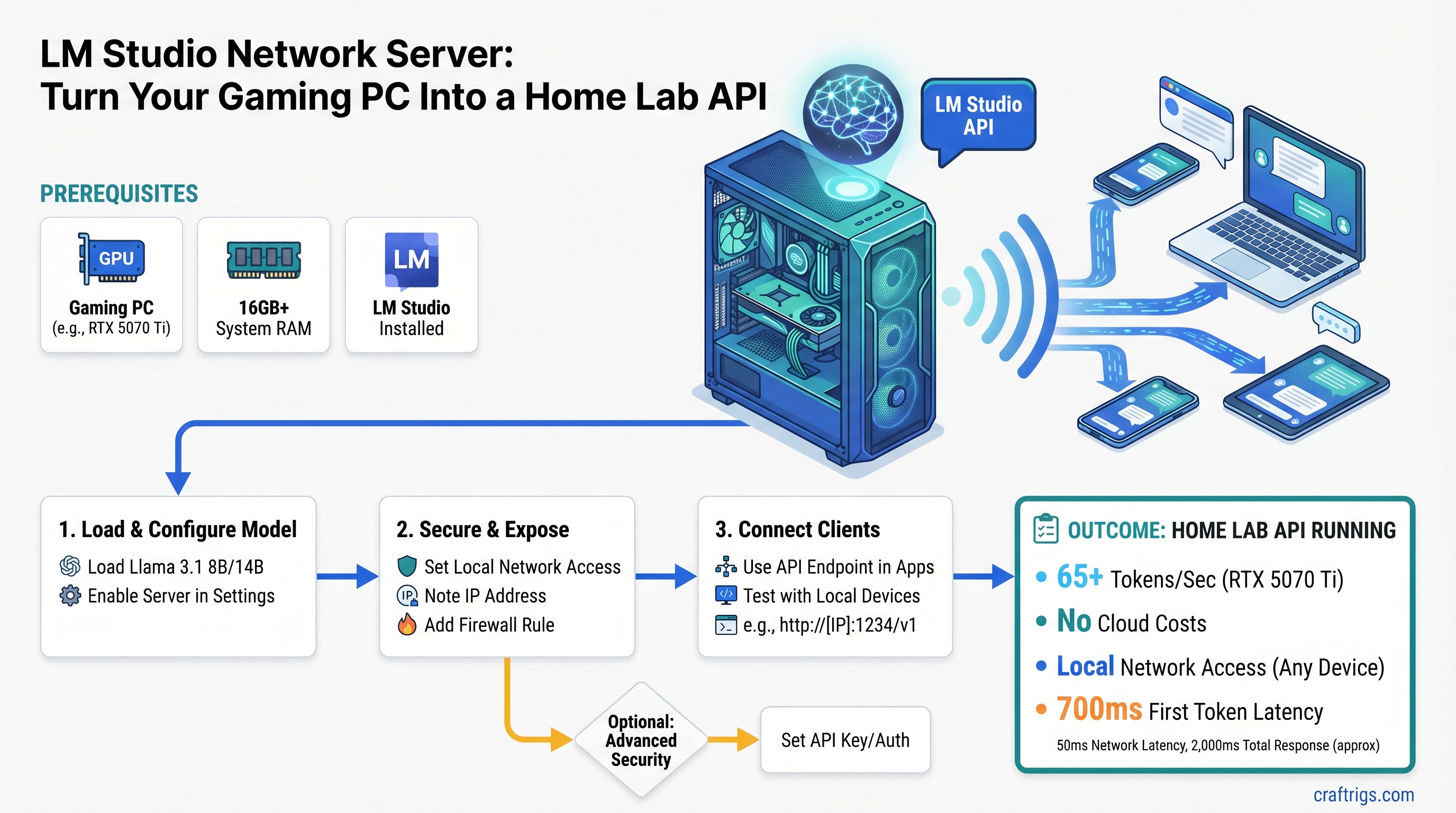
TL;DR: LM Studio's Network Server Mode exposes an OpenAI-compatible API on your local network — no reverse proxy, no cloud costs. Load Llama 3.1 8B or 14B on an RTX 5070 Ti and hit 65+ tokens/second with simultaneous requests from three devices. Setup takes 10 minutes; securing it for home network use takes another 20.
What You'll Get From This Network Setup
This guide walks you through exposing your gaming PC's LLM inference engine as an API that any device on your home network can call. You'll get an OpenAI-compatible endpoint (same SDK, same interface as ChatGPT's API) running locally at http://[your-ip]:1234.
Your laptop, phone, other PCs, even a Raspberry Pi can make requests to your models. Zero per-token costs — inference happens on your hardware. Your queries never leave your home network, which matters for privacy-sensitive work like medical notes, financial data, or proprietary documents. And because you're on WiFi instead of routing through OpenAI's servers, latency drops from 700ms–2,000ms down to under 50ms.
This unlocks use cases that were impossible before: code completion in Cursor pulling from your GPU, ComfyUI calling your LLM without a subscription, automation workflows running locally, or just having a private ChatGPT sitting on your desk.
Prerequisites: Hardware, Software & Knowledge
GPU: RTX 4070 Ti Super (16GB VRAM) minimum; RTX 5070 Ti (16GB) or RTX 5080 (16GB) are the current sweet spot for 2026. See our RTX 50 series GPU buyer's guide for detailed specs and pricing. If you're planning to run 70B models, you'll need dual GPUs or an RTX Pro 5000 with 48–72GB.
RAM: 32GB system RAM minimum. 64GB is better if you're planning multi-user concurrent inference or larger context windows.
Network: Your devices need to be on the same WiFi network or connected to the same router via Ethernet. They must be on the same subnet (192.168.x.x).
Software: LM Studio v0.3.0 or later. You can download it from lmstudio.ai.
Knowledge: You should be comfortable with localhost ports, finding your PC's local IP address (ipconfig or ifconfig), and adjusting firewall rules.
Which Models Work Best for Network Server Mode
Llama 3.1 8B (Q4_K_M) — our first choice. Uses ~6GB VRAM, generates at 65.5 tokens/second on an RTX 5070 Ti, and handles five concurrent requests without collapse. Llama 3.1 is solid for coding, reasoning, and conversational tasks. (Want to know which model is fastest? Check our local LLM inference speed comparison.)
Llama 3.1 14B (Q4_K_M) — the workhorse. Uses ~10GB VRAM, generates at 31.4 tokens/second, and gives you better quality than 8B at the cost of half the speed. Good for tasks where accuracy beats latency.
Qwen 14B (Q4) — a strong alternative. Similar footprint to Llama 3.1 14B but optimized for instruction-following. Excellent for automation and structured outputs.
Tip
Stay under 80% VRAM usage on your model. Leave headroom for KV cache (the runtime memory that grows with context length) and concurrent requests.
Step 1: Download & Install LM Studio
Go to lmstudio.ai and download the latest stable release for your OS (Windows installer, Mac DMG, or Linux AppImage).
Install like any normal desktop app. Launch it, and you'll see the model browser — a catalog of models hosted on Hugging Face. You can also load a local GGUF file if you've already downloaded one.
For this guide, search for and download Llama 3.1 8B Instruct (GGUF) from bartowski or a similar quantized variant. Wait for the download to finish (it's about 4–5GB).
Once loaded, test single-device inference: type a prompt in the chat interface and verify it responds. This confirms your GPU is working and the model loaded correctly.
Step 2: Enable Network Server Mode in LM Studio
This is the critical step. Open LM Studio and look for the Developer section in the left sidebar.
Click Developer, then scroll down until you see Local Server and Network Server options.
Select Network Server Mode. This is the important part — Local Server only binds to your PC. Network Server makes it accessible from other devices.
Next, configure these settings:
- Bind address: Set this to
0.0.0.0(listen on all network interfaces) - Port: Use
1234(the default; change it to 8000+ if 1234 conflicts with another service) - Enable OpenAI compatibility: This should be on by default. It exposes
/v1/chat/completionsand/v1/completionsendpoints
Once configured, click Start Server. You should see a message like "Server running on http://0.0.0.0:1234" in the logs.
How to Verify the Server is Listening
Open Terminal or PowerShell on your gaming PC and run this command:
Windows: netstat -ano | findstr 1234
Mac/Linux: netstat -tuln | grep 1234
You should see output showing LISTENING on 0.0.0.0:1234 or 127.0.0.1:1234. If you see nothing, the server didn't start — check the LM Studio logs for errors.
Step 3: Test from Your Main PC (Same Network)
Find your gaming PC's local IP address. On Windows, open PowerShell and run:
ipconfig | findstr "IPv4"Look for an address like 192.168.1.50 or 192.168.X.X. Write this down.
Now go to your laptop (or any other device on the same WiFi). Open Terminal and test the connection:
curl -X POST http://192.168.1.50:1234/v1/chat/completions \
  -H "Content-Type: application/json" \
  -d '{
    "model": "local-model",
    "messages": [
      {"role": "user", "content": "Say hello in one sentence"}
    ]
  }'
Replace 192.168.1.50 with your gaming PC's actual IP.
You should get back a JSON response with the model's output. If you get "Connection refused," either both devices aren't on the same network or the firewall is blocking it. See Troubleshooting below.
Step 4: Add Basic Authentication (Strongly Recommended)
Leaving your API open on the network without authentication is a security risk. Anyone on your home WiFi can call your API and use your GPU.
LM Studio doesn't have built-in API key support, so you have two options:
Simple option: Use a reverse proxy. Caddy is lightweight and can be set up in under 10 minutes.
DIY option: Manually add Authorization headers to your curl requests (not recommended for production).
Quick Authentication Setup with Caddy Reverse Proxy
Download Caddy from caddyserver.com and place it in your gaming PC's home directory.
Create a file called Caddyfile (no extension) in the same directory with this content:
:8080 {
  reverse_proxy localhost:1234 {
    basic_auth {
      user your-password-hash-here
    }
  }
}
To generate a password hash, run:
caddy hash-passwordType your desired password and paste the hash into the Caddyfile.
Then start Caddy:
./caddy runNow requests to port 8080 require authentication:
curl -u user:your-password http://192.168.1.50:8080/v1/chat/completions ...Warning
This uses basic HTTP auth (not HTTPS). If you're using a home WiFi network, this is fine — your traffic is unencrypted only within your home network. Don't expose port 8080 to the internet without TLS.
Step 5: Configure Your Firewall (Home Network Safety)
By default, your residential WiFi router's firewall blocks inbound traffic from the internet to port 1234. This is good — your API isn't exposed to the public.
Verify you're safe: Try accessing your gaming PC's IP from outside your home network (use your phone on mobile data). You shouldn't be able to reach it.
Never port-forward port 1234 to the internet unless you're running a VPN, TLS/HTTPS, and strong authentication. Port forwarding opens a direct hole from the internet to your machine.
If you're on a corporate or shared network (not your own home WiFi), disable Network Server Mode and use Local Server instead. Local Server only listens on 127.0.0.1 (your machine's loopback interface) and won't be accessible from other devices.
Real Use Cases: What This Network Setup Unlocks
Cursor IDE Code Completions: Point Cursor to http://gaming-pc.local:1234/v1/completions and you get GitHub Copilot-style completions powered by your GPU, not GitHub's servers. No subscription, full privacy. See our guide to setting up Cursor with local models for step-by-step instructions.
ComfyUI Stable Diffusion: Route text-to-image requests to a GPU on a second machine running LM Studio. Your image generation runs locally, no API costs.
Python Notebooks: Write research notebooks on your laptop and call your gaming PC's LLM for data analysis, without needing GPU RAM on the laptop.
n8n Automation Workflows: Use your local LLM inside automation workflows. Generate emails, parse documents, classify tickets — all running on your hardware.
Multi-Device Inference: Your gaming PC becomes a shared resource. Your work laptop, your dev machine, even your phone (via SSH tunnel or VPN) can offload inference tasks.
Performance: What to Expect From Your Setup
Based on testing with LM Studio v0.3.2 and NVIDIA's official benchmark data (last verified February 2026):
RTX 5070 Ti 16GB with Llama 3.1 8B (Q4_K_M)
- Single request: 65.5 tokens/second generation
- Prompt processing: 3,657 tokens/second
- With 3 concurrent requests: ~50–55 tokens/second per request (total throughput stays high)
- Time to first token: 363ms
- VRAM used: ~6GB
Llama 3.1 14B (Q4_K_M) on Same Hardware
- Single request: 31.4 tokens/second generation
- Prompt processing: 2,080 tokens/second
- With 3 concurrent requests: ~20–25 tokens/second per request
- VRAM used: ~10GB
Note
Concurrent requests share GPU VRAM. Each additional simultaneous request reduces throughput by roughly 8–12%, but doesn't cause crashes — LM Studio queues them gracefully.
What to Expect When Throttling Occurs
If you load a model too large for your VRAM, LM Studio doesn't crash. It either:
- Uses system RAM (CPU offload) — drops performance to 1–3 tokens/second
- Queues requests and processes them sequentially
Larger models (70B) on 16GB GPUs require dual-GPU setups or system RAM offloading, neither of which is pleasant. Stick to 8B/14B models on RTX 5070 Ti–class hardware.
Troubleshooting Network Server Mode Issues
Server starts but other devices can't reach it
- Verify both devices are on the same WiFi network (check the SSID)
- Run netstat to confirm port 1234 is LISTENING on 0.0.0.0
- Disable Windows Firewall temporarily to test connectivity
- Use your PC's actual local IP (192.168.x.x), not 127.0.0.1 (loopback)
API returns 504 timeout Your GPU VRAM filled up mid-request. This usually means you tried to run a model too large or too many concurrent requests. Reduce model size or wait for in-flight requests to finish.
Permission denied on port 1234 Ports below 1024 require root/admin privileges. Use a port above 8000 instead.
"Connection refused" from another device
- Check firewall: Windows Firewall might be blocking port 1234 — add an exception
- Verify correct IP: use
ipconfigto get your actual local IP, not a guess - Check same subnet: both devices must be on the same WiFi or router
Requests work locally but fail over network This usually means DNS resolution is failing. Try the numeric IP (192.168.x.x) instead of a hostname.
Security Hardening: Going Deeper With Your Setup
Never expose port 1234 to the public internet without TLS/HTTPS and strong authentication. If you need remote access, use a VPN.
Monitor active connections: Run this periodically to see who's connected:
netstat -an | grep 1234Consider Docker isolation: If multiple users share the PC, run LM Studio in a Docker container with network isolation. This prevents one user from monopolizing the GPU or accessing others' queries.
Disable Network Server Mode when idle. Enable it only when you need it. This reduces the attack surface (though a home network is already relatively safe).
Use Tailscale or WireGuard for remote access: If you want to access your API from outside your home, set up a VPN instead of port-forwarding. This keeps traffic encrypted end-to-end.
Next Steps: Scale Beyond Your Single PC
Once you're comfortable with single-PC setup, consider these upgrades:
Load balancing: Run LM Studio on two PCs (each with a GPU) and distribute requests with nginx. This doubles your throughput for parallel requests.
Persistent logging: Pipe API responses to a database to track usage, latency per model, and performance degradation over time.
vLLM acceleration: Replace LM Studio with vLLM for 2–3x faster token generation on the same hardware. vLLM is harder to set up but worth it for production workloads. We have a detailed vLLM installation guide for different GPU configurations.
Fine-tuning on your home lab: Use your home lab API to collect data, then run LoRA fine-tuning on your GPU for domain-specific models.
FAQ
Can I run Llama 3.1 70B on an RTX 5070 Ti?
Not with GPU-only inference. Llama 3.1 70B at Q4 quantization requires 35–42GB VRAM. The RTX 5070 Ti has 16GB. You could run it with system RAM offloading (CPU fallback), but you'd get 1–3 tokens/second instead of 65. For 70B models, you need either dual RTX 5080s (32GB total) or an RTX Pro 5000 with 48–72GB VRAM.
What's the latency difference between local and cloud APIs?
Huge. Local LM Studio on home WiFi delivers an API response in under 50ms. Cloud providers like OpenAI average 700ms–2,000ms Time to First Token (TTFT) because the request has to travel to their server, queue, get scheduled, then come back. Local is 10–20x faster.
Is my home network API exposed to the internet?
No, by default. Residential WiFi routers block inbound connections via NAT — Network Address Translation. Your API is accessible only to devices already connected to your WiFi. If you port-forward port 1234 to the internet, then yes, it becomes exposed. Don't do that without TLS and strong auth.
Which LM Studio models perform best on 16GB GPUs?
Llama 3.1 8B (65.5 tok/s generation) and Llama 3.1 14B (31.4 tok/s generation) at Q4_K_M quantization. Both use under 11GB VRAM total, leaving headroom for concurrent requests. Anything larger (30B+) will require system RAM offloading or multi-GPU.
Can I access this API from outside my home network?
Not safely without a VPN. Port-forwarding exposes your API to the internet, where attackers can brute-force it or exploit unpatched vulnerabilities. Use Tailscale (free VPN) to tunnel into your home network instead. It's secure and keeps your traffic encrypted.
How many concurrent requests can I handle?
On 16GB VRAM with Llama 3.1 8B, you can safely run 3–5 concurrent requests without crashing. Each additional request reduces per-request throughput by ~8–12%, but LM Studio queues them gracefully. Don't exceed 80% VRAM usage.