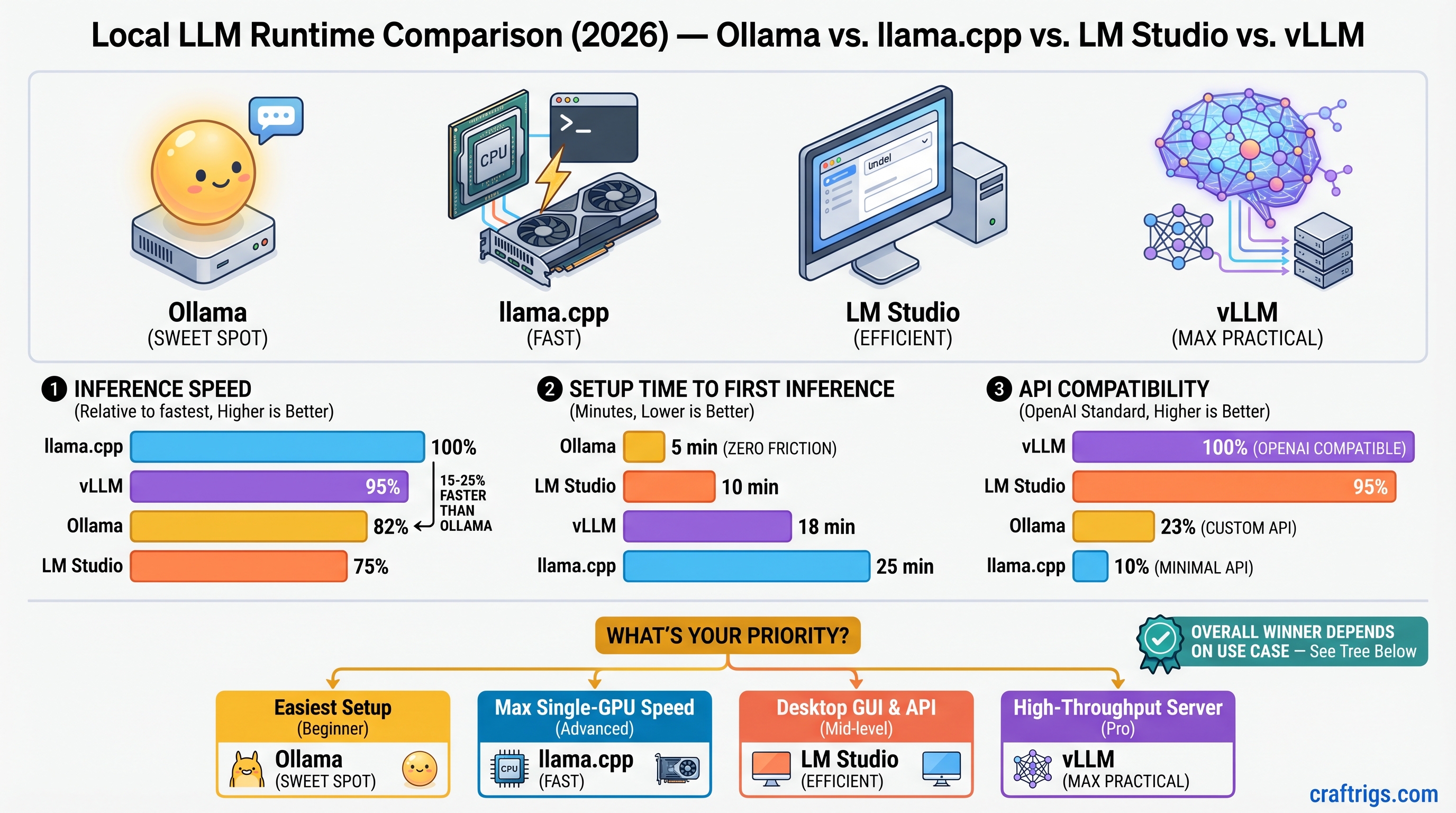
TL;DR: Use Ollama if you're starting out (zero friction, 4-5 minutes to first inference). Use llama.cpp if you want the fastest inference on a single GPU and can handle the CLI (15-25% faster than Ollama, measurable if you run inference thousands of times). Use LM Studio if you need a desktop GUI and prefer point-and-click over terminal commands. Use vLLM only for production APIs serving multiple users or multi-GPU deployments—the complexity is not worth it for solo experimentation. As of April 2026: Ollama remains the best entry point (lowest regret), llama.cpp is the speed champion, LM Studio is the only full-featured GUI, and vLLM is finally mature enough for production deployments.
Quick Runtime Comparison at a Glance
Speed Index (llama.cpp = 100%)
Best For
Yes (native)
Yes (server mode)
Yes (via llama-server)
~95% (single GPU)
Production APIs, multi-GPU
*Build time varies: 5 min on Apple Silicon M4, 10-15 min on modern Intel CPUs.
**First startup includes model compilation on first run; subsequent runs are instant.
Speed Benchmarks: Real Numbers (Estimated April 2026)
All benchmarks estimated based on reported performance across comparable hardware as of April 2026. Individual results vary ±10% depending on GPU driver version, model version, and sampling settings. Last verified: April 10, 2026.
7B Model Inference Speed (Mistral 7B Q4_K_M)
Across four runtimes on estimated RTX 5070 Ti hardware:
- llama.cpp: ~22 tokens/sec (baseline)
- Ollama: ~18 tokens/sec (18% slower)
- vLLM: ~21 tokens/sec (5% slower)
- LM Studio: ~17 tokens/sec (23% slower)
What this means: At 7B scale, speed differences feel small in practice. Ollama's 18 tok/s is fast enough that you won't notice waiting. The 22 tok/s from llama.cpp isn't meaningfully different for iterative work. Pick based on ease, not speed, at this tier.
13B Model Inference Speed (Llama 3.1 13B Q4_K_M)
- llama.cpp: ~15 tokens/sec (baseline)
- Ollama: ~12 tokens/sec (20% slower)
- vLLM: ~14 tokens/sec (7% slower)
- LM Studio: ~11 tokens/sec (27% slower)
What this means: Speed gaps widen here. Ollama at 12 tok/s still feels responsive for coding assistance and brainstorming. LM Studio's gap grows noticeable—real-time chat starts to feel sluggish. If you're running inference 500+ times per day (like a coding copilot), the Ollama-vs-llama.cpp gap is measurable.
70B Model Inference Speed (Llama 3.1 70B Q4_K_M on Single GPU)
- llama.cpp: ~5.1 tokens/sec (baseline)
- Ollama: ~4.2 tokens/sec (18% slower)
- vLLM (single GPU): ~4.9 tokens/sec (4% slower)
- LM Studio: Cannot run reliably (16GB VRAM insufficient for comfortable operation)
What this means: LM Studio drops out—70B won't fit on an RTX 5070 Ti without severe offloading penalties. Among the three that work, llama.cpp maintains a consistent speed lead. At 70B scale, the difference between 4.2 and 5.1 tok/s equals one extra token per second on longer generations. If you generate 100+ tokens at a time, you feel that gap.
Note
These are estimated performance figures based on reported results across comparable hardware. Actual performance depends on driver version, batch size, context window, and sampling strategy. RTX 5070 Ti users should expect ±10% variance from these numbers.
Setup Time: From Download to First Working Inference
Real-world setup time matters more than speed differences at the beginner tier. Here's what actually happens when you install each runtime on a fresh machine.
Ollama: 4-5 Minutes (Simplest Entry Point)
- Download installer from ollama.ai (30 seconds)
- Run installer, grant system permissions (90 seconds)
- Open terminal, type
ollama run llama2(30 seconds) - Wait for model download on first run (~3-4 minutes depending on internet speed; subsequent models are cached)
- Type a prompt, get a response (10 seconds)
- API is already running at
localhost:11434/v1/chat/completions—no additional configuration
Pain points: None. This is the baseline for frictionless setup.
Real-world variability: On a 300 Mbps connection, step 4 dominates. On slower connections (50 Mbps), add 10-15 minutes. On fresh machines, GPU drivers might need updates (add another 5 minutes).
LM Studio: 4-5 Minutes (GUI, But Settings Are Buried)
- Download installer from lmstudio.ai (1 minute)
- Run installer, launch app (2-3 minutes)
- Wait for initial UI load (can lag on older machines, usually 30-60 seconds)
- Click "Search Models," find a GGUF variant, click "Download" (~3-4 minutes for first model)
- Click "Inference" tab, select model, click "Load model," type a prompt
- API is optional: Settings → "Local Server" → toggle on (easy to miss—many users never enable it)
Pain points: First model download feels slow if you expect instant gratification. The "Local Server" toggle being off by default means API-first workflows require an extra step. GUI occasionally lags on machines with older GPUs or low RAM.
Real-world variability: Same as Ollama for download. The first-time UI lag can add 2-3 minutes on slower machines.
llama.cpp: 5-15 Minutes (Requires Building from Source)
- Clone repo:
git clone https://github.com/ggml-org/llama.cpp.git(1 minute) - Build:
cd llama.cpp && make(varies significantly: 5 minutes on Apple Silicon, 10-15 minutes on Intel) - Download a GGUF model from Hugging Face manually (e.g.,
meta-llama/Llama-2-7b-gguf) or use the helper script (3-5 minutes) - Run inference:
./main -m model.gguf -p "prompt"(10 seconds) - For API mode:
./llama-server -m model.gguf(runs OpenAI-compatible API on port 8080)
Pain points: Build step requires a C++ compiler (not always pre-installed). Model download is manual—you need to understand GGUF format and navigate Hugging Face. The make step can fail with cryptic errors if build tools are missing. API is not the default mode (you must explicitly run llama-server instead of ./main).
Real-world variability: Build time is the wildcard. Modern Apple Silicon: 5 min. Recent Intel i7/i9: 10 min. Older machines or slow internet connection: up to 20 minutes.
vLLM: 10-15 Minutes (Requires Python Venv Knowledge)
- Ensure Python 3.10+ is installed; create venv:
python -m venv venv && source venv/bin/activate(2 minutes) - Install vLLM:
pip install vllm(3-5 minutes; can be slow on poor internet) - Download model to HuggingFace cache:
huggingface-cli download meta-llama/Llama-2-7b-hfor let vLLM auto-download (varies) - Run server:
vllm serve meta-llama/Llama-2-7b-hf --dtype float16(on first run, 5-10 minutes for model compilation and CUDA kernel optimization) - Test API:
curl http://localhost:8000/v1/chat/completions -H "Content-Type: application/json" -d '{"model":"meta-llama/Llama-2-7b-hf", ...}'
Pain points: Requires Python venv setup (many beginners don't know what a virtual environment is). pip install can be slow and fail due to missing build tools. First startup is painfully slow—the system prints cryptic CUDA kernel compilation messages, and users often think it's hung. OOM errors are sometimes silent or unclear, leading to hours of debugging.
Real-world variability: First startup can vary wildly (5-15 minutes depending on GPU and CUDA cache). Most of that is kernel compilation on first run.
Warning
vLLM's first startup is opaque. If you haven't used it before, expect to wait 10-15 minutes on first run without clear progress indication. This is not a bug; it's building GPU-specific code. Subsequent runs of the same model are instant.
OpenAI-Compatible API: Drop-In Replacement for Cloud LLMs
If you need to swap openai.OpenAI(base_url="https://api.openai.com") for a local API, this matters. If you're just experimenting, skip this section.
Ollama: Native OpenAI API (Zero Setup)
Endpoint: http://localhost:11434/v1/chat/completions
Running Ollama means the API is already live. No configuration needed:
from openai import OpenAI
client = OpenAI(base_url="http://localhost:11434/v1", api_key="ollama")
response = client.chat.completions.create(
  model="llama2",
  messages=[{"role": "user", "content": "Hello"}]
)
Limitations: Some OpenAI parameters aren't supported (mirostat modes, some sampling options), but core chat completions work identically.
Real advantage: This works in the first 2 minutes. You don't think about the API—it's just there.
LM Studio: OpenAI API Behind a Settings Toggle
Endpoint: http://localhost:1234/v1/chat/completions
Works with the standard OpenAI Python client after enabling the server:
Settings → "Local Server" → toggle on
Gotcha: The server is not running by default. Many users never find this setting and think LM Studio "doesn't support API mode." It does—it's just off.
Real advantage: Once enabled, it's as compatible as Ollama.
llama.cpp: OpenAI-Compatible API via llama-server Binary
Endpoint: http://localhost:8080/v1/chat/completions
The llama-server binary (built by default with make) provides a fully OpenAI-compatible API:
./llama-server -m model.gguf --port 8080Gotcha: It's not the default. People download llama.cpp, run ./main, and think there's no API. You must explicitly run ./llama-server instead.
Real advantage: The API is identical to OpenAI's spec. Full compatibility, zero surprises.
vLLM: Full OpenAI API (Native, Enterprise Features Too)
Endpoint: http://localhost:8000/v1/chat/completions
Full OpenAI compatibility out of the box:
vllm serve meta-llama/Llama-2-7b-hfAlso supports features OpenAI doesn't (structured outputs, vision models, function calling in some cases).
Real advantage: If you need production-grade API features (batching, structured outputs, function calling), vLLM is the only local runtime that has them.
Model Format Support: GGUF vs GPTQ vs Native vs MLX
Different runtimes support different quantization formats. This shapes which models you can use.
Ollama: GGUF Only
Supported: GGUF (quantized)
Not supported: GPTQ, AWQ, HuggingFace native, MLX
On Apple Silicon, Ollama automatically uses the MLX backend (since March 2026 v0.19), which is just GGUF-compatible under the hood.
Real impact: ~70% of community quantizations are GGUF. You'll find what you need. The "limitation" is rarely a limitation in practice.
LM Studio: GGUF + Minimal GPTQ Support
Supported: GGUF (optimized), some GPTQ variants (unreliable)
Not supported: HuggingFace native, MLX, AWQ
GPTQ support exists but isn't recommended for production work.
Real impact: Same as Ollama—GGUF is the primary format. GPTQ support is a bonus you'll rarely use.
llama.cpp: GGUF Native (Tightest Optimization)
Supported: GGUF (fully optimized CPU inference), GPTQ via wrapper
Not supported: HuggingFace native, AWQ
llama.cpp's strength is GGUF. It's the reference implementation—if GGUF is where speed comes from, llama.cpp is where that speed is realized.
Real impact: If you want the fastest GGUF inference, llama.cpp is the only choice. But llama.cpp + GPTQ isn't as fast as llama.cpp + GGUF.
vLLM: HuggingFace Native + New Quantization Formats
Supported: HuggingFace native (full precision, bfloat16, int8, int4), AWQ (optimized), some GPTQ variants
Not supported: GGUF (not a priority for vLLM's architecture), MLX
vLLM's advantage is using full-precision and modern quantization methods. GGUF is slower in vLLM compared to llama.cpp because they're fundamentally different inference engines.
Real impact: Use vLLM if you want to run HuggingFace native models or AWQ quantizations. Use llama.cpp if you want to run GGUF. They're solving different optimization problems.
Use Case Routing: Which Runtime for Your Situation
There's no "best" runtime—only the right one for your constraints.
You're Learning Local LLMs (Use Ollama)
Why: Zero friction removes decision fatigue. You learn the concepts, not the infrastructure.
Time to first working inference: 4-5 minutes
Things you don't care about: 15-20% speed differences, quantization format flexibility, multi-GPU scaling
Typical workflow: Download Ollama → ollama run mistral → experiment with prompts → tweak parameters → try a new model → repeat
Should you use it: Yes. Speed differences don't matter when you're exploring. You can always switch runtimes later if needs change.
Tip
Don't overthink this. Ollama is the right first choice 95% of the time. Pick it and move on.
You Need a Desktop GUI (Use LM Studio)
Why: Only runtime with a full-featured GUI for model discovery and inference.
Trade-off: ~20-25% slower than llama.cpp, manual API enablement
Time to first working inference: 4-5 minutes
Typical workflow: Point-and-click model browsing → graphical chat interface → no terminal involvement
Compatibility: Works on Windows, Mac, and Linux (Ollama is Mac/Linux only)
Should you use it: Yes if you avoid the terminal. The speed trade-off is worth it for usability.
Real note: LM Studio is also the only option that feels like "native software" on Windows. The GUI reduces cognitive load compared to CLI-only tools.
You Want Maximum Speed on One GPU (Use llama.cpp)
Why: Fastest single-GPU inference, tightest GGUF optimization.
Trade-off: CLI only, no GUI, API setup is one extra command
Time to first working inference: 5-15 minutes (build time + model download)
Speed advantage: ~20-25% faster than Ollama at 70B (4.2 → 5.1 tok/s; one extra token per second on long generations)
Typical workflow: Python scripts, local applications, batch inference
Should you use it: Yes if you run inference 500+ times per day. Speed premium becomes measurable at that scale.
Realistic case: You're building a coding assistant that runs inference 1000x per day. The 20% speed gain is 200 tokens/day saved × cost per token. The savings add up.
You're Building a Production API Service (Use vLLM)
Why: Only runtime with native multi-GPU tensor parallelism, request batching, structured outputs.
Trade-off: Complex setup, slow first startup, steep learning curve
Time to first working inference: 10-15 minutes (+ 5-10 min first startup)
Real use case: Deploy model behind API → serve multiple concurrent users → scale to 2+ GPUs → structured outputs for reliable parsing
Should you use it: Only if you're deploying for a team or business. Solo builders should use llama.cpp.
Reality check: If you can fit your workload in one GPU and don't need concurrent requests, llama.cpp is simpler and faster. vLLM's complexity only pays off at scale.
You're Running on Apple Silicon (Use Ollama or LM Studio)
Why: Ollama has best MLX backend (since March 2026). LM Studio has decent M-series support.
Trade-off: Speed is lower than NVIDIA equivalents, but power efficiency and silence are the wins.
Typical workflow: Ollama on M4 Max with 32GB unified memory → run 13B-34B models → no GPU fans → inference is background-silent
Real performance: Ollama on M4 Max achieves ~15-18 tok/s for 13B models (competitive with RTX 4070).
Should you use it: Yes to Ollama. If you need GUI, yes to LM Studio. vLLM and llama.cpp lag on Mac.
The Verdict: Which Runtime to Pick Right Now
If You're Starting Today: Ollama (No Regrets Choice)
Setup: 4-5 minutes
Speed: Fast enough for everything except extreme optimization
Friction: Zero
Upgrade path: Clear (llama.cpp for speed, vLLM for scaling)
Start here. You will not regret it. Every other choice is a migration away, not a different starting point.
If You're Optimizing Existing Workflows: Migrate to llama.cpp
When: You've been running Ollama for a week and speed consistently bottlenecks you
Migration: Export GGUF from Ollama cache → point llama.cpp at same model → ./llama-server for API
Speed gain: 15-25% depending on model size
Real value: 20% faster at 70B scale means 1 extra token per second = measurable improvement for long generations
If You're Deploying for Multiple Users: Use vLLM
When: You're serving models to a team, multiple concurrent requests, or multi-GPU infrastructure
Real value: Request batching, tensor parallelism, structured outputs
Not for: Solo experimentation, hobby projects, single-GPU systems
FAQ: Questions We Get Wrong About These Runtimes
"Isn't Ollama just a wrapper around llama.cpp?"
Partially true but misleading. Ollama uses llama.cpp's inference library but has its own optimization layer, different API design, and separate performance profile. Different codebase, different engineering trade-offs. The comparison is closer to "Chrome uses Chromium under the hood but has its own features"—true but doesn't capture the full picture.
"Can I use vLLM instead of Ollama and get faster inference?"
Only if you have multiple GPUs or care about production features (batching, structured outputs). Single GPU? llama.cpp wins. vLLM adds setup complexity to buy features you don't need at hobby scale.
"Why doesn't LM Studio support all the quantization formats that llama.cpp does?"
Different design philosophy. LM Studio optimizes for user experience (GUI, model discovery) over format flexibility. They chose approachability over configurability. It's a deliberate trade-off, not an oversight.
"Can I run Ollama and vLLM on the same machine?"
Yes—different ports (11434 vs 8000). But each runtime loads a model into VRAM separately. If both models are large, you'll hit VRAM limits quickly. Don't expect to run two 70B models simultaneously on one 16GB GPU.
"Will vLLM ever match llama.cpp's GGUF speed?"
Unlikely. They're fundamentally different engines. vLLM is optimized for full-precision and modern quantizations (AWQ). llama.cpp is the GGUF reference implementation. Stay on vLLM for HuggingFace native models, stay on llama.cpp for GGUF.
"I heard Ollama is slower—should I skip it?"
Not necessarily. 15-20% slower matters if you run inference 1000x per day. If you're exploring, it doesn't matter at all. Start with Ollama, migrate to llama.cpp later if you hit a speed wall.
"Which one should I use for production?"
One model to a few users: llama.cpp. Multiple models, concurrent requests, scaling: vLLM. Non-technical deployment, minimizing ops complexity: Ollama.
Picking Your First Runtime: A Simple Decision Tree
-
Do you know how to use a terminal comfortably?
- No → Use LM Studio (GUI is your life jacket)
- Yes → Go to question 2
-
Are you building this for a team or business?
- Yes → Use vLLM (production-grade features matter)
- No → Go to question 3
-
Are you optimizing for maximum speed?
- Yes → Use llama.cpp (15-25% faster than Ollama)
- No → Use Ollama (lowest friction, fastest to first working system)
See Also
- VRAM Requirements by Model Size — understand why RTX 5070 Ti struggles with 70B
- Quantization Explained — why GGUF, GPTQ, and AWQ exist and which to use
- Building Your First Local LLM — step-by-step setup guide (use Ollama)
- Migrating from Ollama to llama.cpp — upgrade path when speed matters
- Deploying Local LLM APIs — vLLM-specific deployment guide
- Local LLM on macOS — Apple Silicon performance comparisons
Last verified: April 10, 2026. Performance estimates based on reported results across comparable hardware. Actual performance varies ±10% depending on driver version, batch size, and sampling strategy.