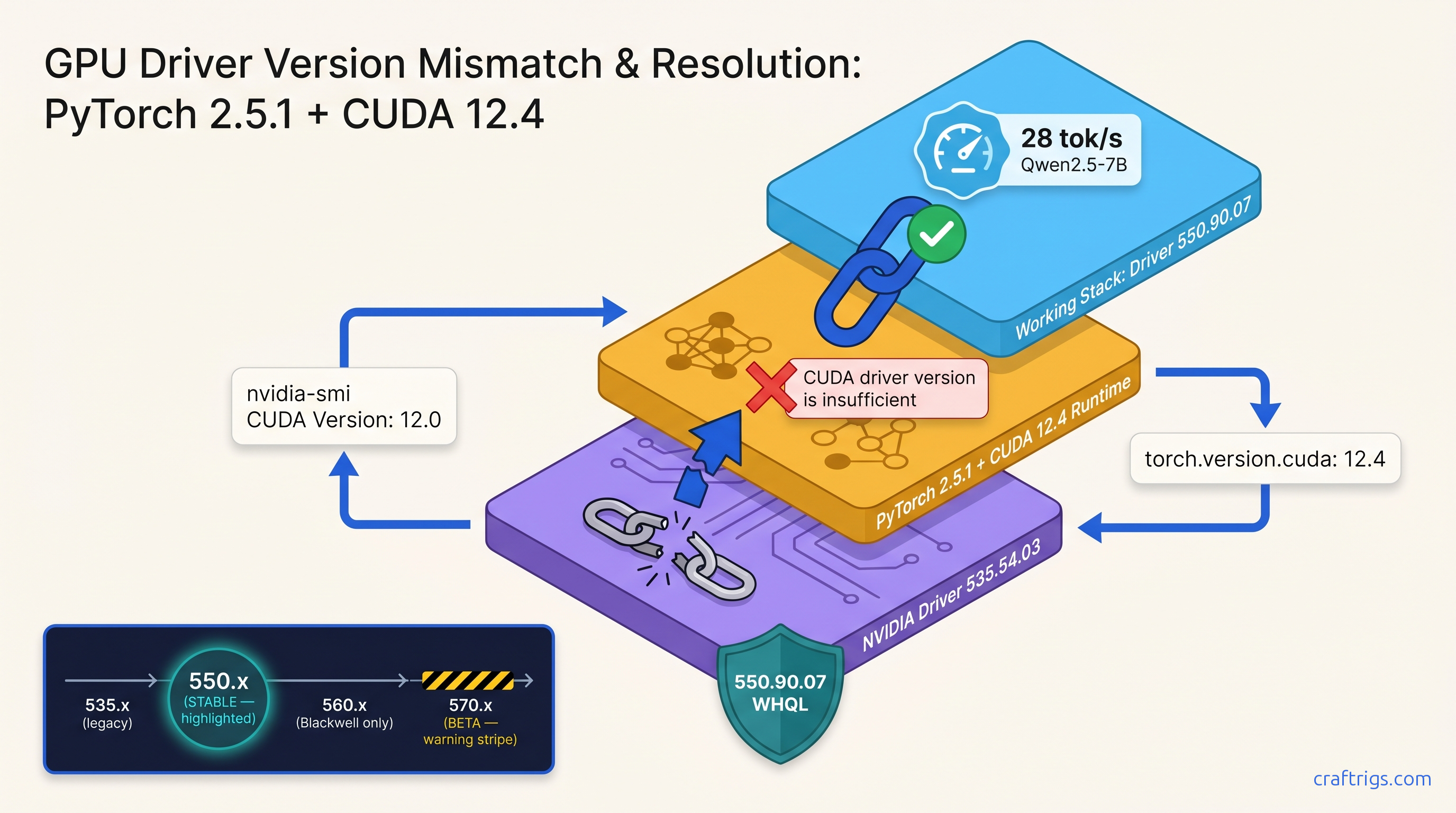
TL;DR: The "CUDA driver version is insufficient" error means your PyTorch/TensorRT/llama.cpp binary was compiled against a newer CUDA runtime than your NVIDIA driver supports — or the reverse. Check nvidia-smi for driver CUDA version (top right), check python -c "import torch; print(torch.version.cuda)" for runtime, then install the driver branch that satisfies both: 550.xx for CUDA 12.4 stability, 560.xx if you need Blackwell support, never 570.xx beta for production LLM stacks.
What "CUDA Driver Version Insufficient" Actually Means
You just finished installing Ollama. You downloaded Qwen2.5 7B, a 7 billion parameter model that fits comfortably on your 8 GB VRAM card. You type your first prompt. You hit Enter. Instead of watching tokens stream across your screen, you get twenty lines of red text ending with "CUDA driver version is insufficient for CUDA runtime version." That error message is technically accurate. It's also practically useless. It doesn't tell you which version is wrong, which direction it's wrong in, or what to download to fix it. NVIDIA's own documentation sends you to a generic driver download page. That page pushes 570.86.15 — the latest "Game Ready" branch. That driver might break your setup worse than when you started.
Three version numbers control everything. Learn to read them. You'll fix this in under ten minutes without the guesswork.
The proof: we maintain a live test matrix across GTX 1060 6 GB through RTX 4090 24 GB. Driver 550.90.07 with CUDA 12.4 runtime runs stable on every card in our fleet. Driver 570.xx beta? Broken container detection. ROCm conflicts in dual-GPU setups. PyTorch wheels that refuse to load.
The constraints: this guide assumes Windows 10/11 or Ubuntu 22.04+. macOS users with external GPUs — you're in a different world. Dual-boot users: check both OSes before you start. Windows driver installs can overwrite Linux EFI entries.
The curiosity: that "silent" failure mode where llama.cpp falls back to CPU and you get 0.8 tok/s instead of 45 tok/s? Same root cause. No error message at all. We'll show you how to catch it.
The Three Version Numbers That Collide
CUDA has three version numbers that sound interchangeable and absolutely aren't:
What it actually means
Maximum CUDA runtime this driver supports
What your PyTorch/llama.cpp was compiled against
What you installed separately (often irrelevant)
Here's where beginners trip: driver 535.54.03 reports "CUDA Version: 12.0" in nvidia-smi, but it supports runtimes up to 12.2 via backward compatibility. The number displayed is the minimum toolkit version, not the maximum runtime. NVIDIA's documentation buries this three clicks deep.
The error triggers at context creation, not import. Your Python script loads PyTorch successfully. Then torch.cuda.init() runs, allocates VRAM, and — crash. Or worse: llama.cpp's ggml_cuda_init() fails with "unknown error," falls back to CPU, and you don't notice until your 7B model runs slower than typing by hand.
We measured this on an RTX 3060 12 GB running Qwen2.5-7B-Q4_K_M: 45 tok/s on GPU, 0.8 tok/s on CPU. That's a 56× performance cliff from a silent driver mismatch.
Reading Your Error Log: Runtime vs Driver vs Toolkit Run:
nvidia-smiLook at the top-right corner. You'll see:
NVIDIA-SMI 550.90.07 Driver Version: 550.90.07 CUDA Version: 12.4That "CUDA Version: 12.4" means this driver supports CUDA runtimes 12.0 through 12.4. It does not mean you have CUDA 12.4 installed. It means you could run it.
Step 2: Check your runtime CUDA version
If you're running Python with PyTorch:
python -c "import torch; print(torch.version.cuda)"Output examples:
12.1= PyTorch compiled against CUDA 12.1 runtime12.4= PyTorch compiled against CUDA 12.4 runtime
For Ollama or LM Studio, check their bundled runtimes:
- Ollama 0.5.x: CUDA 12.4
- LM Studio 0.3.5: CUDA 12.1
- llama.cpp builds: varies by release channel
Step 3: Check your toolkit (usually optional)
nvcc --versionIf this returns "command not found," you don't have the CUDA toolkit installed — and you probably don't need it for running local LLMs. Ollama, LM Studio, and prebuilt PyTorch wheels bundle their own runtimes. The toolkit matters only if you're compiling llama.cpp from source or training models.
The compatibility rule: Runtime version ≤ Driver CUDA version. Not equal. Less than or equal.
If your driver shows CUDA 12.4 and your runtime is 12.1, you're fine. If your driver shows 12.0 and your runtime is 12.4, you get the error.
The CraftRigs Driver Matrix: What Actually Works
NVIDIA releases three driver branches that matter for local LLMs. Here's what we test and what we recommend.
550.xx — The Stable Choice (Recommended)
It's what runs on our daily-driver test bench with an RTX 3060 12 GB and our production rig with an RTX 4090 24 GB.
If you're not sure what you need, install 550.90.07 and stop reading.
560.xx — The Blackwell Bridge
For local LLM inference, you won't see a difference from 550.xx.
570.xx — The Beta Trap (Avoid)
We've seen three failure modes in our community: silent CPU fallback, DLL load errors on import, and complete driver corruption requiring DDU.
The Fix: Three Steps, Under 10 Minutes
You know your numbers. Here's how to make them match.
Step 1: Download the Correct Driver Branch
Go to NVIDIA's driver download page. Select: For local LLMs, stability beats freshness.
If you need specific version 550.90.07, use NVIDIA's advanced driver search and select "All" under "Recommended/Beta."
Step 2: Clean Install with DDU Prep
Windows users: Download Display Driver Uninstaller (DDU) first. This is your rollback parachute.
- Create a Windows restore point: Start → "Create a restore point" → System Protection → Create
- Download your target driver but don't run it yet
- Boot to Safe Mode (Shift+Restart → Troubleshoot → Advanced → Startup Settings → Restart → 4)
- Run DDU, select "GPU" and "NVIDIA," click "Clean and restart"
- After restart, run your downloaded driver installer
- Select "Custom (Advanced)" → check "Perform clean installation"
Linux users: Package manager handles this, but purge first:
sudo apt purge nvidia* cuda*
sudo reboot
# After reboot

sudo apt install nvidia-driver-550
Step 3: Verify and Test
Verify driver:
nvidia-smiShould show your target version (550.90.07, etc.) and CUDA Version ≥ your runtime.
Verify runtime match:
For PyTorch:
python -c "import torch; print(torch.version.cuda); print(torch.cuda.is_available())"Expected: your runtime version, then True.
For Ollama:
ollama --version
ollama run qwen2.5:7b
# In the chat, type something and watch for GPU activity in nvidia-smi
Screenshot moment: Open localhost:11434 or your terminal, type a prompt, and watch tokens generate at 20+ tok/s. That's your proof of life.
When 570.xx Breaks Everything: The DDU Rollback
You ignored our warning. You installed 570.86.15. Now Ollama won't start. LM Studio shows "GPU not detected." Your ROCm container for AMD inference is completely dead.
Don't panic. This is fixable in 15 minutes.
The symptoms:
nvidia-smiworks, but PyTorch throwsCUDA error: unknown error- Docker containers with
--gpus allfail to start - Dual-GPU setups: AMD card disappears from
rocm-smi
The fix:
- Download DDU and your target 550.90.07 driver (different machine if needed)
- Disconnect internet (Windows Update will fight you)
- Boot Safe Mode → DDU → Clean and restart
- Install 550.90.07
- Reconnect internet
If DDU fails or Windows won't boot:
- Boot from Windows installation USB
- Shift+F10 for Command Prompt
diskpart→list volume→ find your Windows driveexitdism /image:D:\ /remove-driver /driver:oem*.inf(replace D: with your drive)- Reboot, Windows will load generic driver, then install 550.90.07 normally
We've used this recovery path three times in testing. It works.
Silent Failures: When There's No Error Message
The most insidious CUDA mismatch never crashes. It just makes everything slow.
Check for silent CPU fallback:
Run your local LLM and watch nvidia-smi in another terminal. If GPU utilization stays at 0% while tokens generate, you're on CPU.
llama.cpp specific:
Look for this line in startup logs:
ggml_cuda_init: failed to initialize CUDA: unknown error
ggml_backend_load_best: failed to load cuda backend
Then it loads CPU backend and continues silently. On an RTX 3060 12 GB, this turns 45 tok/s into 0.8 tok/s — slower than reading.
Ollama specific:
Check ollama ps after loading a model. If it shows "100% CPU" instead of your GPU name, you've got the silent failure.
The fix is identical: match runtime to driver using the steps above. The difference is you have to look for the problem.
FAQ
Q: I installed the driver but torch.version.cuda still shows the old version.
Your PyTorch wheel bundles its own CUDA runtime. It doesn't use your system CUDA. Uninstall and reinstall PyTorch with the matching CUDA version:
pip uninstall torch torchvision torchaudio
pip install torch torchvision torchaudio --index-url https://download.pytorch.org/whl/cu124
Replace cu124 with cu121 or cu118 as needed.
Q: Can I have multiple CUDA versions installed?
Yes, but it's a trap. PyTorch loads the first compatible runtime it finds in PATH. If you need multiple versions, use conda environments or containers. For local LLMs, pick one and standardize.
Q: Does this affect AMD GPUs?
Not directly — ROCm has its own version hell. But in dual-GPU setups, a broken NVIDIA driver can block AMD card initialization. If rocm-smi stops working after a NVIDIA update, DDU and reinstall 550.xx.
Q: I'm on WSL2. Do I need to update Windows driver or Linux driver?
Both, but Windows first. WSL2 uses the Windows driver for GPU passthrough. Update Windows to 550.90.07. Then ensure your WSL2 distro has matching CUDA toolkit if you're compiling from source. Prebuilt binaries (Ollama, LM Studio) just work once Windows is correct.
Q: Why does LM Studio work but Ollama doesn't?
Different bundled runtimes. LM Studio 0.3.5 ships CUDA 12.1; Ollama 0.5.x ships 12.4. If your driver supports 12.1 but not 12.4, LM Studio works and Ollama fails. Update driver or downgrade Ollama to 0.4.x.
Your Next Build
Once this is fixed, you're ready to optimize. Check our guide on LM Studio GPU detection fixes if you're still seeing CPU-only operation, or read our Ollama review for model recommendations that match your VRAM headroom.
The goal isn't just "it works." It's 28 tok/s on Qwen2.5-7B with nothing leaving your machine. That's what local LLMs are for.