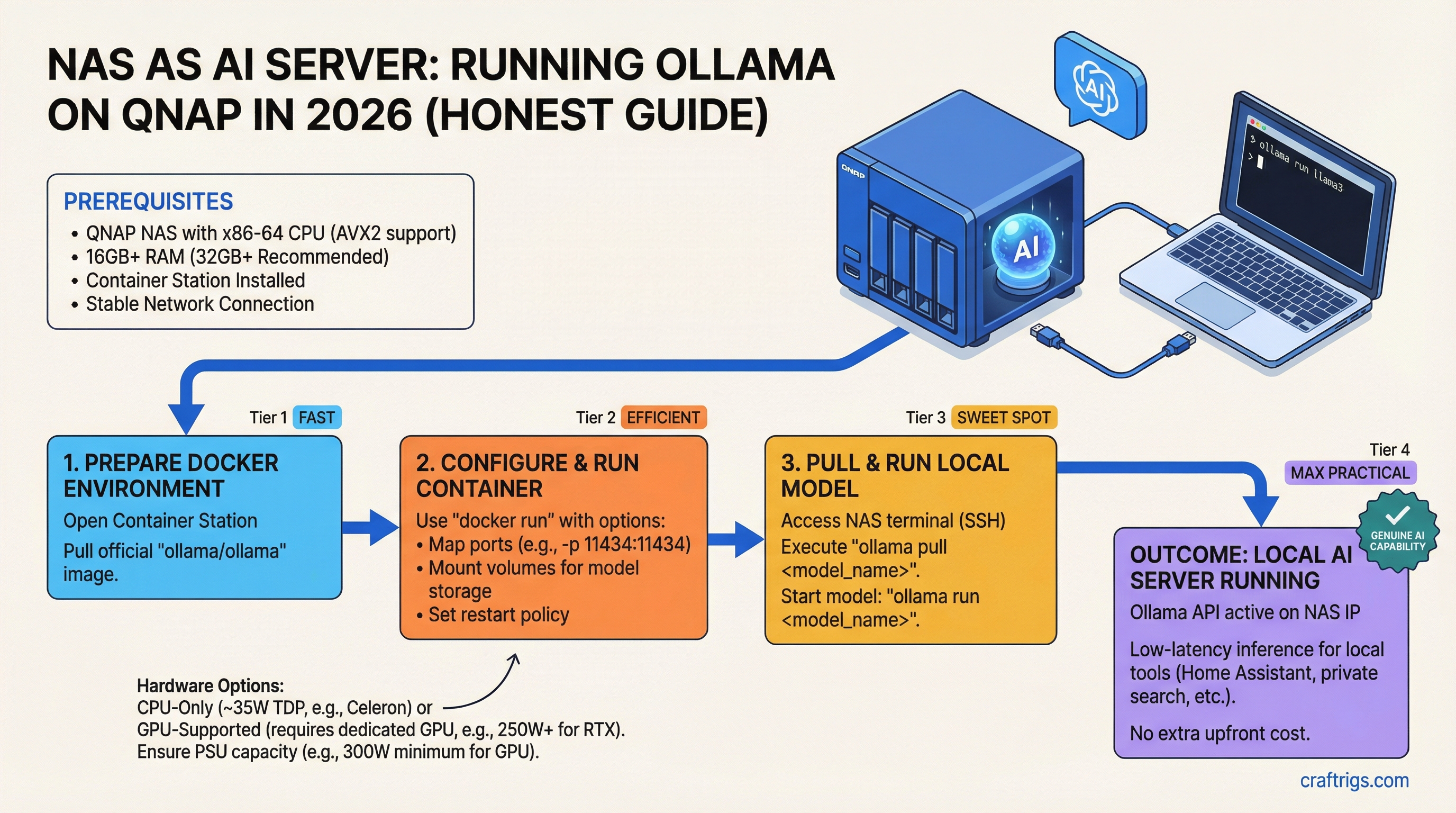
# NAS as AI Server: Running Ollama on QNAP in 2026

**Your QNAP NAS is already running 24/7. It already has a CPU, RAM, and an always-on network connection. Running Ollama on it costs nothing extra upfront and adds genuine AI capability — local document search, Home Assistant reasoning, private batch processing — without buying another machine. But there's a hard ceiling: Celeron-class CPUs with no [AVX2](/glossary/avx2) support will deliver 3–6 tokens/sec on 7B models. That's fine for overnight jobs and automation triggers. It's too slow for interactive chat. Know that going in.**

The good news: this guide uses real hardware specs, corrected against QNAP's actual spec sheets. Some popular guides reference QNAP models that don't exist or misidentify CPUs. We'll use what's actually shipping in 2026.

## Why Run Ollama on Your NAS Instead of a GPU Rig?

The argument for NAS inference isn't speed — it's amortization.

Your NAS is already absorbing a portion of your household or business electricity bill. It's already configured, already monitored, already trusted with your data. Adding Ollama means pulling a Docker container and opening one port. You're not buying new hardware, not managing a new machine, and not paying for compute time on a cloud API.

For a GPU rig doing the same job, you're looking at $1,500–$2,500 upfront plus the power bill. A GPU machine drawing 300W at $0.15/kWh runs about $390/year at 8 hours/day. Your NAS under Ollama inference load (see power numbers below) draws roughly 30–35W — closer to $40/year at the same rate.

That math only makes sense for workloads that don't need real-time speed. Overnight document indexing, smart home reasoning, and privacy-sensitive batch jobs are the right use cases. Real-time chat is not.

> [!NOTE]
> The one workflow that changes this calculus: if your QNAP NAS has a PCIe slot and you install a GPU, inference speed jumps to 40–70+ tokens/sec. The TS-264 and TS-464 both have a PCIe Gen3 x2 slot. That's a separate guide, but worth knowing it's an option.

## The Honest Trade-off: CPU Inference Speed vs. Cost

RTX 4070 Ti Gaming PC


$1,500–$2,500


~250W+


~$300–$400/yr


~120 t/s


~300+ t/s


70B+


Yes


Yes


Depends on setup
*Inference speed estimates based on comparable Intel N100 benchmarks (Intel's newer Alder Lake-N, similar class). The Celeron N5095 lacks AVX2 — expect 20–30% lower throughput than AVX2 CPUs at the same clock. No direct published benchmark exists for this exact hardware/Ollama combination as of March 2026.*

The 20–40x speed gap is real. Don't try to rationalize it away. But for scheduled batch jobs and automation backends where latency tolerance is 1–5 seconds, NAS inference is genuinely useful.

## Which QNAP Models Can Actually Run Ollama?

**Short version: x86 only, 8 GB RAM minimum, AVX2 helps a lot.**

The most important thing to verify before pulling the Ollama container is your CPU architecture. ARM-based QNAP models — the TS-431P (ARM Cortex-A15), TS-231, TS-128, and the TS-932PX (ARM Cortex-A57) — cannot run the standard x86_64 Ollama Docker image. Container Station will let you pull it. It will not run.

### Models That Work in 2026

**QNAP TS-264 (~$490–$570, as of March 2026)**
- CPU: Intel Celeron N5095, quad-core, 2.0 GHz base / 2.9 GHz burst
- RAM: **8 GB DDR4 — soldered, non-expandable.** This is the critical limitation.
- Storage: 2-bay SATA + 2x M.2 PCIe Gen3 slots
- PCIe: Gen3 x2 (GPU upgrade path exists)
- Verdict: Works for 3B models. 7B Q4 technically loads but you're right at the memory ceiling, leaving very little headroom for OS and Docker overhead.

**QNAP TS-464 (~$603, as of March 2026)**
- CPU: Intel Celeron N5105/N5095, quad-core — same die family as TS-264
- RAM: **8 GB DDR4, expandable to 16 GB.** This is why it's the better Ollama machine.
- Storage: 4-bay SATA + 2x M.2 PCIe Gen3 slots
- PCIe: Gen3 x2 (same GPU upgrade path)
- Verdict: Preferred for Ollama. Upgrade to 16 GB before deploying 7B models. The ~$33 premium over the TS-264 is trivial given the expandability.

**QNAP AMD Ryzen models (TS-473A, TS-873A)**
- CPU: AMD Ryzen V1500B or similar — these include AVX2 support
- RAM: Expandable
- Verdict: Noticeably faster than Celeron for LLM inference due to AVX2. If you're buying new, these are the better choice for Ollama. Pricing and availability varies — check QNAP's current lineup.

> [!WARNING]
> The QNAP TS-264's 8 GB RAM is non-expandable. If you want to run 7B models with comfortable headroom, buy the TS-464 and add a 16 GB SO-DIMM. 16 GB DDR4 SO-DIMM runs ~$80–$120 as of March 2026.

### RAM Is the Real Bottleneck

A [quantization](/glossary/quantization) method like Q4_K_M compresses a 7B model to about 4–5 GB. But that 8 GB total has to hold the OS, Docker itself, Container Station overhead, and the Ollama runtime too. On the TS-264, you're left with 2–3 GB of headroom at best — expect model load failures or slowdowns under parallel NAS workload (backups, RAID checks).

On 16 GB, 7B loads comfortably. On 32 GB, you could technically attempt 13B with aggressive [quantization](/glossary/quantization), though inference will crawl.

## Installing Ollama on QNAP: Docker Setup in 10 Minutes

You need QTS 5.0 or later and Container Station installed from the App Center. Current Container Station ships Docker Engine 27.1.2.

**Step 1 — Enable Container Station**

Open App Center → search "Container Station" → install if not already present. On QTS 5.2, it's usually pre-installed.

**Step 2 — Create the folder structure**

In File Station, create `/DataVol1/docker/ollama`. This is where model weights will live — it needs to be on your main NAS volume, not an external drive. USB-attached drives have seek times that will visibly slow model loading.

**Step 3 — Deploy the Ollama container**

In Container Station, click Applications → Create. Use the following Docker Compose configuration:

```yaml
services:
  ollama:
    image: ollama/ollama:latest
    container_name: ollama
    restart: unless-stopped
    ports:
      - "11434:11434"
    environment:
      - OLLAMA_HOST=0.0.0.0
    volumes:
      - /DataVol1/docker/ollama:/root/.ollama
    mem_limit: 6g
Why mem_limit: 6g and not 8g: Leave 2 GB for QTS and Docker overhead. Capping Ollama at its full RAM ceiling causes the NAS to become unresponsive mid-inference.
Step 4 — Confirm Ollama is listening
From any machine on your network:
curl http://[NAS-IP]:11434/api/tagsA response of {"models":[]} confirms it's running.
Step 5 — Pull your first model
curl -X POST http://[NAS-IP]:11434/api/pull -d '{"name":"llama3.2:3b"}'The 3B model is 2 GB — takes 2–5 minutes on a typical home NAS connection. Start here before attempting 7B.
Step 6 — Run inference
curl -X POST http://[NAS-IP]:11434/api/generate \
  -d '{"model":"llama3.2:3b","prompt":"Summarize this in one sentence: [text]"}'
Model Storage and Volume Notes
Models live at /root/.ollama inside the container, which maps to /DataVol1/docker/ollama on the NAS. A 3B model takes ~2 GB. A 7B model takes 4–5 GB depending on quantization. Plan storage accordingly — SSD caching via the M.2 slots will meaningfully improve model load times on sequential reads.
Tip
For Home Assistant integration: the OLLAMA_HOST=0.0.0.0 environment variable is mandatory. Without it, Ollama only listens on localhost inside the container and HA cannot reach it. Use fixt/home-3b-v3 — it's purpose-built for HA device control and outperforms generic models at this task size.
Real-World Performance: What Speed Should You Expect?
These estimates are based on Intel N100-class benchmarks (the closest publicly documented proxy to the Celeron N5095 in single-threaded inference) and the AVX2 penalty for Jasper Lake. There is no published direct benchmark for Ollama on a TS-264 or TS-464 as of March 2026 — treat these as planning estimates, not guaranteed numbers.
Notes
Best practical model for this hardware
Best for Home Assistant control
Leaves ~2–3 GB headroom
Not recommended on 8 GB
Impractical on Celeron for most use cases Last estimated: March 2026. Ollama 0.18.3, GGUF format. System: Intel Celeron N5095 (Jasper Lake, no AVX2), single-channel DDR4. Results will vary based on context length and concurrent NAS workload.
Power consumption (TS-264, measured): ~18W standby, ~29–34W under active load, up to ~33–35W during sustained CPU inference. Not the 60W figure some guides suggest — Celeron N5095 is a 15W TDP chip and the chassis is efficient.
Cold start: Expect 3–5 seconds for a 3B model to load from SSD cache, 8–15 seconds from spinning SATA. Don't retry immediately if the first response is slow.
Use Case Breakdown: When NAS Ollama Actually Works
It works well:
- Local semantic search over documents. Batch-index your files overnight at 8–12 t/s. Query responses in 2–5 seconds. Good enough for a private search index over thousands of documents.
- Home Assistant automation. Trigger → LLM reasoning → action. Latency of 2–4 seconds per trigger is fine for smart home rules. Use
fixt/home-3b-v3and limit exposed entities to 25 or fewer. See the Home Assistant local AI guide. - Privacy-sensitive batch analysis. Medical notes, legal documents, customer data that cannot leave your network. Run the analysis overnight.
- Redundancy node. If your primary GPU rig goes down, the NAS provides degraded-mode inference without manual intervention.
It doesn't work:
- Real-time chat. 3–6 t/s on a 7B model is plainly too slow for interactive use. Users will wait 10+ seconds for medium-length responses.
- Vision models. LLaVA and similar models require VRAM for practical inference. CPU-only image processing is not viable.
- Fine-tuning or training. Don't even attempt it. Fine-tuning a 7B model CPU-only would take days on this hardware.
NAS Ollama vs. Dedicated GPU Rig: The Honest Comparison
The only scenario where NAS Ollama unambiguously wins is when the NAS already exists and the GPU rig doesn't. If you're buying from scratch for local AI, buy a GPU rig with an RTX 4070 Ti — 120+ t/s, interactive performance, 70B model support — and don't bother with the NAS path.
But if you already have a QNAP running 24/7, the calculus flips. You're not comparing $0 vs. $1,500 for the hardware. You're comparing zero friction vs. $1,500 upfront for a machine you'll also need to maintain.
For professionals who need an always-on inference node with real reliability characteristics — RAID, UPS integration, proven 24/7 uptime — NAS Ollama is also genuinely compelling as a secondary node. See the always-on inference nodes guide for a broader comparison.
The best setup, if you have both: NAS as always-on search/automation backend for 3B tasks; GPU rig for interactive work and larger models.
Troubleshooting: Common Issues and Fixes
Container starts then exits immediately
Check Container Station for OOM (out-of-memory) errors. The most common cause is not leaving headroom for the OS. Drop mem_limit from 6g to 5g or 4g — the model won't load any faster, but it won't kill the NAS either.
"Address already in use" on port 11434
Rare, but some QNAP packages use adjacent ports. Remap to 11435:11434 in your Compose file and update client request URLs accordingly.
Inference speed drops after an hour of use
Thermal throttling. Check CPU temperature in QNAP's System Overview panel. If temps exceed 75°C, improve airflow around the unit. The Celeron N5095 will step down clock speed aggressively when hot. Also: don't run Ollama during scheduled RAID rebuilds or backup windows — they compete for disk I/O.
"Model not found" or model fails to load
Run docker stats to see memory usage vs. your container limit. If the model size (4–5 GB for 7B Q4) plus container overhead exceeds your mem_limit, it will fail silently. Either reduce quantization (Q4_K_M instead of Q5_K_M), use a smaller model, or expand RAM if your NAS supports it.
Consistently slow speeds even for 3B models (under 5 t/s)
First, verify you're actually running the x86 Ollama image — docker inspect should show linux/amd64. Second, confirm no concurrent high-CPU NAS process (RAID check, antivirus scan) is running. Third, check that you have single-channel vs. dual-channel RAM — the TS-264 uses single-channel which reduces memory bandwidth. These are hardware ceilings, not configuration bugs.
The CraftRigs Take: Should Your NAS Run Ollama?
If your QNAP is ARM-based: stop here. You cannot run the standard Ollama container.
If your QNAP has a soldered 8 GB Celeron (TS-264): you can run 3B models today, but you're at the ceiling. It's worth doing for Home Assistant automation and small batch tasks. Don't expect more than that.
If you have or can upgrade to 16 GB (TS-464 or Ryzen models): this is worth doing properly. You get always-on 7B inference for $0 in hardware and ~$40/year in electricity. For document indexing and privacy-sensitive automation, that's a genuinely good deal.
And if you're considering buying a NAS specifically for Ollama: don't. Buy a used GPU workstation instead. The local AI hardware upgrade ladder shows exactly why a $500 used RTX 3070 Ti build beats any NAS for dedicated inference work.
For everyone else — the NAS owners who already have the hardware running — enabling Ollama is a 15-minute job that unlocks real workflows. Just go in knowing it's a batch-processing tool, not a ChatGPT replacement.
FAQ
Can a QNAP NAS run Ollama?
Yes, with the right hardware. x86 QNAP models (Celeron, Core, or Ryzen-based) can run the standard Ollama Docker image through Container Station. ARM-based QNAP models — the TS-431P, TS-231, TS-128, and TS-932PX — cannot. You'll need at least 8 GB of RAM to load a 7B model; the Celeron N5095 lacks AVX2, so expect 3–6 t/s on 7B and 8–12 t/s on 3B models. Good enough for batch jobs and automation, too slow for interactive chat.
Which QNAP models are best for running Ollama in 2026?
The TS-464 (~$603) is the better choice over the TS-264 ($490–$570) for one reason: expandable RAM. The TS-264's 8 GB is soldered in place; the TS-464 can go to 16 GB, which meaningfully opens up 7B model use. QNAP's AMD Ryzen models (TS-473A, TS-873A) are faster still due to AVX2 support. If you're starting fresh and want the best Ollama performance without a GPU, go Ryzen.
How fast is Ollama on a QNAP NAS compared to a GPU?
On a Celeron N5095 (no AVX2), expect ~3–6 t/s on a 7B Q4 model versus 120+ t/s on an RTX 4070 Ti. That's a 20–40x gap. NAS inference is practical only for non-interactive workloads where latency tolerance is 1–5 seconds or more — document indexing, automation triggers, overnight batch jobs.
What models should I run on a QNAP NAS?
Start with llama3.2:3b or fixt/home-3b-v3 (for Home Assistant). 3B models deliver 8–12 t/s on Celeron hardware and load comfortably within 8 GB. 7B models are technically possible with Q4 quantization but sit right at the memory ceiling on 8 GB — upgrade to 16 GB before attempting them. 13B and larger are not practical on this hardware.
Does Home Assistant work with Ollama running on a QNAP NAS?
Yes. HA's native Ollama integration (available since HA 2025.6) connects to any Ollama server at http://[NAS-IP]:11434. You must set OLLAMA_HOST=0.0.0.0 in your container environment variable — Ollama defaults to localhost-only, which blocks HA from reaching it. Use a tool-capable model like fixt/home-3b-v3 for device control, and limit your exposed entities to 25 or fewer for reliable performance.