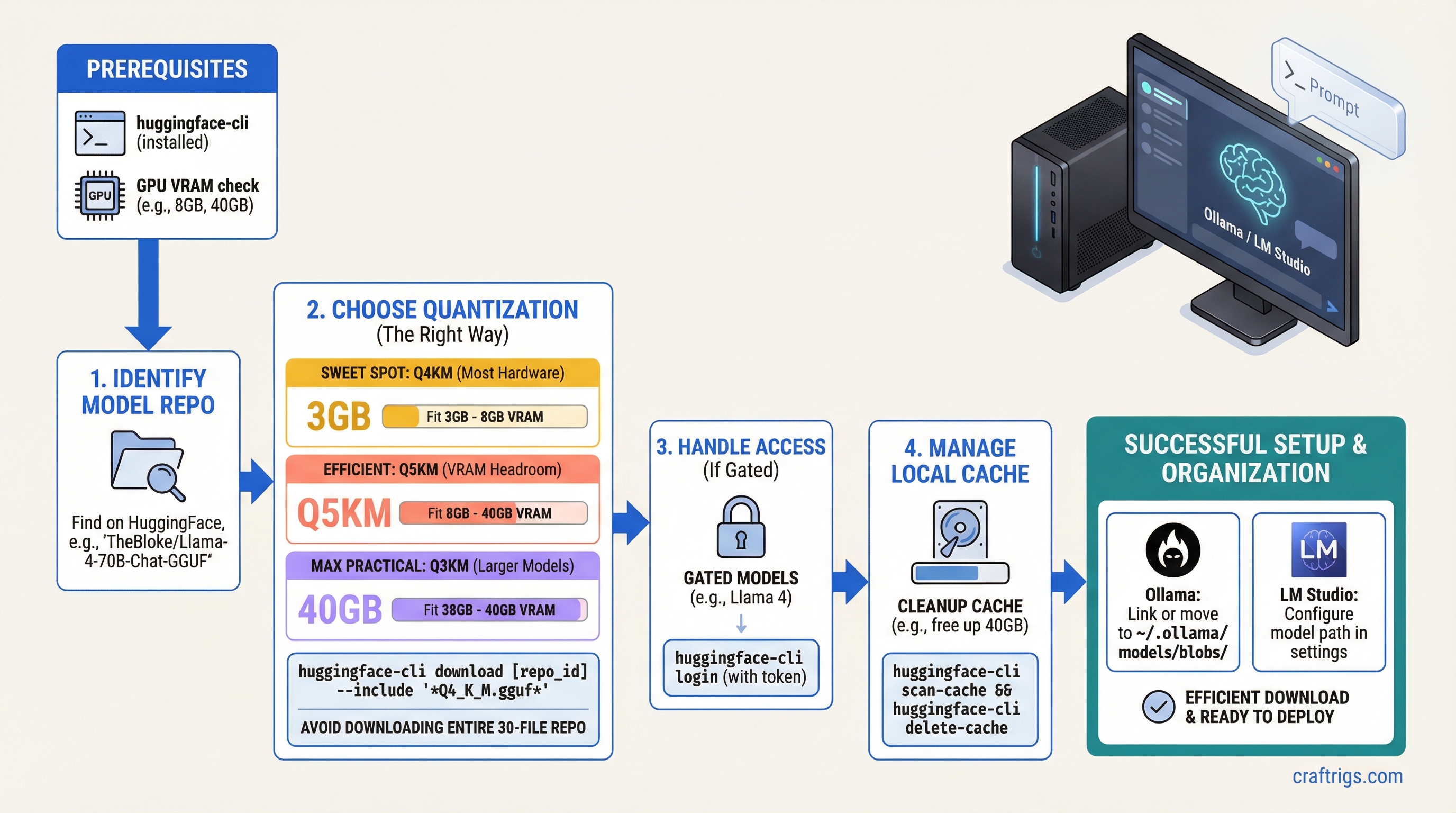
Quick Summary:
- Use
huggingface-cli downloadwith--includeto grab only the quantization variant you need — don't download the entire 30-file repo. - Q4_K_M is the right default for most hardware. Go to Q5_K_M if you have VRAM headroom; Q3_K_M if you need to fit a larger model.
- Gated models (Llama 4, Gemma) require running
huggingface-cli loginwith your HF token and accepting the model license on the website first.
The HuggingFace web interface is fine for browsing models. It's not fine for actually downloading them. Clicking "Download" on a GGUF file through your browser gives you a single-threaded HTTP download with no resume support. If you're downloading a 40GB Llama 3 70B Q4_K_M and your connection hiccups at 38GB, you start over.
The huggingface-hub CLI is the correct tool. It handles multipart downloads, resume on interruption, checksum verification, and lets you filter to exactly the files you want from a repo with dozens of variants.
Step 1: Install huggingface-hub
pip install huggingface-hubOr with pipx for isolated installation:
pipx install huggingface-hubVerify installation:
huggingface-cli --versionThe huggingface-cli command is now available. On Windows with Python installed from the Microsoft Store, you may need to add ~\AppData\Local\Packages\Python...\Scripts to your PATH.
Step 2: Find the Right Repository
Open the model's page on huggingface.co. For GGUF models, look for repos from these reliable quantizers:
- bartowski — community benchmark, multiple quant levels
- unsloth — high-quality quants, often ahead on new model releases
- LoneStriker — wide model selection
- TheBloke — the original community quantizer (less active since 2024, but archive is massive)
For a given model, search [model-name] GGUF on HuggingFace. Example: for Llama 3.1 8B, search llama 3.1 8b instruct gguf and look for a bartowski/Meta-Llama-3.1-8B-Instruct-GGUF result.
The repo ID is the username/repo-name part of the URL.
Step 3: Find the Right GGUF File
On the model repo's Files tab, you'll see a list like:
Meta-Llama-3.1-8B-Instruct-Q2_K.gguf
Meta-Llama-3.1-8B-Instruct-Q3_K_M.gguf
Meta-Llama-3.1-8B-Instruct-Q4_K_M.gguf
Meta-Llama-3.1-8B-Instruct-Q5_K_M.gguf
Meta-Llama-3.1-8B-Instruct-Q6_K.gguf
Meta-Llama-3.1-8B-Instruct-Q8_0.gguf
Quantization selection guide:
| Variant | When to use |
|---|---|
| Q2_K | Desperate for space. Noticeable quality drop. |
| Q3_K_M | Tight VRAM — fitting a larger model that won't otherwise load. |
| Q4_K_M | Default. Best quality/size balance. Start here. |
| Q5_K_M | You have 2-3GB VRAM headroom after Q4_K_M loads. |
| Q6_K | Near-lossless. Use when VRAM is abundant. |
| Q8_0 | Near-lossless, larger. Use when storage is free and VRAM is ample. |
For a 13B Q4_K_M, budget ~8GB disk + VRAM. For 70B Q4_K_M, budget ~40GB disk + VRAM.
Some repos split very large models into multiple files (-part1-of-2.gguf). These must all be downloaded and llama.cpp handles loading them as a set. Use the --include pattern to catch all parts.
Step 4: Download the Model
Basic download (single GGUF file):
huggingface-cli download bartowski/Meta-Llama-3.1-8B-Instruct-GGUF \
  --include "Meta-Llama-3.1-8B-Instruct-Q4_K_M.gguf" \
  --local-dir ~/models/llama3.1-8b
The --local-dir flag downloads to a specific folder instead of the default cache. Recommended — keeps your models organized.
Download with pattern matching (for split files):
huggingface-cli download bartowski/Meta-Llama-3.1-70B-Instruct-GGUF \
  --include "Meta-Llama-3.1-70B-Instruct-Q4_K_M*" \
  --local-dir ~/models/llama3.1-70b
The * wildcard catches multi-part files like Q4_K_M-part1-of-2.gguf and Q4_K_M-part2-of-2.gguf.
Download without --local-dir (uses HF cache):
huggingface-cli download bartowski/Qwen2.5-14B-Instruct-GGUF \
  --include "Qwen2.5-14B-Instruct-Q4_K_M.gguf"
Files go to ~/.cache/huggingface/hub/models--bartowski--Qwen2.5-14B-Instruct-GGUF/. The path is long and nested — fine for Ollama import, awkward for direct llama.cpp use. Use --local-dir to keep things manageable.
Step 5: Handle Gated Models
Some models (Llama 4, Gemma, Mistral) require accepting a license and authenticating. If you try to download and get a 403 or "Access restricted" error, you need to:
-
Accept the license on HuggingFace.co: Go to the model page, scroll to the "Gated model" section, click "Access repository" and accept the terms. Approval is usually instant.
-
Get your HF token: Go to huggingface.co/settings/tokens. Create a token with "Read" permission.
-
Log in via CLI:
huggingface-cli loginPaste your token when prompted. The token is saved to ~/.cache/huggingface/token.
- Download as normal — your token is now attached to all CLI requests.
Environment variable alternative (useful for scripts):
export HF_TOKEN=hf_your_token_here
huggingface-cli download meta-llama/Llama-4-Scout-17B-16E-Instruct \
  --include "*.Q4_K_M.gguf" \
  --local-dir ~/models/llama4-scout
Step 6: Manage the Local Cache
By default, all HuggingFace downloads go to ~/.cache/huggingface/hub/. The structure is:
~/.cache/huggingface/hub/
  models--bartowski--Meta-Llama-3.1-8B-Instruct-GGUF/
    snapshots/
      abc123.../
        Meta-Llama-3.1-8B-Instruct-Q4_K_M.gguf
  models--bartowski--Qwen2.5-14B-Instruct-GGUF/
    ...
Move the cache to a different drive:
export HF_HOME=/mnt/d/models/huggingfaceAdd this to your ~/.bashrc or ~/.profile to persist it. All future downloads go to the new location.
Find what's cached:
huggingface-cli scan-cacheShows all cached repos, their sizes, and last accessed time.
Delete a specific model from cache:
huggingface-cli delete-cacheThis launches an interactive selector. Use spacebar to mark repos for deletion, Enter to confirm.
Step 7: Organize for Ollama and LM Studio
Using with Ollama
Ollama manages its own model library at ~/.ollama/models/. To use a manually downloaded GGUF:
Create a Modelfile:
cat > ~/Modelfile << 'EOF'
FROM /home/user/models/llama3.1-8b/Meta-Llama-3.1-8B-Instruct-Q4_K_M.gguf

SYSTEM "You are a helpful assistant."
PARAMETER temperature 0.7
PARAMETER num_ctx 4096
EOF
Register it with Ollama:
ollama create llama3.1-8b-custom -f ~/Modelfile
ollama run llama3.1-8b-custom
Using with LM Studio
LM Studio can load GGUF files from anywhere on your filesystem. In the Chat or Developer view, click "Load Model" and browse to your GGUF file. No import step required.
To make models appear in LM Studio's local library automatically, place them in the LM Studio models directory:
- macOS:
~/Library/Application Support/LM Studio/models/ - Windows:
%USERPROFILE%\.lmstudio\models\ - Linux:
~/.lmstudio/models/
Subdirectory structure: ~/.lmstudio/models/bartowski/Meta-Llama-3.1-8B-Instruct-GGUF/filename.gguf — matches the HuggingFace username/repo structure.
Using with llama.cpp Directly
Point the binary at the file:
./llama-server \
  -m ~/models/llama3.1-8b/Meta-Llama-3.1-8B-Instruct-Q4_K_M.gguf \
  -ngl 99 \
  --ctx-size 4096
Storage Planning
Before downloading, calculate your storage needs:
Q8_0
~8 GB
~14 GB
~35 GB
~70 GB A practical home model library might include 3-5 models totaling 40-80GB. An NVMe SSD load times (2-5 seconds for 8B, 15-30 seconds for 70B) make a fast drive worthwhile. Spinning HDDs add 30-60 seconds to load times on large models.
For understanding how these model sizes translate to VRAM requirements and context limits at runtime, see our KV cache and VRAM guide.
For choosing between GGUF and other quantization formats, see our GGUF vs GPTQ vs AWQ vs EXL2 guide. Once downloaded, our LM Studio tutorial and Ollama setup guide cover loading models in each runtime.