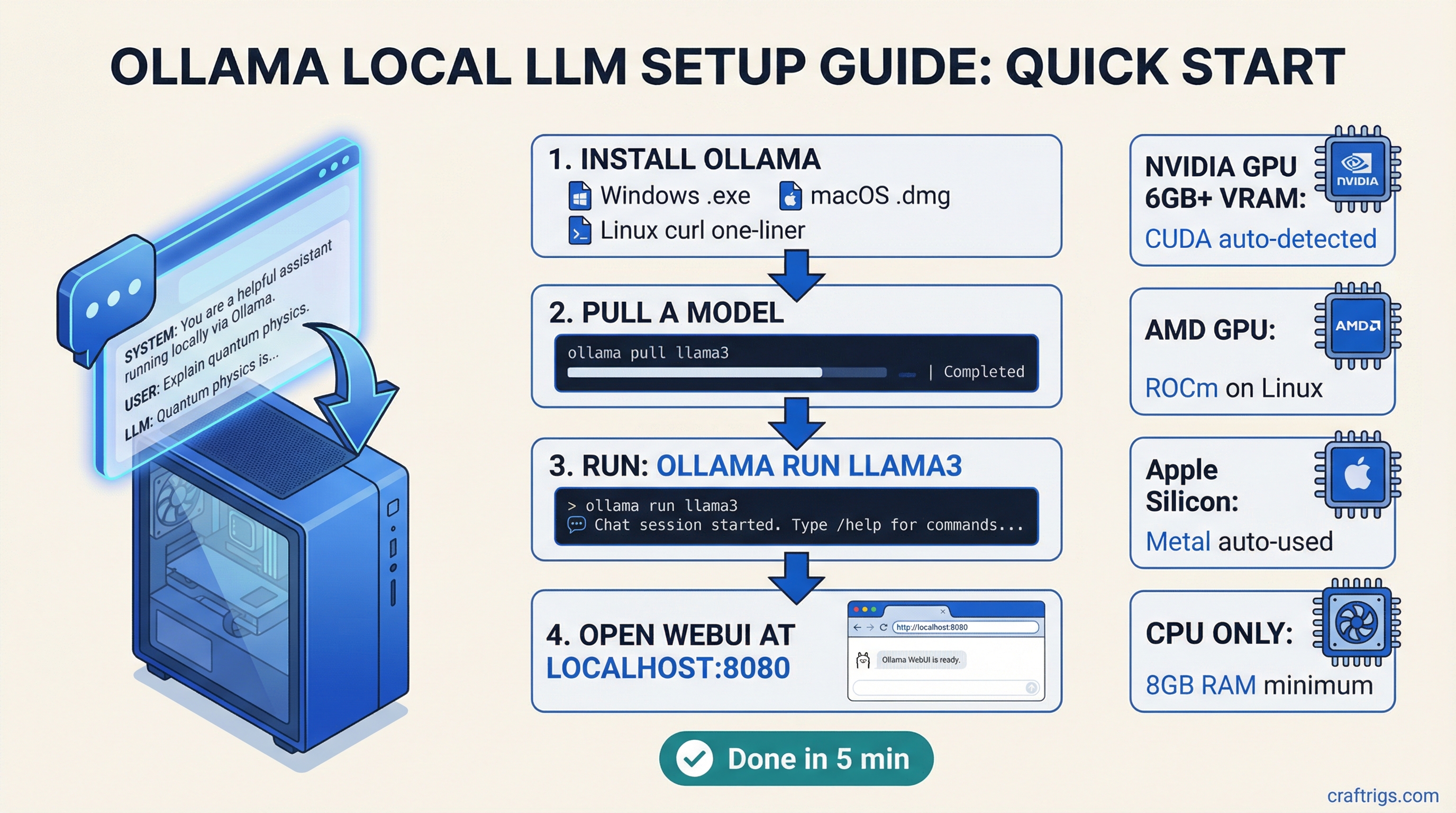
TL;DR: Ollama is the fastest way to get a local LLM running on your machine. One install, one command, and you're chatting with Llama 3, Mistral, or Gemma locally. If you have a GPU with at least 8 GB of VRAM, you'll get fast responses. This guide walks you through everything from install to a full browser-based chat interface.
Why Ollama?
There are several ways to run LLMs locally -- we compare the big three here -- but Ollama wins on simplicity. It wraps llama.cpp (the open-source inference engine that actually runs models) in a clean command-line interface with automatic model management, GPU detection, and a local API server. You don't need to understand quantization formats or compile anything.
Think of it as Docker for LLMs: pull a model, run it, done.
What You Need Before Starting
Minimum hardware:
- 8 GB RAM (16 GB recommended)
- Any modern CPU (2018 or newer)
- 10 GB free disk space for the app plus your first model
For GPU acceleration (strongly recommended):
- NVIDIA GPU with 6+ GB VRAM and CUDA support (GTX 1060 or newer)
- AMD GPU with ROCm support (RX 6000 series or newer, Linux only as of March 2026)
- Apple Silicon Mac (M1 or newer -- these are excellent for local LLMs)
If you're unsure whether your GPU has enough VRAM, check our guide on how much VRAM you actually need.
Step 1: Install Ollama
Windows
- Go to ollama.com/download
- Download the Windows installer
- Run the .exe -- it installs in about 30 seconds
- Ollama runs as a background service automatically
That's it. No PATH configuration, no environment variables. It just works.
One thing to know: On Windows, Ollama runs as a system service. It starts automatically when your PC boots. You'll see a small llama icon in your system tray.
macOS
- Go to ollama.com/download
- Download the .dmg for macOS
- Drag Ollama to your Applications folder
- Launch it once -- it'll ask for permission to install the command-line tool
On Apple Silicon Macs (M1, M2, M3, M4), Ollama automatically uses the GPU cores through Metal. No drivers to install, no configuration. This is one reason Apple Silicon is so good for local LLMs.
Linux
The one-liner:
curl -fsSL https://ollama.com/install.sh | shThis installs Ollama and sets it up as a systemd service. It auto-detects NVIDIA GPUs if you have CUDA drivers installed, and AMD GPUs if you have ROCm.
For NVIDIA users: Make sure you have the NVIDIA driver installed first (version 525+ recommended). You don't need the full CUDA toolkit -- just the driver. Check with:
nvidia-smiIf that command shows your GPU, you're good. If not, install drivers first:
# Ubuntu/Debian
sudo apt install nvidia-driver-550
sudo reboot
For AMD GPU users on Linux: You need ROCm 6.0+. This is a bit more involved:
# Check AMD's official ROCm install docs for your distro
# After ROCm is installed, Ollama detects it automatically
Step 2: Pull and Run Your First Model
Open a terminal (Command Prompt or PowerShell on Windows, Terminal on Mac/Linux) and run:
ollama run llama3.2That's the whole command. Ollama will:
- Download the Llama 3.2 3B model (about 2 GB)
- Load it into your GPU (or CPU if no GPU is detected)
- Drop you into a chat interface
Type a message and hit Enter. You're now running an LLM locally. No API key, no cloud, no subscription.
Picking Your First Model
Llama 3.2 3B is the default for a reason -- it's small, fast, and surprisingly capable. But here's a quick decision guide:
If you have 8 GB VRAM: Start with ollama run llama3.1:8b. The 8-billion parameter version of Llama 3.1 is the sweet spot of quality vs. speed for most GPUs. Uses about 5-6 GB VRAM in the default quantization (the process of compressing a model to use less memory while keeping most of its quality).
If you have 16+ GB VRAM: Try ollama run llama3.1:8b first, then step up to ollama run qwen2.5:14b for better reasoning. With 16 GB you can also try ollama run deepseek-r1:14b for strong coding and math.
If you have 24 GB VRAM (RTX 3090/4090): You can run ollama run llama3.1:70b in a q4 quantization. This is genuinely close to GPT-4 quality for many tasks. See our best GPUs for local LLMs guide for more on what each GPU tier can handle.
If you're on Apple Silicon: An M2 Pro with 16 GB unified memory (memory shared between CPU and GPU -- Apple Silicon's secret weapon for LLMs) handles 8B models beautifully. M4 Max with 64 GB+ can run 70B models. Check our M4 Max vs RTX 4090 comparison for specifics.
Useful Model Commands
# List available models to download
ollama list

# Pull a model without running it
ollama pull mistral

# See what models you have downloaded
ollama list

# Remove a model to free disk space
ollama rm llama3.2

# Run a specific quantization
ollama run llama3.1:8b-q8_0

# Run with a specific context window
ollama run llama3.1:8b --context 8192
Step 3: Verify GPU Acceleration Is Working
This is where most people get tripped up. You pulled a model, it's running, but is it actually using your GPU? Or is it limping along on CPU?
How to Check
While a model is running, open another terminal and run:
ollama psThis shows loaded models and whether they're using GPU or CPU. You'll see something like:
NAME              ID          SIZE   PROCESSOR    UNTIL
llama3.1:8b      a23456...   5.5 GB 100% GPU     4 minutes from now
"100% GPU" means you're good. Every layer of the model is on your GPU.
"100% CPU" means GPU acceleration isn't working. See troubleshooting below.
"48% GPU / 52% CPU" means your model is too big for your VRAM and some layers are offloaded to CPU. This still works but you'll see slower tokens per second (the standard measure of LLM speed -- how many words per second the model generates).
NVIDIA Troubleshooting
If ollama ps shows CPU when you expected GPU:
-
Check that nvidia-smi works. If it doesn't, your drivers aren't installed properly.
-
Check VRAM availability. Run
nvidia-smiand look at "Memory-Usage." If your VRAM is already full (gaming, other apps), Ollama falls back to CPU. -
Restart Ollama. Sometimes the GPU detection happens at startup:
# Linux
sudo systemctl restart ollama

# Windows - right-click the tray icon and quit, then reopen

# Mac - quit from the menu bar and reopen- Check the logs. On Linux:
journalctl -u ollama -f. Look for lines mentioning CUDA or GPU detection.
Apple Silicon Troubleshooting
Apple Silicon should just work. If it's slow:
- Make sure you're not running the x86 version through Rosetta. Check in Activity Monitor -- the "Kind" column should say "Apple" not "Intel."
- Close memory-hungry apps. Apple Silicon shares memory between CPU and GPU, so a browser with 50 tabs eats into your LLM's available memory.
Step 4: Set Up Open WebUI for a Browser-Based Chat Interface
The terminal chat is fine for quick tests, but for real use you want Open WebUI -- a self-hosted chat interface that looks like ChatGPT but runs entirely on your machine.
Install with Docker (Recommended)
Make sure Docker is installed, then:
docker run -d -p 3000:8080 \
  --add-host=host.docker.internal:host-gateway \
  -v open-webui:/app/backend/data \
  --name open-webui \
  --restart always \
  ghcr.io/open-webui/open-webui:main
Open http://localhost:3000 in your browser. Create an account (it's local-only, just for the UI). Select a model from the dropdown. Start chatting.
What you get with Open WebUI:
- ChatGPT-style interface with conversation history
- Ability to switch between all your downloaded Ollama models
- System prompt customization per conversation
- Document upload for RAG (retrieval-augmented generation)
- Multi-user support if others in your household want to use it
- Mobile-friendly -- access from your phone on the same network
Install Without Docker
If you don't want Docker:
pip install open-webui
open-webui serve
This requires Python 3.11+. The Docker method is cleaner, but this works.
Connect Open WebUI to Ollama
By default, Open WebUI connects to Ollama at http://localhost:11434. If Ollama is running on the same machine (which it should be for this setup), it auto-connects.
If you see "No models found" in Open WebUI:
- Make sure Ollama is running (
ollama listshould work in terminal) - Check that port 11434 is accessible
- On Linux with Docker, the
--add-hostflag in the command above handles this
Step 5: The Ollama API -- For Developers and Power Users
Ollama runs a local API server on port 11434. This is what makes it powerful beyond just chatting -- you can plug it into any app that supports the OpenAI API format.
Quick API Test
curl http://localhost:11434/api/generate -d '{
  "model": "llama3.1:8b",
  "prompt": "What is the capital of France?",
  "stream": false
}'
OpenAI-Compatible Endpoint
Ollama supports the OpenAI API format, which means tools built for ChatGPT can talk to your local model:
curl http://localhost:11434/v1/chat/completions -d '{
  "model": "llama3.1:8b",
  "messages": [{"role": "user", "content": "Hello!"}]
}'
This compatibility is huge. It means you can use Ollama with:
- Continue.dev (VS Code AI assistant)
- Aider (AI pair programming)
- LangChain and LlamaIndex for building apps
- Any tool that lets you set a custom OpenAI base URL
Just point the tool to http://localhost:11434/v1 as the API base URL.
Model Management Tips
Where Models Are Stored
- macOS:
~/.ollama/models - Linux:
/usr/share/ollama/.ollama/models(or~/.ollama/modelsif running as your user) - Windows:
C:\Users\<username>\.ollama\models
Models are big. A 7B model is 4-5 GB, a 70B model is 40+ GB. Plan your disk space accordingly.
Moving the Model Directory
If your boot drive is small, move models to another drive:
# Linux/Mac - set environment variable
export OLLAMA_MODELS=/path/to/external/drive/ollama/models

# Windows - set system environment variable
# OLLAMA_MODELS = D:\ollama\models
Restart Ollama after changing this.
Custom Modelfiles
You can create custom model configurations with a Modelfile:
FROM llama3.1:8b
SYSTEM "You are a helpful coding assistant. Be concise."
PARAMETER temperature 0.7
PARAMETER num_ctx 8192
Then build it:
ollama create my-coding-assistant -f Modelfile
ollama run my-coding-assistant
This is great for setting up specialized assistants -- a coding helper, a writing assistant, a research tool -- each with their own system prompts and parameters.
Performance Expectations
Here's what you should roughly expect with the default Llama 3.1 8B model (q4_K_M quantization):
NVIDIA GPUs:
- RTX 3060 12GB: ~35-45 tokens/sec
- RTX 3080 10GB: ~50-60 tokens/sec
- RTX 4070 Ti 12GB: ~65-75 tokens/sec
- RTX 4090 24GB: ~90-110 tokens/sec
Apple Silicon:
- M1 Pro 16GB: ~20-25 tokens/sec
- M2 Max 32GB: ~35-40 tokens/sec
- M4 Max 64GB: ~50-60 tokens/sec
CPU only (no GPU):
- Modern i7/Ryzen 7: ~5-10 tokens/sec (usable but slow)
For a deep dive into performance across configurations, check our local LLM speed test.
These numbers are for prompt evaluation speed. If tokens feel slow, make sure GPU acceleration is working (Step 3).
Common Issues and Fixes
"Error: model not found"
You typed the model name wrong. Run ollama list to see exact model names you have. Model names are case-sensitive.
Ollama is slow to start First run after boot can take 10-15 seconds as it initializes. Subsequent model loads are faster. If it's always slow, check that your antivirus isn't scanning the model files.
Out of memory errors The model is too big for your VRAM. Either use a smaller model or a more aggressive quantization. Drop from q8_0 to q4_K_M, or from a 13B model to an 8B model. See how much VRAM you need for sizing guidance.
Model outputs garbage This usually means a corrupt download. Remove and re-pull:
ollama rm llama3.1:8b
ollama pull llama3.1:8b
Port 11434 already in use Another instance of Ollama is running, or something else is on that port. Kill existing processes:
# Linux/Mac
sudo lsof -i :11434
kill <PID>

# Windows
netstat -ano | findstr 11434
taskkill /PID <PID> /F
What's Next
Once Ollama is running, you've got the foundation for everything else in local AI:
- Compare your options: See how Ollama stacks up against the alternatives in our llama.cpp vs Ollama vs LM Studio comparison
- Optimize your hardware: Check the best GPUs for local LLMs in 2026 if you're thinking about an upgrade
- Build a dedicated rig: Our $3,000 dual-GPU LLM build guide shows you how to build a machine purpose-built for local AI
- Go deeper: The llama.cpp advanced guide covers the flags and tuning that Ollama abstracts away
Benchmarks in this article are from March 2026 testing. Prices and performance may shift with new releases.
Ollama Setup in 5 Minutes
graph TD
    A["Install Ollama"] --> B["ollama serve"]
    B --> C["ollama pull model"]
    C --> D{"Model Size?"}
    D -->|"3B-7B"| E["Works on 6GB+ VRAM"]
    D -->|"13B"| F["Needs 10GB+ VRAM"]
    D -->|"30B+"| G["Needs 20GB+ VRAM"]
    E --> H["ollama run llama3.2"]
    F --> H
    G --> H
    H --> I["localhost:11434/api"]
    style A fill:#1A1A2E,color:#fff
    style H fill:#F5A623,color:#000
    style I fill:#22C55E,color:#000