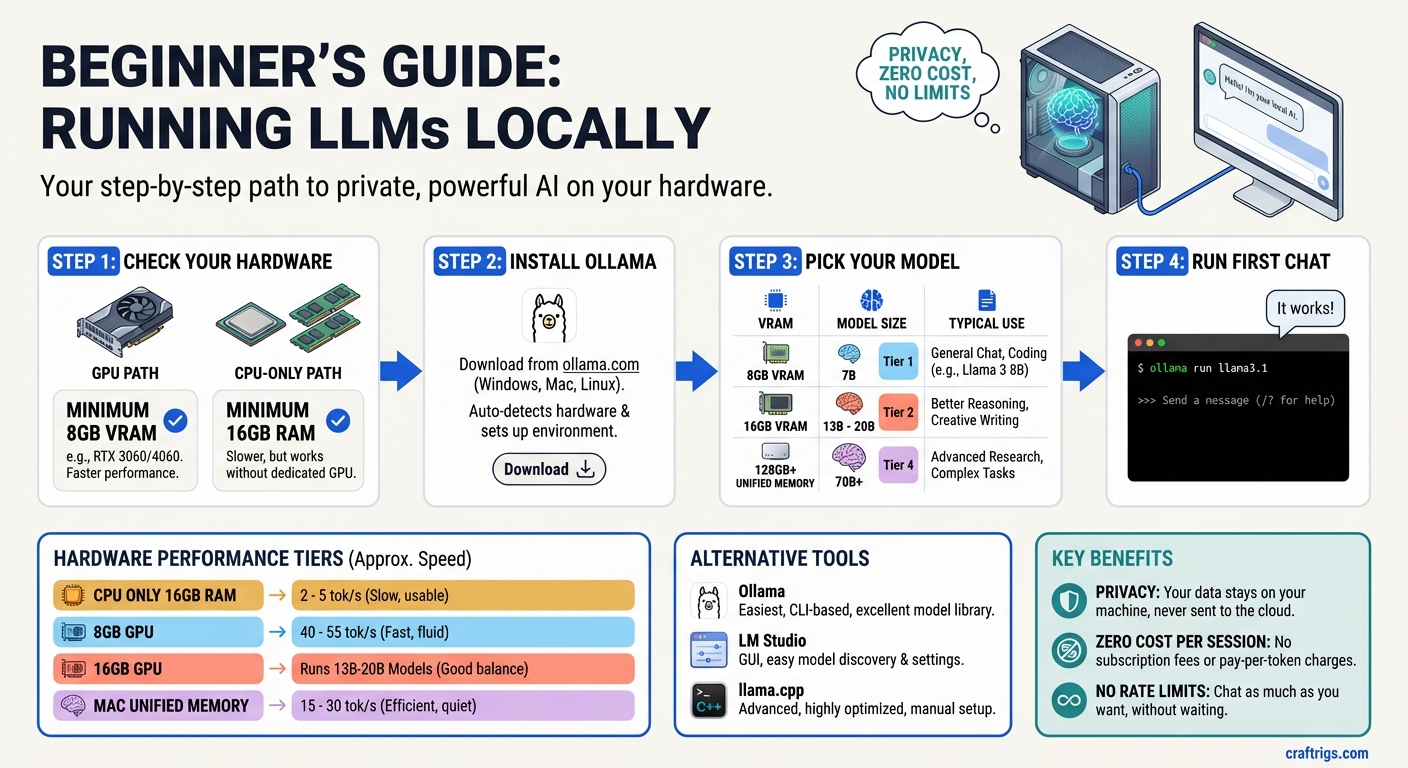
TL;DR: You can run a capable AI model on most modern laptops and desktops in under 10 minutes using Ollama. The minimum hardware to get started is lower than most people think — 8GB of RAM and a halfway decent GPU (or even no GPU at all). The model you can run depends on your hardware, but even the smallest capable options are genuinely useful. Start running, then upgrade based on what you actually want.
Why Run Locally?
Three reasons that actually matter:
Privacy. When you use ChatGPT or Claude, your prompts go to a server. Not a privacy violation by any reasonable definition, but your data is being processed externally. Local models run entirely on your machine — nothing leaves. For personal notes, work documents, client information, medical questions: local is private by default.
Cost. Frontier model APIs cost money per token. A mid-tier API plan runs $20–$100/month for serious usage. Local models are free after hardware. An RTX 3060 12GB costs $220 used — roughly two months of a paid AI subscription. Hardware pays itself off.
No limits, no rate throttling, no outages. Local models respond as fast as your hardware allows, as often as you want, regardless of internet connectivity. For automation workflows or overnight batch processing, this matters a lot.
Honest trade-off: Local models are behind frontier models in capability. Llama 3.1 70B is very good. It is not GPT-4o or Claude 3.5 Sonnet. If you need the absolute best quality for high-stakes tasks, cloud APIs are still the better tool. Local fills the gap for everything that doesn't require frontier quality — which is a lot of tasks.
What You Actually Need
The minimum bar is lower than most guides imply:
Absolute minimum (CPU-only): Any modern laptop or desktop with 16GB RAM. You'll run 7B models at ~2–5 tokens per second — slow but functional. Good for experimentation, not for daily use.
Practical minimum (GPU): A GPU with 8GB VRAM. RTX 3060 Ti 8GB, RTX 4060 8GB. Runs 7B models at 40–55 t/s — fast enough that it feels instant for conversation. Costs ~$200–$280.
Sweet spot for most people: 16GB VRAM GPU. RTX 4060 Ti 16GB (~$380). Runs 13B–20B models properly. Noticeably more capable than 7B. Worth the upgrade if you're using this daily.
If you have a Mac: Any Mac from 2021 onward (M1 or later) works. The Apple Silicon unified memory runs models efficiently. An M1 MacBook Air with 16GB RAM runs Llama 3.1 8B at ~15–20 t/s — slow but real. An M4 Mac Mini with 16GB runs it at ~30 t/s, which is comfortable for conversation.
If you have none of this: CPU inference still works. It's slower, but it works. You can run Llama 3.1 8B at 2–5 t/s on a modern laptop with 16GB RAM. Usable for experimentation; not great for daily work.
The single most important spec is VRAM (or unified memory on Mac). For a full breakdown of what fits where, see the VRAM guide.
Three Ways to Run Locally
Option 1: Ollama (Recommended)
Ollama is the easiest way to run local models. It handles model downloads, quantization selection, hardware detection, and exposes a simple CLI and REST API. Under the hood it uses llama.cpp, but you never touch that directly.
Best for: Anyone who wants to get started quickly, integrate with other tools via API, or doesn't want to manage technical details.
Option 2: LM Studio
A desktop app with a GUI. You browse, download, and run models through a visual interface. Also exposes a local API compatible with OpenAI's format.
Best for: Users who prefer a visual interface over the command line. Less flexible than Ollama for automation, but excellent for exploration.
Option 3: llama.cpp directly
The underlying inference engine used by both Ollama and LM Studio. More complex to set up, but gives you full control over quantization selection, GPU layer allocation, context size, and sampling parameters.
Best for: Developers who want to squeeze maximum performance out of their hardware, run experimental models, or build inference into custom applications.
Start with Ollama. You can always switch to llama.cpp later once you know what you actually need.
Ollama Setup in 4 Steps
Step 1: Install Ollama
macOS / Linux:
curl -fsSL https://ollama.com/install.sh | shWindows: Download the installer from ollama.com and run it. Ollama for Windows includes GPU acceleration for NVIDIA and AMD cards automatically.
After installation, Ollama runs as a background service. On Mac and Linux, it starts automatically. On Windows, it appears in the system tray.
Verify it's running:
ollama --versionStep 2: Pull Your First Model
ollama pull llama3.1:8bThis downloads the Llama 3.1 8B model in Q4_K_M quantization (~5GB). It's a one-time download — after that, the model is cached locally.
Other models to consider:
ollama pull mistral:7b          # Fast, strong instruction following
ollama pull gemma3:9b           # Google's model, good at reasoning
ollama pull qwen2.5:14b         # Excellent at coding, needs 16GB VRAM
ollama pull deepseek-r1:8b      # Reasoning-focused, great for analysis
To see all available models: ollama.com/library
Step 3: Run It
ollama run llama3.1:8bYou'll see the model load (a few seconds), then a prompt appears:
>>> Send a message (/? for help)Type a message and hit Enter. You're talking to a local AI model. Nothing left your machine.
To exit: type /bye or hit Ctrl+C.
Step 4: Use the API (Optional)
Ollama exposes a local REST API at http://localhost:11434 that's compatible with the OpenAI API format. This lets you connect local models to any tool that supports OpenAI:
curl http://localhost:11434/api/generate -d '{
  "model": "llama3.1:8b",
  "prompt": "Explain VRAM in one paragraph.",
  "stream": false
}'
Or use it as an OpenAI API replacement in any app that supports custom endpoints — Open WebUI, Cursor, VS Code Copilot Chat, and many others accept a custom API URL.
Model Recommendations by Hardware
8GB VRAM (or 16GB unified Mac):
Best for
General chat, Q&A, summarization
Instruction following, writing
Lightweight, very fast
Reasoning tasks, step-by-step analysis 16GB VRAM:
Best for
Better reasoning than 8B
Strong coding assistant
Best quality this tier can run
Reasoning, significantly stronger than 8B 24GB VRAM:
Best for
Best coding model you can run locally
Dedicated code generation
Serious reasoning and research tasks 48GB unified memory (Mac) or dual GPU:
Best for
Near-frontier quality for general tasks
Best local reasoning model
Exceptional coding and reasoning
Common First-Time Mistakes
Mistake 1: Pulling a model too large for your VRAM
If the model doesn't fit in VRAM, Ollama offloads layers to system RAM. You'll see slow speeds (2–5 t/s) and wonder if something is broken. Check the model size before pulling it. If it's bigger than your VRAM, it won't run at full speed.
To check how many layers are using GPU: Ollama logs this at startup. Look for llm_load_tensors: offloaded X/Y layers to GPU.
Mistake 2: Confusing model size with parameter count
"Llama 3.1 8B" means 8 billion parameters. The file size on disk at Q4 quantization is about 5GB. Don't confuse the two. Check disk space too — models accumulate fast. A 70B model at Q4 is ~40GB.
Mistake 3: Running on CPU and concluding local AI is too slow
CPU inference is real but slow. If you're on CPU and getting 3 t/s, that's not the ceiling for local AI — that's the floor. With a GPU, speeds are 10–50x higher. Don't judge local inference from a CPU-only experience.
Mistake 4: Running 4-bit quantization and expecting full-quality output
Q4_K_M is the best balance of size and quality and is what Ollama pulls by default. Q4 is genuinely good — most people can't tell the difference from full precision on most tasks. But heavy quantization (Q2) meaningfully degrades quality. Stick with Q4_K_M or Q5_K_M as your default.
Mistake 5: Ignoring context length
Ollama defaults to a 2048-token context window for most models. If you're having long conversations or feeding in large documents, you'll hit that limit and the model will lose track of early content. Set context length explicitly for your use case:
OLLAMA_NUM_CTX=8192 ollama run llama3.1:8bOr configure it in a Modelfile. Most capable models support 8K–128K context — the limit is usually how much VRAM you have to spare for the KV cache.
What to Do Next
Once you're running: experiment with model sizes. Try the 8B and then try the 13B if your hardware supports it. The quality jump between sizes is noticeable. Find the largest model your hardware runs comfortably at acceptable speed (roughly 15+ t/s for conversational use), and use that as your daily driver.
If you hit the ceiling of your current hardware and want more: check the hardware guide to understand what the next tier gets you, or the VRAM guide for the detailed model-to-VRAM breakdown. For GPU upgrade recommendations at specific budgets, the budget guide has the full breakdown.
Related Guides
- How Much VRAM Do You Actually Need? — the foundational hardware spec
- Best Local LLM Hardware 2026 — all hardware tiers ranked
- Local AI on a Budget: Every Price Tier Ranked — what to buy at each price point
- Best GPUs for Local LLMs 2026 — full GPU comparison
Getting Started: Local LLM in 30 Minutes
graph TD
    A["Start Here"] --> B["Install Ollama"]
    B --> C["ollama pull llama3.2:3b"]
    C --> D["ollama run llama3.2:3b"]
    D --> E["Chat in Terminal"]
    E --> F{"Want a UI?"}
    F -->|Yes| G["Install Open WebUI"]
    F -->|No| H["Use Ollama CLI"]
    G --> I["localhost:3000"]
    style A fill:#1A1A2E,color:#fff
    style D fill:#F5A623,color:#000
    style I fill:#22C55E,color:#000