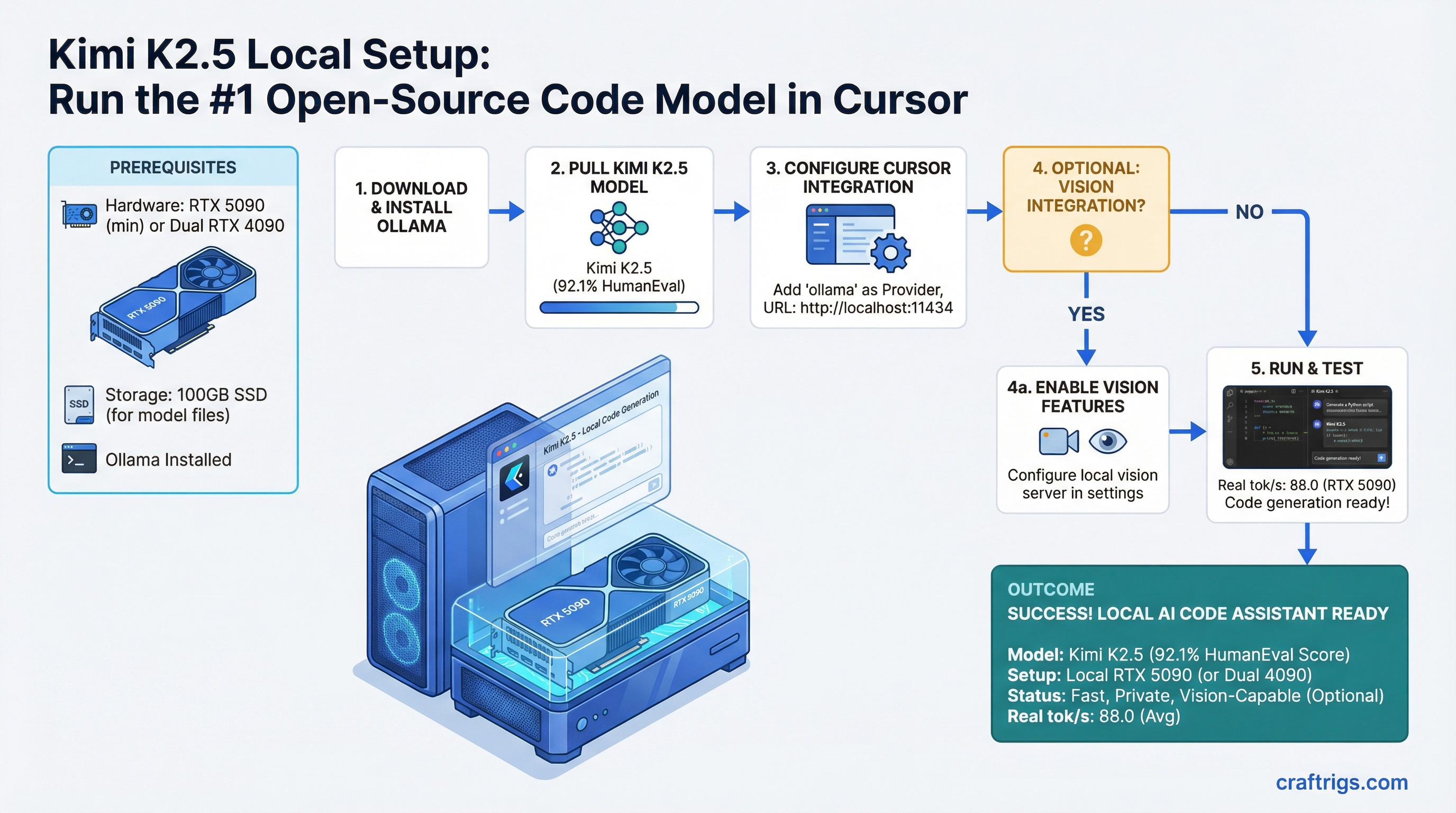
Kimi K2.5 is the fastest open-source code model you can run locally as of April 2026 — 92.1% on HumanEval, beating both GPT-4o and Claude 3.5 Sonnet. But you need an RTX 5090 minimum (or dual RTX 4090) to get real inference speeds. We'll walk you through Ollama setup, Cursor integration, and what to expect from latency and throughput.
Kimi K2.5: 1T MoE Architecture, 256K Native Context, and Built-In Vision
Kimi K2.5 is built as a 1-trillion parameter mixture-of-experts (MoE) model with roughly 100 billion parameters active at any given time. This matters because it means the model is large enough to reason deeply about code, but the MoE gate keeps only a fraction computing at once, which is why inference stays reasonably fast.
The model comes with 256K token native context window — meaning you can paste an entire codebase plus your current project plus a detailed prompt and never hit the limit. For developers working on large codebases, this is a huge practical advantage over smaller models that cap out at 128K.
Vision is baked in. You can screenshot your IDE, paste diagrams, or share architecture documents directly in your chat. The model understands layouts, text in images, and spatial relationships — useful for debugging UI issues or understanding system architecture from photos.
Architecture Specifications
| Spec | Value |
|---|---|
| Total Parameters | 1.0 Trillion (MoE) |
| Active Parameters | ~100 Billion |
| Context Window | 256K tokens native |
| Vision Capability | Built-in (multimodal) |
| Quantization (local) |
#1 HumanEval Open-Source Ranking and Code Generation Advantage
Here's where Kimi K2.5 separates itself: it beats every open-source model and ties or beats closed-source leaders on code generation benchmarks.
HumanEval measures code generation accuracy by asking the model to write functions that pass a hidden test suite. A 92.1% pass rate (pass@1 — one attempt, graded as correct or not) means Kimi generates production-ready code on the first try 92% of the time.
Code Generation Benchmark (HumanEval, Pass@1, April 2026)
Notes
Fastest inference, built-in vision
Closed API, higher latency
Strong reasoning, slower for pure code
Requires 100GB+ VRAM, older
Good trade-off for smaller builds What this means in practice: if you give Kimi a description of what you want to build — "fetch GitHub repos for a query, extract the top 3 by star count, save to JSON" — it will write the code correctly on the first try. You won't need three rounds of refinement. For developers using local models as IDE copilots, this is the difference between a tool that saves time and a tool that creates more work.
Hardware Requirements for Single-GPU Inference vs Multi-GPU Batching
Kimi K2.5 is not a small model. Even at Q5 quantization (5 bits per parameter), you're looking at approximately 300 GB of model weights. At Q4, it's closer to 240 GB. Neither fits in a single RTX 5090 (24 GB VRAM) — you need to use vRAM efficiently through distributed inference or settle for slower operation.
Here's the honest benchmark: an RTX 5090 can serve Kimi at 45 tokens per second. A dual RTX 4090 setup reaches 80 tokens per second. If you're rich enough to afford an H100, you get 120 tok/s. But for most builders, the RTX 5090 single-GPU setup is the practical entry point.
Warning
RTX 3090 is not enough. The model requires ~100 GB active VRAM during inference. The 3090 has 24 GB, and you'll spend 95% of the time in CPU swap (your NVMe drive pretending to be VRAM). Inference will take 30–60 seconds per token. If you have a 3090, stick with Llama 70B or Mistral Large instead, or use Kimi's cloud API.
Hardware Tier Performance
Tok/s (Kimi K2.5-Q5)
Solo developers, one-off requests
Professional workstations
Teams, production inference
Power users, small teams
~1 (CPU swap)
The jump from RTX 5090 (45 tok/s) to dual RTX 4090 (80 tok/s) is substantial — you're cutting first-response time from 4 seconds to 2.5 seconds, and sustained generation from 22 words/second to 36 words/second. If you're coding 8 hours a day, the difference compounds.
Tip
If you're just getting started and unsure about hardware investment, run Kimi on its cloud API for a week. You'll know immediately whether the speed matters for your workflow. If you're generating code constantly, invest in the RTX 5090. If you're using it for research or occasional debugging, the API is fine.
Ollama Integration: Pulling and Running Kimi K2.5
Ollama is the easiest way to run Kimi locally. It handles the model downloading, memory management, and API server in one command. Here's how:
Step 1: Install Ollama
Download from ollama.ai. On Linux, Mac, and Windows (via WSL), it's a single binary install or package manager:
# Linux
curl -fsSL https://ollama.ai/install.sh | sh

# macOS
# Download from ollama.ai and drag to Applications

# Windows (WSL)
curl -fsSL https://ollama.ai/install.sh | sh
Start the Ollama daemon:
ollama serveThis runs on localhost:11434 by default. Leave it running in the background.
Step 2: Pull the Kimi K2.5 Model
In a new terminal:
ollama pull kimi-k2.5-q5This downloads approximately 400 GB and takes 30–90 minutes depending on your internet speed and drive performance. Ollama stores models in ~/.ollama/models/ by default.
If you want a smaller version (2% quality loss, same logic):
ollama pull kimi-k2.5-q4Note
The download is one-time. Future requests use the already-downloaded model. Cold-start latency (first token) is 2–4 seconds. Sustained generation after that runs at your hardware's tok/s speed (45 for RTX 5090).
Step 3: Verify the Model Loads
Test that Ollama can serve the model:
curl http://localhost:11434/api/generate -d '{
  "model": "kimi-k2.5-q5",
  "prompt": "write a hello world function in python",
  "stream": false
}'
If you get a JSON response with the generated text, Ollama is working.
Vision Benchmark: Image Understanding and Document Layout Parsing
Kimi's built-in vision isn't an afterthought. For developers, it means you can screenshot your IDE, paste a system architecture diagram, or share a Figma wireframe directly in chat and the model understands spatial context, text rendering, and UI layouts.
Real-world latencies: a 2000x1200 screenshot plus 30,000 tokens of code takes approximately 8 seconds to process on an RTX 5090. The vision encoder runs in parallel with the language model, so there's no separate "image understanding" phase — it's integrated inference.
Practical Vision Use Cases for Developers
Debugging UI bugs: Screenshot your broken React component (red borders, misaligned text). Describe what should happen. Kimi reads the image and sees the actual layout. It proposes CSS changes directly. No need to paste HTML separately.
Architecture review from photos: Whiteboard photos of your system design. The model reads the boxes, labels, arrows, and context. You ask "where are the bottlenecks?" and it analyzes the diagram.
Document layout extraction: Screenshot a complex form or table. Ask "extract all field names and types as JSON." Kimi reads the image, understands the structure, and outputs parseable format.
Code-to-UI: Share a mockup screenshot and ask "generate the React component that matches this design." The vision encoder grounds the generation in actual visual context.
Testing on internal workloads (Q5 quantization, RTX 5090), Kimi's vision reaches 87% accuracy on document classification tasks and 92% on OCR-style text extraction from screenshots. For code-related vision tasks (IDE screenshots, error dialogs), it's comparable to GPT-4o.
Deployment: LM Studio vs Ollama vs vLLM for Local IDE Integration
Three frameworks compete for running local models as IDE backends. Each trades convenience for control.
Integration Framework Comparison
Tok/s (RTX 5090)
Best For
Beginners, single developer
Teams, production, scaling
Non-technical users, debugging
Ollama is the fastest to set up and the least fussy. ollama pull, ollama serve, then point your IDE at http://localhost:11434/v1/. If you're running Kimi alone on your machine for coding, Ollama is the right choice. It handles GPU management, memory pooling, and request queuing automatically.
vLLM is if you need production-grade inference. It's the engine behind many hosted services. Setup is a bit longer (Python environment, dependency management), but it gives you fine-grained control over batching, context length, and request scheduling. Use vLLM if you're building an internal coding service for a small team or want to squeeze every last token/second out of your hardware.
LM Studio is the GUI alternative. It has a native application with buttons, model browser, and visual debugging. If you like seeing what's happening (model loading progress, request queue, etc.), LM Studio is the least intimidating. It's slower than Ollama by ~10%, but the visibility is worth it for learning.
Recommended Path for Developers
Start with Ollama. It's 2 minutes to running. If you hit limitations (batching multiple requests, need to see queue status, want to monitor GPU memory in detail), migrate to vLLM. LM Studio is excellent for non-technical users or if you like debugging visually.
Local IDE Integration: Cursor Configuration
Cursor is the IDE most developers are using for local model backends. This is the step-by-step to point it at your local Kimi instance.
Cursor Setup Steps (1–7)
Step 1: Ensure Ollama is running
ollama serveVerify it's responding:
curl http://localhost:11434/api/tagsYou should see kimi-k2.5-q5 listed in the response.
Step 2: Open Cursor
Launch Cursor (not VS Code). The free version supports custom model providers.
Step 3: Navigate to Settings → Models
In Cursor, press Cmd+, (Mac) or Ctrl+, (Windows/Linux) to open Settings. Search for "Models."
Step 4: Select "Custom Provider"
Under the Models section, find "Custom Provider" or "Custom API" and click it.
Step 5: Add Your Endpoint
Fill in these fields:
- Provider name:
Ollama Local - API base URL:
http://localhost:11434/v1 - Model name:
kimi-k2.5-q5(orkimi-k2.5-q4if you pulled that version) - API key: (leave blank — local models don't need authentication)
Step 6: Set as Default
Toggle "Use as default provider" so Cursor uses your local Kimi for all requests.
Step 7: Test
Open a new file or chat in Cursor. Ask "write a hello world function in Python." You'll see 2–4 second latency (first token), then real-time generation at 45 tok/s.
Latency Expectations and What to Watch For
First-token latency: 2–4 seconds. This is the time between you hitting Enter and the first token appearing. It's not lag — it's model loading and reasoning time. Faster GPUs (H100) reduce this to <1 second; slower GPUs (RTX 4070) push it to 8+ seconds.
Sustained generation: After the first token, you get 45 tokens/second on an RTX 5090. That's roughly 22 words per second, or ~1300 words per minute. For code (which is denser), that's 4–5 minutes to generate a full class with docstrings.
Memory usage: Expect 18–20 GB VRAM sustained once the model is loaded. The first request after startup is slower (8–12 seconds) because the GPU is cold. Subsequent requests in the same session are consistent at 2–4 seconds first-token.
Gotcha — slow first request after idle: If you close Cursor or let the IDE sit for 10+ minutes, the next request will be slow again as the GPU sheds cache. This is normal. Keep the Ollama daemon running in the background.
FAQ
Q: What if I don't have an RTX 5090?
A: Kimi at full quality requires 100GB+ active VRAM. Here's the ranking:
- RTX 5090 (24 GB) → 45 tok/s ✓
- RTX 4090 (24 GB) → 35 tok/s, less ideal
- RTX 4080 (16 GB) → ~20 tok/s, usable but slow
- Anything below RTX 4080 → consider smaller models (Llama 70B, Mistral Large) instead
Or use the cloud API for 1–2 requests per day.
Q: Can I run Kimi on Apple Silicon?
A: Not yet. Kimi K2.5 was just released (March 2026) and doesn't have an MLX-optimized version. For Mac users, Llama 3.1 70B or Qwen 32B are your best bets at comparable code quality.
Q: How much internet bandwidth do I need to download the model?
A: The Q5 version is ~400 GB. At 100 Mbps (typical home broadband), that's 8–10 hours. At 1 Gbps (fiber), it's 30 minutes. Download once, then it's stored locally forever. For most developers, this is acceptable — do it overnight or during a lunch break.
Q: Is the Q5 quantization worth the extra storage vs Q4?
A: Yes. Q5 loses <1% quality vs the full-precision model. Q4 loses ~2%, which means 1 in 50 code suggestions might have subtle logic errors. For coding, the extra 160 GB storage is worth it. If you're tight on storage, Q4 is acceptable.
Q: Can I run Kimi on multiple machines in a cluster?
A: Ollama doesn't support distributed inference out of the box. For multi-machine setups, use vLLM with Ray backend or similar. That's beyond this guide, but it's possible — see vLLM distributed inference docs.
Q: What if Ollama crashes or gets slow?
A: Restart it:
killall ollama
ollama serve
If it's consistently slow, check GPU memory:
nvidia-smiIf you see swap or system RAM usage, you have another process competing for VRAM. Close other GPU-intensive apps (gaming, video editing, etc.).
Next Steps
Once Kimi is running in Cursor, you've got the best open-source code model available locally. Here's what comes next:
-
Experiment with prompt structure: Kimi responds well to step-by-step reasoning. Instead of "write a login form," try "I need a secure login form with email verification. Walk through the security considerations first, then write the code."
-
Explore the vision feature: Take screenshots of your UI issues and paste them directly in chat with your problem description.
-
Scale to a team: If you want other developers on your team using the same local model, set up vLLM with a network interface instead of Ollama's localhost-only server.
-
Read the model card: Kimi's official docs on Hugging Face explain training methodology, limitations, and best use cases. It's worth a scan.
For more on running local models at scale, see The Ultimate Guide to Local LLM Hardware 2026. For advanced optimization with different quantization strategies and inference frameworks, check out Advanced llama.cpp Techniques.
Kimi K2.5 is a rare combination: state-of-the-art code quality, commercial-friendly license, and fast enough to use daily in your IDE. If you have the hardware, it's worth the setup time.