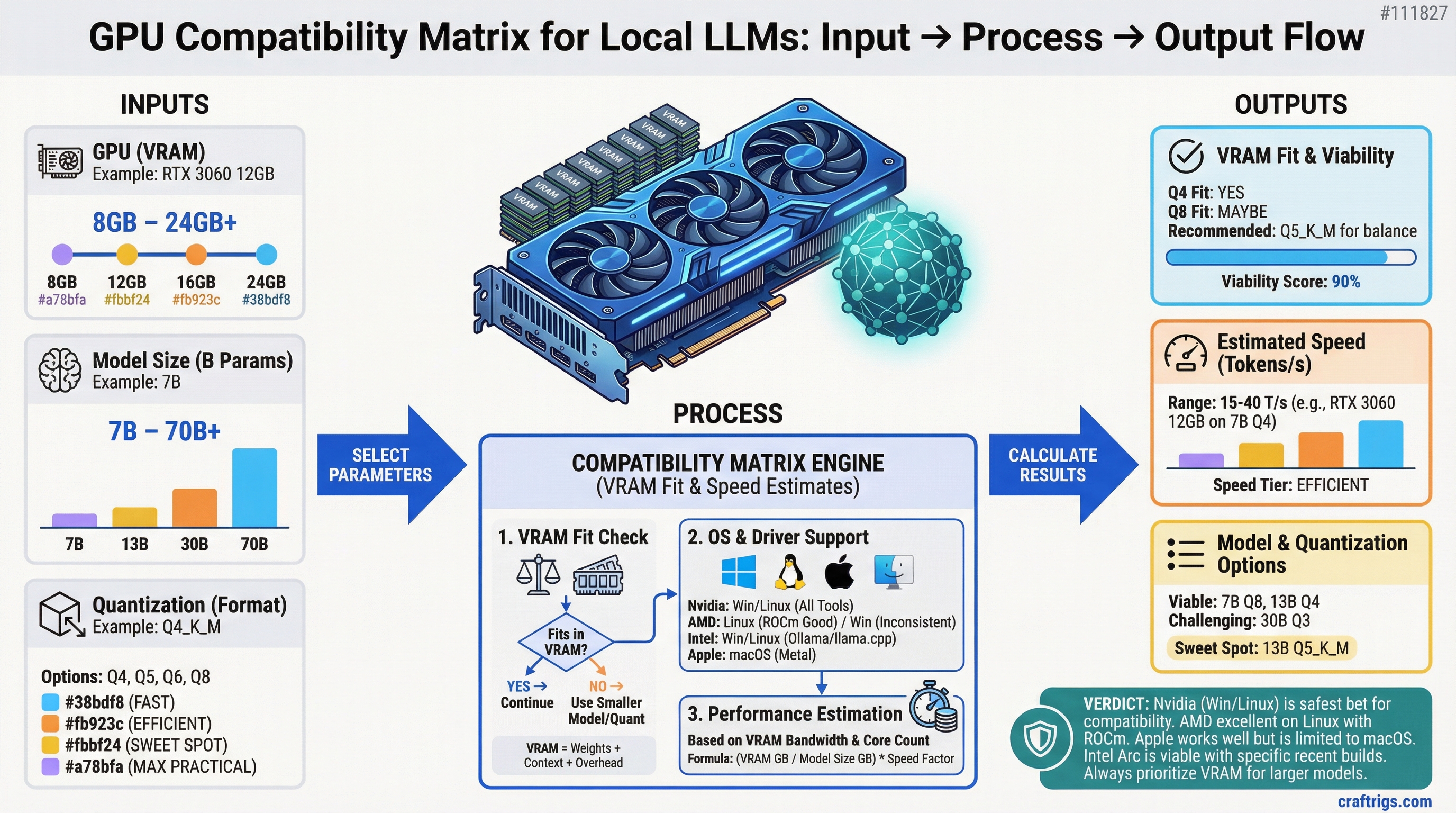
TL;DR: Every Nvidia GPU from the RTX 20-series forward works with all major local inference tools on Windows and Linux. AMD GPUs work well on Linux with ROCm, inconsistently on Windows. Intel Arc B580 works with recent Ollama and llama.cpp builds on both platforms. Apple Silicon works through Metal and is excellent. Anything older than 2018 or with less than 8GB VRAM is not worth attempting.
Before buying a GPU for local AI, it's worth knowing which tools actually support it. Not all GPUs work with all software, and driver and OS compatibility can make or break the experience.
This matrix covers compatibility for the tools most people actually use: llama.cpp, Ollama, LM Studio, and koboldcpp.
Nvidia GPU Compatibility
Nvidia has the broadest and most reliable compatibility across the entire local LLM ecosystem. CUDA is the standard, and every major inference tool supports it.
Supported Nvidia GPU generations (for local AI):
- RTX 50 series (Blackwell, 2025–2026): Full support. CUDA 12.x required. All major tools support Blackwell. Verified: RTX 5090, 5080, 5070 Ti, 5070.
- RTX 40 series (Ada Lovelace, 2022–2024): Full support. CUDA 11.8+ or 12.x. Best-tested generation for current tools. RTX 4090 through 4060 all work.
- RTX 30 series (Ampere, 2020–2022): Full support. CUDA 11.x or 12.x. RTX 3090 through 3060 all work. Some older builds of tools require CUDA 11.x specifically.
- RTX 20 series (Turing, 2018–2020): Generally works. Some edge cases with very new features (Flash Attention 2) may require fallback. RTX 2080 Ti, 2080, 2070, 2060 — all functional with VRAM-appropriate models.
- GTX 10 series (Pascal, 2016–2018): Partial support. CUDA support exists but these cards are slow for inference and often have only 8GB VRAM max. Not recommended for new builds.
- GTX 900 series and earlier: Not recommended. Limited CUDA version support, insufficient VRAM, no practical path to good performance.
Tool-by-tool Nvidia support:
- llama.cpp (CUBLAS backend): All Nvidia GPUs GTX 900+ with appropriate CUDA toolkit installed
- Ollama: All Nvidia GPUs with CUDA support, auto-detected at install
- LM Studio: All Nvidia GPUs, CUDA auto-configured
- koboldcpp: All Nvidia GPUs via CUBLAS
- vLLM: Nvidia only (no AMD/Intel support), best for server use cases
OS compatibility for Nvidia:
- Windows 10/11: Full support, easiest setup, no manual driver configuration needed for most tools
- Linux (Ubuntu, Arch, Debian): Full support, slightly more setup (CUDA toolkit install), stable once configured
- macOS: Nvidia GPUs not supported on macOS 10.14+ (Apple dropped Nvidia driver support). No path forward.
AMD GPU Compatibility
AMD support has improved significantly in 2024–2025 with ROCm 6.x and RDNA 4. Linux support is solid; Windows is improving but still inconsistent.
Supported AMD GPU generations:
- RDNA 4 (RX 9000 series, 2026): Best AMD support to date. ROCm 6.2+ required. llama.cpp HIP backend works. Linux: excellent. Windows: ROCm available but some tools require manual configuration.
- RDNA 3 (RX 7000 series, 2022–2024): Works on Linux with ROCm 5.5+. Windows support is hit-or-miss. RX 7900 XTX (24GB) is the best option in this generation for local AI on Linux.
- RDNA 2 (RX 6000 series, 2020–2022): Works on Linux with older ROCm builds. Not all quantization formats supported. RX 6900 XT has 16GB and works on Linux. Windows support poor.
- GCN / RDNA 1: Not recommended. ROCm drops official support for older GCN architectures regularly. Setup complexity not worth it.
Tool-by-tool AMD support:
- llama.cpp (HIP backend): RDNA 2+ on Linux, RDNA 3+ recommended, RDNA 4 works on Windows with ROCm
- Ollama: Supports ROCm on Linux and limited Windows. RDNA 3+ recommended.
- LM Studio: AMD support added in 2025 for Linux. Windows AMD acceleration in beta as of early 2026.
- koboldcpp: ROCm/HIP backend available, Linux-primary
- vLLM: ROCm support on Linux for RDNA 3+
OS compatibility for AMD:
- Linux (Ubuntu 22.04+, recommended): Best experience. ROCm installs cleanly, llama.cpp HIP backend works reliably. Ubuntu 22.04 LTS is the most tested platform.
- Windows 11: Improving. ROCm for Windows available but requires more manual setup. Some tools have incomplete Windows AMD support.
- macOS: No ROCm support. AMD GPUs in older Mac Pros are not useful for local AI inference on macOS.
AMD-specific notes:
- ROCm version must match your GPU's LLVM target. Installing mismatched versions causes failures.
- Some GGUF quantization formats (certain K-quant variants) have lower AMD optimization and run slower than expected raw bandwidth would suggest.
- For dedicated local AI use on Windows, Nvidia is significantly less friction. AMD on Linux is a legitimate equal alternative.
Intel Arc Compatibility
Intel Arc Battlemage (B580) is the budget option worth considering for local AI. Support has matured considerably.
Supported Intel Arc generations:
- Arc Battlemage (B580, B570, 2024–2025): Supported in llama.cpp via SYCL backend and via IPEX-LLM. Ollama added Arc support in late 2024. 12GB VRAM enables useful model sizes.
- Arc Alchemist (A770, A750, 2022–2023): Supported with SYCL backend. A770 has 16GB VRAM and was the previous best Intel option. Works on Linux and Windows with current drivers.
- Older Intel integrated graphics / Iris Xe: Technically runs through OpenCL but inference speed is extremely slow due to limited VRAM (shared system memory). Not practical.
Tool-by-tool Intel support:
- llama.cpp (SYCL backend): Arc B580 and A770+ supported. Requires Intel oneAPI toolkit. Works on Linux and Windows.
- Ollama: Arc support added in Ollama 0.4.x. Works with current Arc drivers on both platforms.
- LM Studio: Intel Arc support in beta. Not all features available.
- IPEX-LLM: Intel's own optimized inference library. Best performance on Arc for specific model formats. More setup required.
- koboldcpp: Limited Intel Arc support; SYCL backend experimental.
OS compatibility for Intel:
- Windows 11: Best driver support, Arc GPU driver updates frequently. Ollama on Windows with Arc works.
- Linux (Ubuntu 22.04+): Works with Intel GPU drivers and SYCL. Slightly more setup than Windows.
Intel-specific notes:
- Arc GPUs share system RAM for VRAM if driver allows, but running models in shared memory is slow. Keep the model in the dedicated 12GB GDDR6.
- Intel's oneAPI toolkit must be installed for SYCL acceleration. Without it, the GPU won't be used for inference.
- Driver versions matter significantly — use the latest stable Arc GPU driver, not whatever shipped with a system.
Apple Silicon Compatibility
Apple M-series chips (M1 through M4) use unified memory — system RAM and GPU memory are the same pool. The Mac Mini M4 Pro maxes out at 48GB unified memory (not 64GB — 64GB is available on the Mac Studio M4 Max). A Mac Mini M4 Pro with 48GB unified memory can load a 30B model entirely into "GPU memory" because the GPU can access all of it.
Metal support:
- llama.cpp: Full Metal support since 2023. Excellent performance.
- Ollama: Full Metal support, auto-detected.
- LM Studio: Full Metal support, recommended platform for Mac users.
M-series by model:
- M1 (8–16GB): 7B models comfortable, 14B at Q4 tight. Good starting point.
- M2 (8–24GB): 14B models comfortable at 24GB config. M2 Pro/Max with 32–96GB covers larger models.
- M3 / M4 (16–192GB): The M3/M4 Max and Ultra chips with 64–192GB unified memory run 70B models entirely in "VRAM" — a capability no consumer discrete GPU matches. (M4 Ultra supports up to 192GB; M4 Max supports up to 128GB.)
Apple Silicon is the most efficient platform for local AI if you're buying new hardware and don't need Windows. Per-watt inference performance is excellent and the memory ceiling is dramatically higher than any consumer GPU.
Minimum VRAM by Tool
Most tools will technically attempt inference on any available GPU, but practical use requires enough VRAM to load at least part of the model:
- Useful 7B inference minimum: 6GB VRAM
- 13B–14B model minimum: 10GB VRAM
- 30B model minimum: 20GB VRAM (or 24GB comfortable)
- 70B model (single card): Not practical on consumer hardware — requires multi-GPU or CPU offloading
Anything below 6GB VRAM is CPU-only territory for practical model sizes.
Summary by Platform
Best overall compatibility, easiest setup: Nvidia GPU on Windows or Linux
Best Linux alternative to Nvidia: AMD RDNA 4 (RX 9070 XT) on Ubuntu 22.04+
Best budget under $300: Intel Arc B580 on Windows 11 or Linux
Best integrated performance per watt: Apple M3/M4 Pro or Max
Avoid for new builds: GTX 10 series or older, RDNA 1 or earlier AMD, anything with under 8GB VRAM