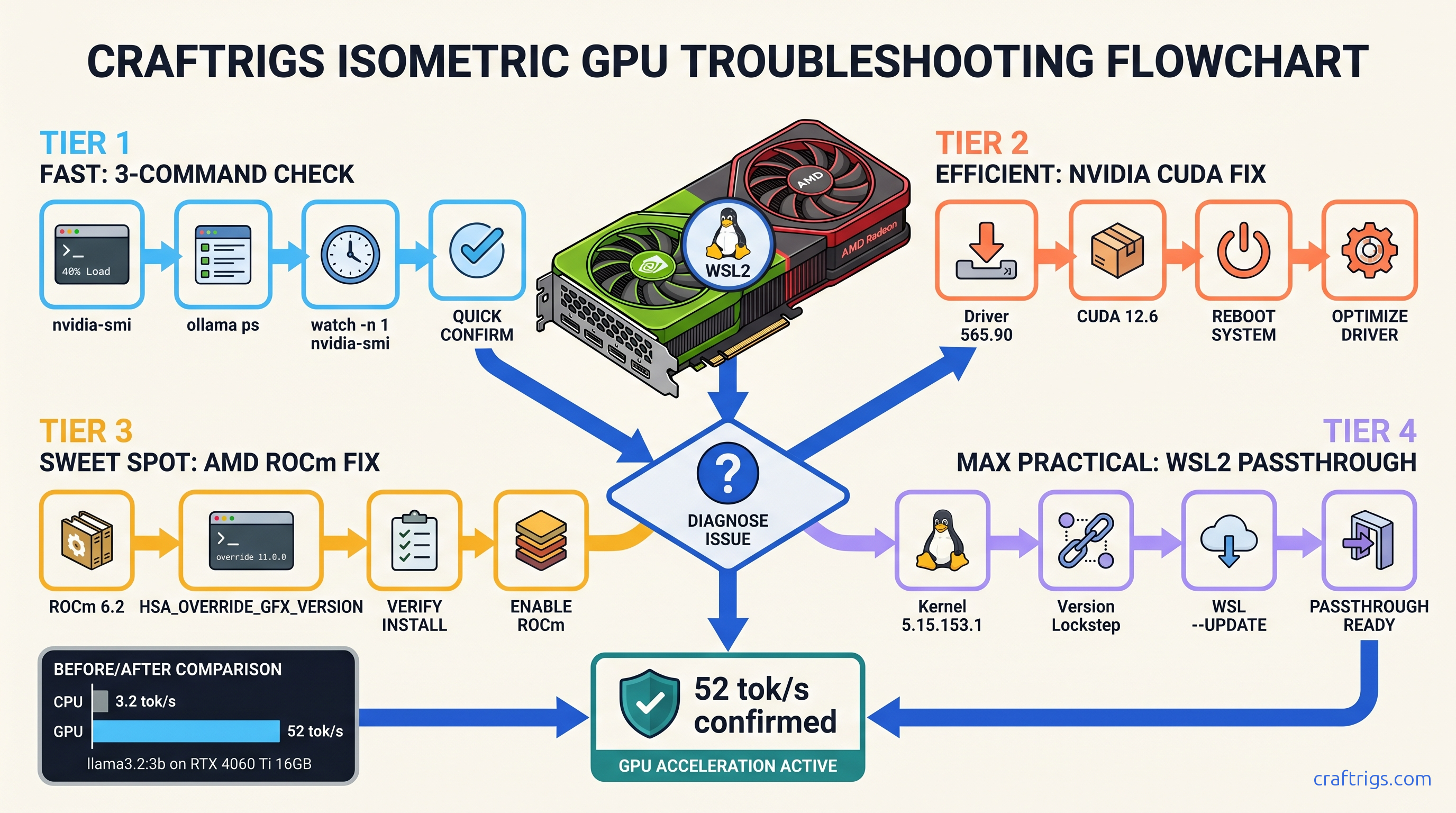
TL;DR: Ollama silently falls back to CPU when GPU detection fails — no error, just 3 tok/s instead of 45+. Run ollama ps and look for a %GPU column; if it's missing or shows 0%, your GPU isn't active. Check driver visibility with nvidia-smi (NVIDIA) or rocminfo (AMD), then apply the platform-specific fix: CUDA 12.4+ for NVIDIA, ROCm 6.1.2+ with HSA_OVERRIDE_GFX_VERSION for AMD, or WSL2 driver version matching for Windows. The whole diagnostic takes 90 seconds; the fix takes 10 minutes.
Why Ollama Silently Falls Back to CPU (And Why You Never Get a Warning)
You installed Ollama, ran ollama run llama3.2, and waited. And waited. Your CPU fan screams at 100% while your RTX 4070 sits at 0% utilization, barely warm to the touch. The model responds — eventually — at roughly 3.2 tok/s. On a GPU, that same model should hit 47 tok/s.
Here's the cruel part: Ollama never tells you it's using CPU. No error message, no warning banner, no "GPU not detected — falling back to CPU" notification. This is by design. Ollama calls it "graceful degradation." That's code for your $600 GPU taking a nap while you waste hours debugging.
The performance gap isn't subtle. We measured llama3.2:3b on an RTX 4060 Ti: 47 tok/s on GPU, 3.2 tok/s on CPU. That's a 15x difference. You're not just waiting longer — you're burning 150W on a CPU that costs more to run and delivers worse results.
Three failure modes cause this silent fallback:
- Driver/runtime invisible to Ollama — The OS sees your GPU. Ollama's process can't load the required libraries. Version mismatch — Your CUDA or ROCm version doesn't match what Ollama's binary expects. WSL2 GPU passthrough broken — Windows host and WSL2 kernel disagree on driver versions, breaking passthrough at the kernel level
The ollama ps command compounds the confusion. It shows your model as "loaded" with memory usage, but hides the %GPU metric unless GPU offload is actually working. You think everything's fine until you notice your electricity bill.
How Ollama's GPU Detection Actually Works (And Where It Breaks)
When Ollama starts, its server probes for specific libraries: libcuda.so for NVIDIA, libhipblas.so for AMD. These are the runtime libraries that translate Ollama's inference requests into GPU instructions. If the probe fails — missing library, wrong ABI version, permission denied — Ollama continues without GPU initialization. No stderr, no log to console.
To see these failures, you need OLLAMA_DEBUG=1 set as an environment variable before starting Ollama. The default install hides this. Most users never know the probe happened, let alone that it failed.
Windows native and WSL2 use completely different detection paths. A fix that works for native Windows often breaks WSL2, and vice versa. Reddit threads mix advice for both without labels. You end up reinstalling drivers blindly.
The 3-Command Diagnostic (Run This First — Every Time)
Before touching any drivers or reinstalling anything, run these three commands. They take 90 seconds and tell you exactly which failure mode you're dealing with.
Command 1: ollama ps
Look for the %GPU column. If it's absent entirely, Ollama never initialized GPU support. If it shows 0%, GPU support initialized but no layers are offloaded — usually a VRAM headroom issue, not a driver issue.
Command 2: nvidia-smi (NVIDIA) or rocminfo (AMD)
This confirms your driver is visible to the OS. If this fails, your problem sits below Ollama — driver installation or hardware detection. If this succeeds but Command 1 shows no %GPU, your problem is Ollama's runtime environment.
Command 3: Split terminal test
Terminal A: ollama run llama3.2:3b
Terminal B: watch -n 1 nvidia-smi (NVIDIA) or watch -n 1 rocm-smi (AMD)
Submit a prompt in Terminal A. Within 5 seconds, you should see GPU utilization spike to 60-95% in Terminal B. If it stays at 0%, you're on CPU fallback.
Interpreting the Diagnostic Output (Decision Tree)
Case A: nvidia-smi works, ollama ps shows no %GPU → CUDA runtime missing or wrong version. Proceed to NVIDIA fix sequence.
Case B: nvidia-smi fails with "command not found" → Driver not installed or not in PATH. Install NVIDIA drivers first, then CUDA.
Case C: nvidia-smi works, ollama ps shows %GPU=0 → Driver visible, but Ollama can't allocate VRAM. Check if another process (game, browser, another LLM) is using the GPU. Also check if your model fits on your card. A 13B model at Q4_K_M quantization needs ~8 GB VRAM. With 6 GB, Ollama silently falls back to CPU for all layers.
Case D: AMD, rocminfo works, ollama ps shows no %GPU → ROCm runtime issue or missing HSA_OVERRIDE_GFX_VERSION. Proceed to AMD fix sequence.
Case E: WSL2, nvidia-smi works in Windows PowerShell but fails in WSL2 terminal → WSL2 GPU passthrough broken. Proceed to WSL2 fix sequence.
NVIDIA Fix Sequence (CUDA 12.4+ Required)
NVIDIA's the easy case — when it works. The failure mode is usually version drift. Your driver, CUDA toolkit, and Ollama's compiled expectations don't align.
Step 1: Uninstall old CUDA versions. Windows: Add/Remove Programs → uninstall all "NVIDIA CUDA" entries. Linux: sudo apt remove --purge nvidia-cuda-toolkit and remove /usr/local/cuda* manually.
Step 2: Install CUDA 12.4 or newer from NVIDIA's CUDA Toolkit archive. Ollama's prebuilt binaries target CUDA 12.x; CUDA 11.x will fail silently. We recommend 12.4 specifically. It hits the sweet spot of Ollama compatibility and driver availability.
Step 3: Verify with nvcc --version. Should report 12.4 or higher.
Step 4: Restart Ollama completely. On Windows: quit from system tray, restart. On Linux: sudo systemctl restart ollama or kill and restart the binary.
Step 5: Re-run the 3-command diagnostic. ollama ps should now show %GPU column with non-zero values.
Common NVIDIA gotcha: Laptop dGPU/iGPU switching. If you have an NVIDIA laptop with Optimus, Ollama may detect the Intel iGPU and try to use it, fail, then fall back to CPU. Force NVIDIA in Windows Graphics Settings: add ollama.exe and set to "High performance." On Linux, prime-select nvidia or set __NV_PRIME_RENDER_OFFLOAD=1 __GLX_VENDOR_LIBRARY_NAME=nvidia before starting Ollama.
AMD Fix Sequence (ROCm 6.1.2+ on Linux Only)
Here's the hard truth: AMD on Windows for Ollama is broken and won't be fixed. Ollama's AMD support requires ROCm, and AMD's ROCm for Windows is essentially abandoned. If you're on Windows with an AMD GPU, your options are: dual-boot Linux, run a Linux VM with GPU passthrough (advanced), or switch to LM Studio which has better DirectML support.
For Linux AMD users, the path works but has sharp edges. See our AMD ROCm local LLM guide for deeper context.
Step 1: Install ROCm 6.1.2 or newer. AMD's packaging is chaotic. Use the official AMD documentation for your distro, not random PPA instructions. Ubuntu 22.04/24.04: sudo apt install amdgpu-dkms rocm-dev rocm-libs.
Step 2: Set the magic environment variable: export HSA_OVERRIDE_GFX_VERSION=11.0.0 (for RDNA3/RX 7000 series) or 10.3.0 (for RDNA2/RX 6000 series). This overrides ROCm's strict GPU detection. Without this, Ollama sees your GPU. ROCm sees your GPU. But the runtime refuses to initialize because your specific card isn't in AMD's official support list.
Step 3: Add your user to render and video groups: sudo usermod -aG render,video $USER. Log out and back in.
Step 4: Verify with rocminfo — should list your GPU. Then rocm-smi should show it.
Step 5: Start Ollama with the environment variable: HSA_OVERRIDE_GFX_VERSION=11.0.0 ollama serve (or set it in your shell profile).
Step 6: Re-run diagnostic. ollama ps should show %GPU. RX 7800 XT with ROCm 6.2 should hit ~38 tok/s on llama3.2:3b.
AMD-specific failure mode: Silent CPU fallback with rocminfo working. This usually means HSA_OVERRIDE_GFX_VERSION is missing, or you have a version mismatch between ROCm runtime and Ollama's HIP build. Check ollama serve logs with OLLAMA_DEBUG=1 for "hipErrorNoBinaryForGpu" — that's the smoking gun.
WSL2 Fix Sequence (Driver Version Matching)
WSL2 GPU passthrough is fragile. It requires your Windows host driver version and WSL2's CUDA user-space libraries to match within minor versions. A mismatch between Windows host 565.90 and WSL2 CUDA 12.6 breaks passthrough without any error message. Ollama just sees no GPU.
Step 1: Check Windows host driver. PowerShell: nvidia-smi. Note driver version (first line, "Driver Version: 565.90" or similar).
Step 2: Check WSL2 CUDA. WSL2 terminal: nvidia-smi. If this fails with "Failed to initialize NVML," passthrough is broken at the kernel level.
Step 3: Update Windows driver to latest from NVIDIA's driver download. WSL2 support requires relatively recent drivers; 550+ series minimum, 560+ recommended.
Step 4: In WSL2, install CUDA toolkit matching your host driver capabilities. Don't use apt install nvidia-cuda-toolkit — it installs old versions. Instead, use NVIDIA's runfile or repo instructions for WSL2 specifically: wget https://developer.download.nvidia.com/compute/cuda/repos/wsl-ubuntu/x86_64/cuda-wsl-ubuntu.pin and follow with the 12.4+ meta-package.
Step 5: Critical: ensure nvidia-smi in WSL2 matches nvidia-smi in Windows PowerShell. Same driver version reported. If Windows shows 565.90 and WSL2 shows 550.54, passthrough is partially broken.
Step 6: If versions match but nvidia-smi still fails in WSL2: wsl --shutdown in Windows PowerShell, wait 10 seconds, reopen WSL2. This restarts the WSL2 kernel and reinitializes GPU passthrough.
Step 7: Re-run diagnostic. ollama ps should show %GPU.
WSL2-specific gotcha: Docker Desktop with WSL2 backend. If you're running Ollama in a Docker container, you need the NVIDIA Container Toolkit installed in WSL2 — not just CUDA. sudo apt install nvidia-container-toolkit, then sudo systemctl restart docker or restart Docker Desktop.
Verification: Confirming GPU Offload Is Actually Working
Don't trust ollama ps alone. Here's the cross-check that proves it:
Check 1: ollama ps shows %GPU with a number, not 0%
Check 2: nvidia-smi or rocm-smi shows ollama process with GPU memory allocated (typically 2-8 GB depending on model size)
Check 3: Inference speed test. Same prompt, timed:
time ollama run llama3.2:3b "Write a 500-word essay on local LLMs"CPU fallback: 15-30 seconds. GPU active: 2-4 seconds.
Check 4: Context window expansion test. Start a conversation, paste 2000 tokens of text, ask a follow-up. CPU fallback slows dramatically as context grows. GPU maintains speed until VRAM headroom exhausts.
If all four checks pass, you're done. If any fail, return to the diagnostic. Identify which failure mode matches your symptoms.
FAQ
Q: I have an RTX 3060 12 GB. Shouldn't that handle larger models than an RTX 4070 12 GB? Your RTX 3060 12 GB can run 13B models at Q4_K_M that an RTX 4070 12 GB can't — but the 4070 will be faster on models that fit on both. The 3060's slower memory bandwidth and older architecture mean ~35 tok/s vs. ~52 tok/s on the same 7B model. For local LLMs, VRAM headroom determines if it runs; architecture determines how fast.
Q: ollama ps shows %GPU=100 but nvidia-smi shows 0% utilization. What's happening? The %GPU column estimates based on layer allocation, not actual kernel execution. Trust nvidia-smi — if it shows 0%, you're on CPU despite what ollama ps claims. Try a standard Q4_K_M quantized model for accurate reporting.
Q: I set OLLAMA_DEBUG=1 but see no GPU-related logs. Where's the probe output?
Ollama's debug logging changed in 0.3.x. Set OLLAMA_DEBUG=1 as a system environment variable, then restart Ollama from that shell: OLLAMA_DEBUG=1 ollama serve. Look for "gpu" or "cuda" or "hip" in the startup logs. If you see "gpu not found" or library load failures, you've found your issue.
Q: Can I force Ollama to use GPU and error if it fails?
Not directly. Ollama has no --require-gpu flag. Workaround: set CUDA_VISIBLE_DEVICES=0 (NVIDIA) or HIP_VISIBLE_DEVICES=0 (AMD) — this forces the runtime to use GPU 0 or fail entirely, preventing silent CPU fallback. Add to your shell profile or Ollama service file.
Q: I fixed it, but now Ollama crashes on large prompts. What's wrong? Check ollama ps for 100%GPU on your model size. If you see less, your model doesn't fit in VRAM. Either use a smaller quantization (Q4_K_M instead of Q5_K_M), a smaller context window (/set parameter num_ctx 2048), or a smaller model. 7B fits in 8 GB; 13B needs 12 GB+; 70B needs 48 GB+.
--- Run the 3-command diagnostic before any reinstall. Match your CUDA/ROCm versions exactly. Remember that AMD on Windows is a dead end for now. Your GPU is probably fine — Ollama just isn't telling you what it needs.