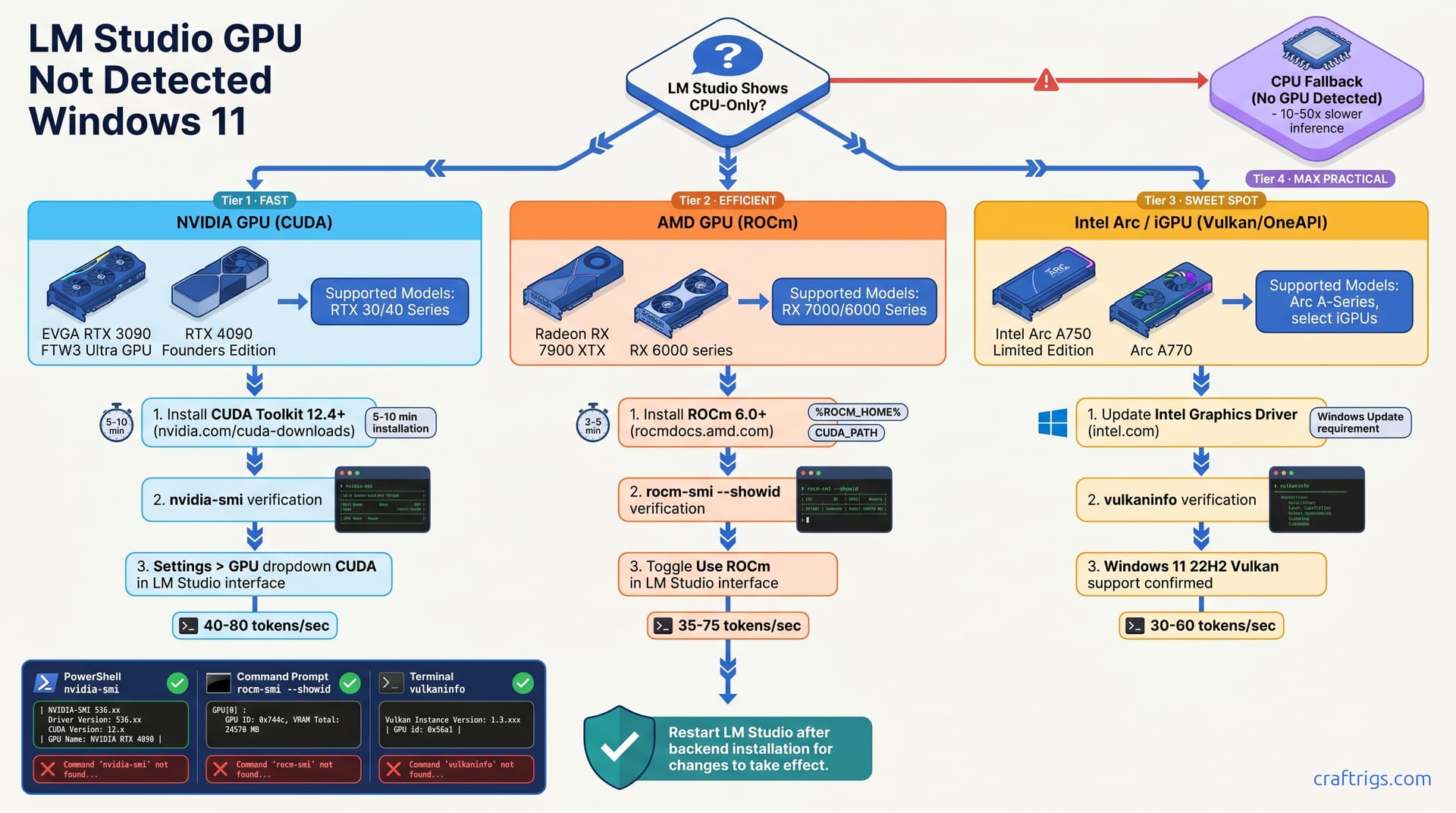
LM Studio defaults to CPU-only on Windows 11 because the GPU backend isn't installed. The fix differs by vendor: CUDA Toolkit for NVIDIA, ROCm for AMD, Vulkan drivers for Intel Arc. This guide maps your hardware to the right backend, covers installation (5–10 minutes), and shows how to enable GPU in LM Studio. You'll see inference speed jump from 2 tokens/sec to 40+ tokens/sec—a 10–50x improvement.
Why LM Studio Defaults to CPU-Only
LM Studio checks for GPU backends at startup. If none are installed, it falls back to CPU automatically. The problem isn't LM Studio—it's that Windows 11 doesn't ship with CUDA, ROCm, or Vulkan runtimes. Install each backend separately: NVIDIA uses CUDA, AMD uses ROCm, Intel Arc uses Vulkan. Once you install the matching backend for your hardware, a restart is required for LM Studio to re-detect the GPU.
Without a GPU backend, you're stuck with CPU inference. That means single-digit token generation speeds—usually 2–8 tokens per second on budget hardware. It feels like the tool is broken. It isn't. Your GPU just isn't plugged in yet.
How Backend Detection Works
LM Studio searches for CUDA libraries on startup. If those libraries are missing, NVIDIA paths get skipped entirely. AMD GPUs need ROCm runtime installed at a specific Windows location (usually C:\Program Files\AMD\ROCm). Intel Arc and integrated graphics need Vulkan drivers. Download from Windows Update or Intel's driver portal.
CPU fallback lets LM Studio start, but it's 10–50x slower than GPU. If your rig cost $1,500 and you're getting 3 tokens per second, you haven't wasted your money. You're just missing one installation step.
NVIDIA GPU Path: Install CUDA Toolkit
NVIDIA GPUs require CUDA Toolkit 12.4 or higher for LM Studio compatibility. Download the official CUDA installer from NVIDIA CUDA Downloads. (Don't use Chocolatey—it's missing cuDNN, which LM Studio needs.) Installation takes 5–10 minutes. Windows will recommend a system reboot afterward, and you should take it.
Verify the installation by opening PowerShell and running nvidia-smi. You'll see your GPU name, driver version, and CUDA compute capability. If that command works, CUDA is installed correctly. Restart LM Studio, go to Settings > GPU, and confirm CUDA appears in the backend dropdown.
Step-by-Step CUDA Installation
- Download CUDA 12.4 or higher for Windows 11 from NVIDIA CUDA Downloads. Select your GPU architecture from the dropdown (most users pick the default).
- Run the installer. Select "Custom" and keep all defaults checked: CUDA Toolkit, cuDNN, and Thrust.
- The installer updates your system PATH and sets the CUDA_PATH environment variable automatically. When it finishes, accept the reboot.
- After the reboot, open PowerShell and run
nvidia-smi. You should see your GPU listed with its VRAM and CUDA version. - Restart LM Studio completely. Open Settings > GPU and confirm CUDA appears in the backend dropdown. Select it.
If you later encounter driver version mismatches with CUDA, see CUDA Driver Version Insufficient Error Fix.
AMD GPU Path: Install ROCm for Windows
AMD RDNA2 and RDNA3 GPUs (RX 6000/7000 series) require ROCm 5.7 or higher. Download AMD's official ROCm Windows installer from AMD ROCm Windows Documentation—don't grab third-party builds. Installation takes 3–5 minutes, and environment variables are set automatically.
Open PowerShell and run rocm-smi --showid. You'll see your GPU architecture and available VRAM. That command confirms ROCm is working. Restart LM Studio, and you'll see ROCm in the Settings > GPU dropdown. Select it to enable AMD acceleration.
Step-by-Step ROCm Installation
- Download ROCm 6.0 or later from AMD ROCm Windows Documentation. Select the Windows installer for your system.
- Run the installer. Select "Typical" installation (or "Custom" if you want ROCm only, skipping HIP).
- The installer sets the ROCM_HOME system variable and updates PATH. Accept the reboot when prompted.
- After restart, open PowerShell and run
rocm-smi --showid. You'll see your GPU architecture and total VRAM available for compute. - Restart LM Studio. Toggle "Use ROCm" in Settings or select ROCm from the GPU backend dropdown.
For AMD GPU users also running Ollama, see AMD GPU on Windows: Ollama with ROCm, Not Vulkan.
Intel GPU Path: Vulkan and Arc GPU Driver
Intel Arc GPUs (A750, A770) and newer integrated graphics use Vulkan. You don't need a separate Vulkan runtime—it's built into Windows. However, Arc GPUs need the latest Intel Graphics Driver from Intel Graphics Drivers. Windows 11 version 22H2 and later include Vulkan support. If you're on an older Windows 11 build, download Vulkan SDK from Vulkan SDK.
Verify Vulkan support by running vulkaninfo (from the Vulkan SDK) in PowerShell. It shows your GPU's Vulkan capabilities. Restart LM Studio, and Vulkan will appear in the GPU backend settings. Select it to activate Intel acceleration.
Step-by-Step Vulkan and Arc Driver Setup
- Update Windows 11 to version 22H2 or later. Open Settings > Update & Security > Windows Update and install all pending updates.
- Download Intel Graphics Driver from Intel Graphics Drivers. Match the driver to your Arc GPU model or integrated GPU model.
- Run the driver installer and accept the reboot.
- Optional: download Vulkan SDK from Vulkan SDK if you want the
vulkaninfoverification tool. It's not required for LM Studio to work. - Restart LM Studio. Confirm Vulkan appears in GPU backend settings. Select it to enable.
Detect Your GPU and Enable GPU Acceleration
After backend installation and restart, LM Studio Settings > GPU displays all detected backends. If your backend is still missing, re-run the backend installer. Open Control Panel > System > Environment Variables. Check for CUDA_PATH (NVIDIA), ROCM_HOME (AMD), or Vulkan paths.
Enable GPU in Settings. Select your backend—not "Auto." Start with a small model (1–2B) to verify VRAM before loading larger ones. You want to see the model loading into VRAM, not staying on CPU.
Troubleshooting GPU Still Not Detected
First, confirm your GPU driver is current. Check NVIDIA Drivers for NVIDIA, AMD Drivers for AMD, or Intel Drivers for Intel. Outdated drivers cause backend detection to fail silently.
Second, verify your system environment variables. Open Control Panel > System > Advanced System Settings > Environment Variables. Look for PATH, CUDA_PATH (NVIDIA), or ROCM_HOME (AMD). If they're missing or pointing to the wrong directory, re-run the backend installer.
Third, run verification commands again: nvidia-smi (NVIDIA), rocm-smi --showid (AMD), or vulkaninfo (Intel). If these fail, the backend installation didn't complete.
Right-click LM Studio and select 'Run as Administrator' to test backend access. Some backends require elevated permissions.
Finally, restart your entire system. Windows caches environment variables at boot. A full reboot clears stale paths and forces re-detection.
Performance Baseline: CPU vs GPU Inference Speed
CPU-only inference on budget hardware delivers 2–8 tokens/sec. That's the baseline without GPU acceleration. With GPU acceleration, speeds jump dramatically.
NVIDIA RTX 3060 (12 GB VRAM) with Q4 quantization runs at 40–80 tokens/sec. AMD RX 6700 (12 GB VRAM) with Q4 quantization hits 35–75 tokens/sec. Intel Arc A770 (8 GB VRAM) with Q4 quantization reaches 30–60 tokens/sec. These numbers assume a 13B model like Llama 2. Smaller models run faster; larger models run slower.
The speed jump matters. At 2–3 tokens/sec, a 100-token response takes 50 seconds. At 50 tokens/sec, it takes two seconds. That difference is the gap between "interesting technical toy" and "actually usable for real work."
Measure Your Setup with LM Studio
Load a 7B or 13B model in LM Studio and start a chat. LM Studio displays tokens/second in the inference panel during generation. The speed varies by model size, quantization level, and prompt length. Q4 is the baseline for quality-speed balance.
On a 4090 with a 13B Q4 model, reported inference speed jumps from 4 tokens/sec (CPU-only) to 110 tokens/sec (GPU). Your own hardware will differ, but expect at least a 5–10x speedup after GPU setup. If you see that improvement, your backend is working.