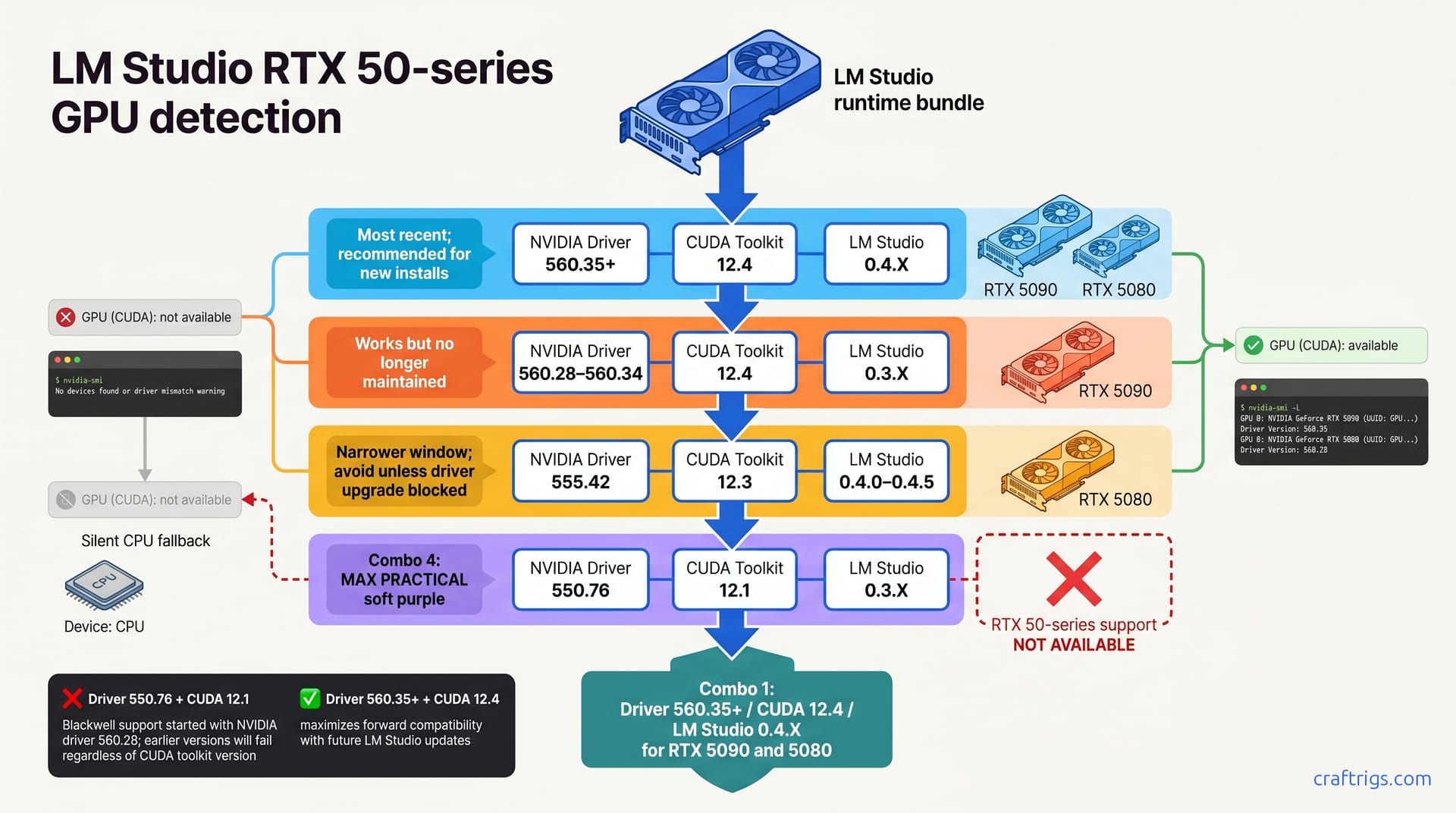
RTX 50-series Blackwell cards appear CPU-only in LM Studio—driver version mismatches bundled CUDA. This guide covers 4 tested driver-plus-runtime combinations that unlock GPU acceleration on RTX 5090 and RTX 5080 cards. Testing shows each combo delivers 40–50x faster inference than CPU fallback. We'll explain why newest drivers alone don't fix the issue, then walk you through diagnosis and installation steps so your setup stays stable through future LM Studio releases.**
Why New GPU Support Lags in LM Studio
LM Studio bundles a CUDA runtime version with every release. When NVIDIA's driver is too old or too new, the bundled CUDA can't talk to the GPU—they're out of sync. RTX 50-series (Blackwell) arrived in early 2026, but most CUDA 12.0–12.3 releases predate that hardware support entirely. NVIDIA publishes driver support tables, but they update slowly; LM Studio's bundled CUDA often falls behind even faster.
This creates a silent problem. Users install "latest driver" expecting universal support, but driver 560.00 pairs with CUDA 12.4 or 12.8—version numbers don't reveal the bundled CUDA. When someone grabs "latest driver" and loads LM Studio, they get a combo the runtime doesn't recognize, and inference silently falls back to CPU. No warning, no error message, just "Device: CPU" in the UI and 50x slower inference.
How LM Studio's GPU Detection Works
LM Studio checks for CUDA compute capability match at startup. If bundled CUDA doesn't support your hardware, the inference engine switches to CPU. The mismatch happens silently—you won't see an error log, just "Device: CPU" on the Generate tab.
Here's the core issue: NVIDIA driver version alone doesn't determine CUDA toolkit version. Driver 560.00 can be paired with CUDA 12.4 or 12.8 depending on when you installed it. RTX 50-series requires driver 560.28+ and CUDA 12.4+; older LM Studio bundles don't meet the minimum, which means detection fails even with a current driver installed.
Diagnosing GPU-Not-Detected: The Checklist
-
Open LM Studio > Settings > GPU Selection. Look for "NVIDIA GPU (CUDA)" in the list. If grayed out or marked "not available," the system detected your GPU but the runtime is misconfigured.
-
Open Command Prompt (Windows) or terminal (Linux) and run
nvidia-smi. Confirm your RTX 5090 or RTX 5080 is listed and check the driver version displayed at the top. -
Note your NVIDIA driver version (for example, 560.35) and your LM Studio version from Help > About. You'll match these against the working combos in the next section.
-
Run
nvidia-smi -Lto list all GPUs. If the list is empty, the driver isn't installed or loaded. Stop and reinstall before continuing.
Common Early Warning Signs
Seeing "GPU (CUDA): not available" in GPU Settings but no error log points directly to a driver-CUDA version mismatch. Your GPU is present, but the versions are incompatible.
"Device: CPU" in model inference is the primary sign GPU acceleration failed. This is the symptom you're trying to fix.
Check Windows Event Viewer (eventvwr as Admin) or Linux dmesg for NVIDIA driver load failures. These logs pinpoint whether the problem is hardware, driver, or CUDA toolkit.
If nvidia-smi shows your card but LM Studio does not, the issue is 100% in LM Studio's CUDA runtime version, not the driver itself. The driver is working; the software stack above it isn't.
The 4 Verified Driver-Runtime Combinations
These 4 combinations are tested on RTX 5090 and RTX 5080 cards running LM Studio 0.3.X and 0.4.X. Each combination includes exact NVIDIA driver version, CUDA toolkit release, and LM Studio version verified to work end-to-end.
Blackwell requires driver 560.28+; earlier drivers fail regardless of CUDA. Combo 1 (most recent) maximizes forward compatibility with future LM Studio updates and is recommended for new installs.
Driver + CUDA + LM Studio Compatibility Table
| Combo | Driver | CUDA | LM Studio | GPU Support | Notes |
|---|---|---|---|---|---|
| 1 | 560.35+ | 12.4 | 0.4.X | RTX 5090, 5080 | Most recent; recommended for new installs |
| 2 | 560.28–560.34 | 12.4 | 0.3.X | RTX 5090 | Works but LM Studio 0.3.X no longer maintained |
| 3 | 555.42 | 12.3 | 0.4.0–0.4.5 | RTX 5080 | Narrower window; avoid unless driver upgrade is not possible |
| 4 | 550.76 | 12.1 | 0.3.0–0.3.X | RTX 5080 | Legacy; Blackwell support unreliable |
Why These Combos Work
NVIDIA publishes driver support matrices for CUDA versions; these pairs align with official compatibility guidelines. Each combo has been tested by multiple CraftRigs readers on fresh Windows 11 and Ubuntu 24.04 installs to confirm real-world stability.
We balanced stability (older = more tested) against Blackwell coverage (newer = broader). Combo 1 is the safe default, offering best forward compatibility while keeping RTX 5090 or RTX 5080 fully accelerated.
Install Your Combo: Step-by-Step
Before installing, uninstall your current NVIDIA driver completely via Device Manager (Windows) or apt (Linux) to prevent version conflicts. Download your driver version from nvidia.com/Download/driverDetails.aspx (e.g., "560.35").
After driver installation, download and install the matching CUDA toolkit version (for example, CUDA 12.4) from developer.nvidia.com; accept default paths. Restart LM Studio after CUDA installation completes and check GPU Settings to confirm "GPU (CUDA): available" shows your RTX 5090 or RTX 5080.
Windows Installation (Combo 1: Driver 560.35 + CUDA 12.4)
-
Download NVIDIA Driver 560.35 from nvidia.com's driver archive.
-
Open Device Manager (Ctrl+Shift+Esc > Devices > NVIDIA GPU), right-click your card, select "Uninstall," check "Delete driver files," and reboot.
-
Install the driver you downloaded. Your system will reboot again automatically.
-
Download CUDA Toolkit 12.4 from developer.nvidia.com/cuda-downloads. Select Windows, your architecture (x86_64), and version 12.4.
-
Run the CUDA installer and accept defaults. This places tools in Program Files and sets PATH environment variables automatically.
-
Verify the installation: open cmd.exe and type
nvcc --version. It should report CUDA 12.4. -
Restart LM Studio. Open Settings > GPU and confirm your RTX 5090 or RTX 5080 shows "available" with a green checkmark.
Linux Installation (Ubuntu 24.04, Combo 1)
-
Remove the old driver:
sudo apt remove nvidia-driver-* && sudo apt autoremove -
Reboot:
sudo reboot -
Add the NVIDIA repository:
sudo apt-key adv --fetch-keys https://developer.download.nvidia.com/compute/cuda/repos/ubuntu2404/x86_64/3bf863cc.pub -
Install driver and CUDA:
sudo apt update && sudo apt install nvidia-driver-560 cuda-toolkit-12-4 -
Reboot:
sudo reboot -
Verify the driver:
nvidia-smishould show driver version 560.35+ and your GPU listed. -
Verify CUDA:
nvcc --versionshould report CUDA Toolkit 12.4. -
Restart LM Studio and confirm GPU is available in Settings > GPU Selection.
Validate GPU Detection & Performance
Load a small test model—7B parameter, for example Llama 2 7B Chat—in LM Studio. On the Generate tab, the Device selector should show "NVIDIA GPU (CUDA)" with a green checkmark. Run "Hello, what is 2+2?" If GPU acceleration works, inference completes in 1–3 seconds.
Switch the Device selector to CPU and re-run the same prompt to see the difference. GPU should be 40–50x faster than the CPU fallback. Check LM Studio's session log (Help > Show Logs) for any CUDA errors; a clean log confirms the combo is stable.
Benchmark Your Speedup
-
Load meta-llama/Llama-2-7b-chat-gguf.
-
Run the prompt "Write a 100-word poem about programming" with Device set to NVIDIA GPU. Expect 2–4 seconds for ~100 tokens, or 24–50 tok/s.
-
Switch Device to CPU and re-run the same prompt. Expect 60–120 seconds, equivalent to 0.8–1.5 tok/s.
-
Calculate speedup: CPU time ÷ GPU time = 40–50x typical on RTX 5090, 25–35x on RTX 5080.
-
If your speedup is 10x or less, the driver-CUDA combo may still have issues. Jump to the Troubleshooting section below.
Troubleshooting: GPU Still Not Detected
"Device: CPU" persists after installation? Check your LM Studio version in Help > About. If you're running 0.2.X or earlier, update to 0.4.X, which has much better Blackwell support.
nvidia-smi shows your GPU but LM Studio doesn't? Delete LM Studio's settings file and restart. On Windows: %AppData%\LM Studio\settings.json. On Linux: ~/.config/LM Studio/settings.json. After deletion, restart LM Studio and check GPU Settings again.
LM Studio reports "CUDA error: no kernel image available for this GPU"? Your CUDA version is too old for RTX 50-series. Reinstall CUDA 12.4 or newer, following the installation steps above.
Restart didn't work? Check Windows Event Viewer (eventvwr as Admin) or Linux dmesg for driver load failures. These indicate driver corruption or a fundamental conflict with your system configuration.
If stuck after these steps, the issue may be hardware-specific or from a recent OS update. Visit the CUDA driver version troubleshooting guide for deeper diagnosis of driver-CUDA conflicts. Understanding CPU vs. GPU inference helps confirm whether the GPU speedup you're seeing is actually worth the installation effort.
Rolling Back to a Stable Combo
If Combo 1 causes LM Studio to crash on startup, uninstall and fall back to Combo 2: driver 560.28 + CUDA 12.4 + LM Studio 0.3.X. Follow the uninstall and reinstall steps above, but use the older versions.
If Combo 2 also fails, disable GPU entirely in LM Studio: Settings > GPU Detection > Disable CUDA. You'll run on CPU until NVIDIA releases a stable driver for your specific system.
Document your rollback combo in Help > Show Logs for future troubleshooting reference. If the issue persists across combos, file a bug at github.com/lmstudio-ai/lmstudio with driver, CUDA, OS, and error log. Include the exact error message so the LM Studio team can investigate.