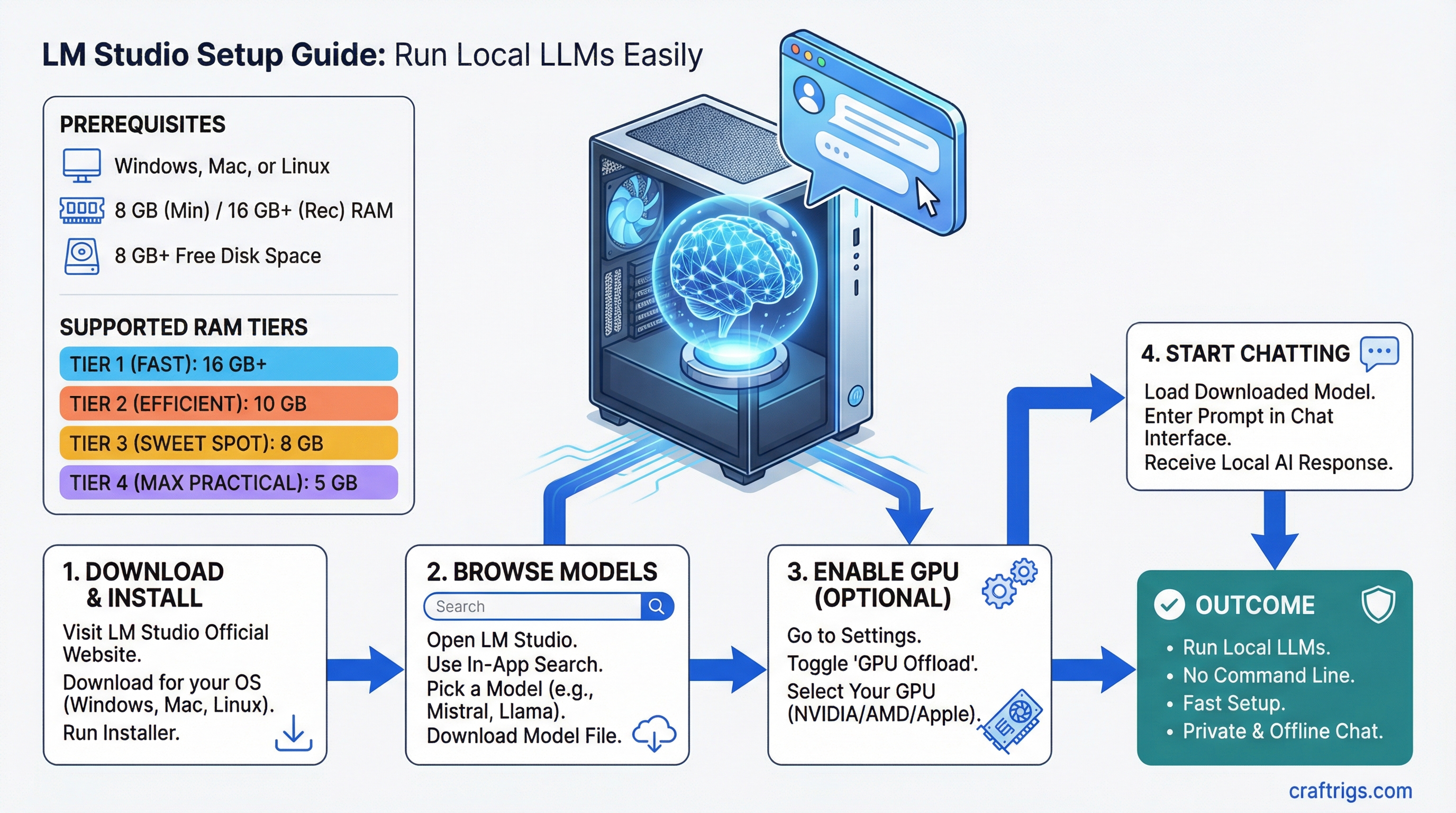
TL;DR: LM Studio gives you a desktop app with a built-in model browser, chat interface, and GPU acceleration -- no command line required. Download it, pick a model, and start chatting. If you want a visual, point-and-click way to run local LLMs, this is the fastest path.
What LM Studio Is (and Isn't)
LM Studio is a free desktop application that wraps llama.cpp in a polished GUI. It handles model downloading, VRAM management, and inference settings through a visual interface. It's not open source (unlike Ollama), but it's free for personal use.
If you're deciding between LM Studio and other tools, read our llama.cpp vs Ollama vs LM Studio comparison first. Short version: LM Studio is the best choice if you want a GUI and don't need API integrations.
What You Need
Minimum:
- Windows 10/11, macOS 12+, or Ubuntu 22.04+
- 8 GB RAM
- 10 GB free disk space
Recommended for a good experience:
- 16 GB RAM
- GPU with 8+ GB VRAM (NVIDIA RTX 3060 or better) or Apple Silicon Mac
- SSD for model storage (loading from HDD is painfully slow)
Not sure if your GPU has enough memory? Check how much VRAM you actually need.
Step 1: Download and Install
- Go to lmstudio.ai
- Download the installer for your platform
- Run it -- standard install, no configuration needed
Windows: The installer is a standard .exe. Accept defaults. LM Studio installs to your user directory, not Program Files, so no admin rights are needed after the initial install.
macOS: Drag to Applications. On Apple Silicon, make sure you're getting the ARM version (it should auto-detect). Metal GPU acceleration works out of the box with no extra setup.
Linux: Download the .AppImage. Make it executable (chmod +x LM-Studio-*.AppImage) and run it. For NVIDIA GPU support, you need CUDA drivers installed first.
Step 2: Find and Download Your First Model
This is where LM Studio shines. Open the app and click the Search tab (magnifying glass icon on the left).
How to Pick a Model
Type "llama 3" in the search bar. You'll see dozens of results from Hugging Face. Here's how to read them:
Model name format: username/model-name-size-quantization.gguf
The key things to look at:
- Size (parameters): 3B, 7B, 8B, 13B, 70B -- bigger means smarter but needs more VRAM
- Quantization type: Q4_K_M, Q5_K_M, Q8_0 -- this is how much the model is compressed. Q4 uses least VRAM, Q8 uses most but retains more quality. Quantization (compressing model weights to use fewer bits per parameter) is what makes it possible to run these models on consumer hardware.
- File size: Shown next to each download -- make sure you have the disk space
Our recommendation for your first model:
- 8 GB VRAM: Download Llama 3.1 8B Q4_K_M (~5 GB file, uses ~6 GB VRAM loaded)
- 12 GB VRAM: Download Llama 3.1 8B Q6_K (~6.5 GB file) for better quality
- 16+ GB VRAM: Download Qwen 2.5 14B Q4_K_M (~8 GB file) for a big step up in capability
- Apple Silicon 16 GB: Same as 8 GB VRAM recommendation -- Llama 3.1 8B Q4_K_M
Click the download button next to your chosen model. LM Studio downloads it and stores it locally (default: ~/.cache/lm-studio/models/).
Step 3: Start Chatting
- Click the Chat tab (speech bubble icon)
- Click the model dropdown at the top and select your downloaded model
- Wait for it to load (first load takes 10-30 seconds depending on model size and disk speed)
- Type a message and hit Send
You're running a local LLM. No API key, no cloud, no subscription.
Chat Features Worth Knowing
System prompt: Click the gear icon next to the model name. The system prompt tells the model how to behave. "You are a helpful coding assistant" makes it better at code. "You are a concise research assistant" makes it more focused. Experiment here.
Temperature: In the right sidebar, temperature controls randomness. 0.1 = very focused and deterministic. 0.9 = more creative and varied. Default 0.7 is fine for most things. Turn it down to 0.2-0.3 for coding and factual tasks.
Context length: How much text the model can "see" at once, measured in tokens (roughly 4 characters = 1 token). Default is usually 4096 tokens. You can increase this, but it costs VRAM. 8192 tokens uses about 50% more VRAM than 4096 for context processing.
Conversation history: LM Studio saves all your chats. You can revisit, search, and export them. Each conversation lives in its own thread.
Step 4: Verify GPU Acceleration
This is critical. If your model is running on CPU instead of GPU, it'll be 5-10x slower.
How to Check
When a model is loaded, look at the bottom status bar. It should show something like:
GPU: NVIDIA RTX 4070 Ti | Layers: 33/33 | VRAM: 5.8 GB
"Layers: 33/33" means all model layers are on the GPU. This is what you want.
"Layers: 20/33" means some layers are on CPU (not enough VRAM for all of them). It'll work but slower. Either use a smaller model or more aggressive quantization.
"Layers: 0/33" means CPU-only. GPU acceleration isn't working.
Fixing GPU Issues
NVIDIA on Windows:
- Open NVIDIA Control Panel and check your driver version (550+ recommended)
- In LM Studio, go to Settings (gear icon, bottom left) then Hardware
- Make sure "GPU Acceleration" is enabled and your NVIDIA GPU is selected
- If it shows "No compatible GPU found," update your NVIDIA drivers from nvidia.com/drivers
NVIDIA on Linux:
- Verify drivers with
nvidia-smiin terminal - Make sure you have CUDA runtime libraries installed
- Restart LM Studio after driver installation
Apple Silicon: Metal acceleration should be automatic. If performance seems low, check Activity Monitor -- the "GPU" column should show LM Studio using GPU resources. Close other GPU-heavy apps if needed. Apple Silicon uses unified memory (RAM shared between CPU and GPU), so closing memory-hungry browser tabs actually frees up space for your model.
AMD GPUs: AMD support in LM Studio is experimental as of March 2026. On Linux with ROCm, it may work. On Windows, AMD GPU support is limited. If you're on AMD, Ollama has better AMD support currently.
Step 5: Local Server Mode (For Developers)
LM Studio can serve an OpenAI-compatible API, just like Ollama. This lets other apps connect to your local model.
- Click the Developer tab (code icon on the left)
- Select a model to serve
- Click "Start Server"
- Default endpoint:
http://localhost:1234/v1
Now any tool that supports OpenAI's API format can connect. Set the base URL to http://localhost:1234/v1 and use any string as the API key (it's ignored locally).
Works with Continue.dev, Aider, Cursor, LangChain, and anything else that talks OpenAI format.
Troubleshooting Common Issues
"Failed to load model" error Usually means the GGUF file is corrupt. Delete it from LM Studio's model directory and re-download. Alternatively, you picked a model too large for your system -- try a smaller one.
Extremely slow generation (1-3 tokens/sec) GPU acceleration isn't working. Check Step 4 above. Also make sure you're not running out of system RAM -- if Windows is using the page file, everything crawls.
LM Studio crashes on model load The model needs more VRAM than you have. LM Studio tries to load everything into GPU memory and can crash instead of gracefully falling back. Solution: before loading, go to the model settings and manually reduce the number of GPU layers until it fits.
App is sluggish and unresponsive LM Studio's Electron-based UI can be heavy. On systems with 8 GB RAM, the GUI itself takes ~500 MB-1 GB. Close other apps, especially browsers. If this is a persistent problem, Ollama's lightweight daemon is a better fit for your hardware.
Models downloaded but not showing up
Check that the download actually completed. Partial downloads from interrupted connections won't load. Go to the model directory (~/.cache/lm-studio/models/ on Mac/Linux, C:\Users\<you>\.cache\lm-studio\models\ on Windows) and check file sizes match what Hugging Face shows.
Where Models Are Stored
- Windows:
C:\Users\<username>\.cache\lm-studio\models\ - macOS:
~/.cache/lm-studio/models/ - Linux:
~/.cache/lm-studio/models/
You can change this in Settings. If your boot drive is small, point LM Studio to an external SSD. Models on a spinning HDD will load slowly but run at normal speed once loaded.
What's Next
LM Studio is a great starting point, but it's just one piece of the local AI puzzle:
- Compare your options: See our full llama.cpp vs Ollama vs LM Studio comparison
- Need an API server instead? Our Ollama setup guide is the better path for developer workflows
- Upgrade your hardware: Check best GPUs for local LLMs in 2026 to see what GPU gives you the best bang for your budget
- Go deeper on performance: Our llama.cpp advanced guide covers the flags and tuning that LM Studio abstracts into its GUI
Tested with LM Studio 0.3.x as of March 2026. Interface and features may change with updates.