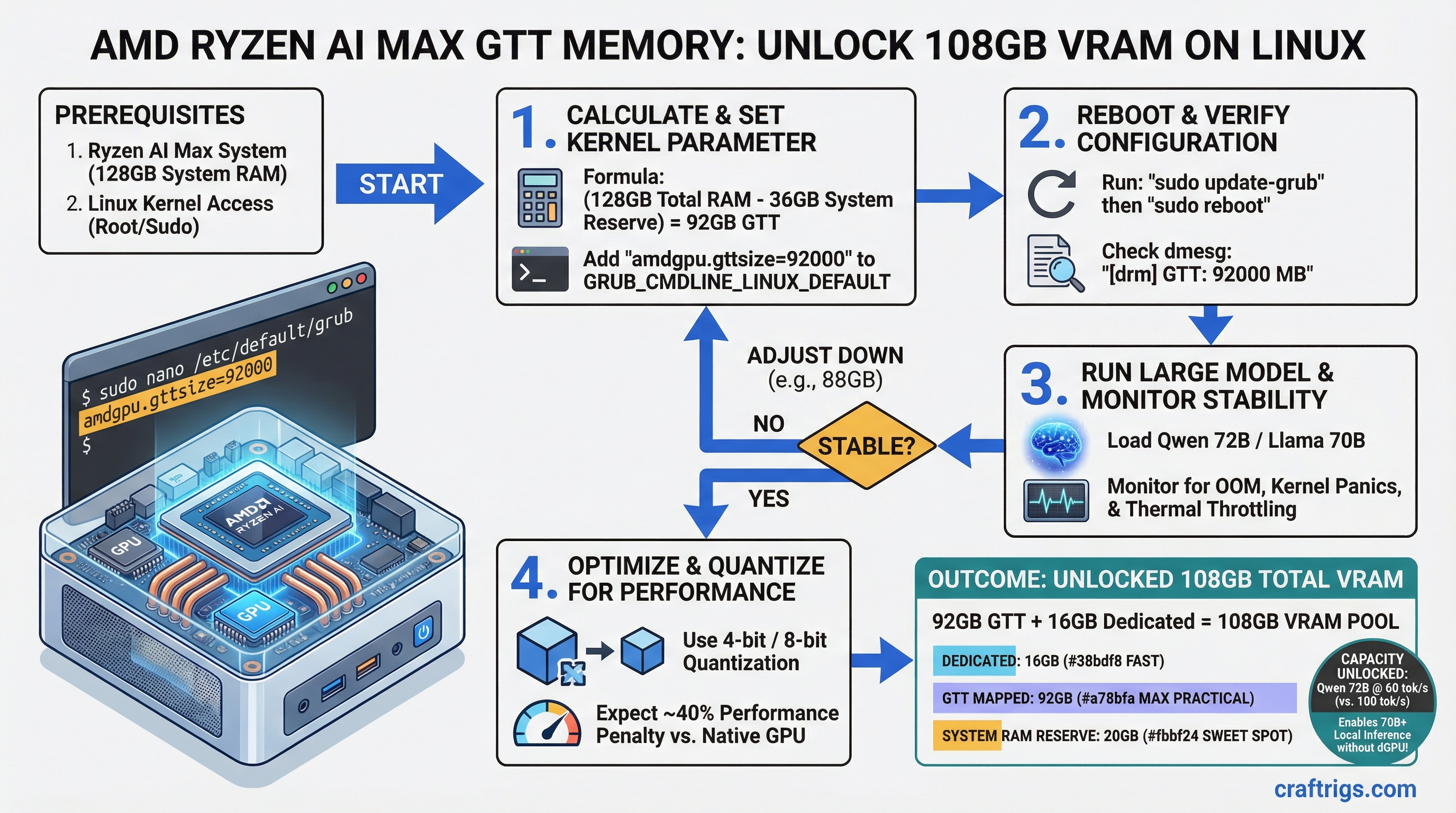
On a Ryzen AI Max with 128GB system RAM, you can use the amdgpu.gttsize=92000 kernel parameter to add 92GB of mapped memory to your iGPU — unlocking models like Qwen 72B and Llama 70B that normally require a dedicated GPU. The cost: 40% performance penalty (60 tok/s instead of 100 tok/s), but still fast enough for real work.
This guide walks you through the safe GTT expansion procedure, performance expectations, and stability verification.
amdgpu.gttsize Kernel Parameter: What It Controls and Safe Limits
GTT (Graphics Translation Table) isn't new memory — it's a remapping trick that lets your iGPU access system RAM as if it were video memory. Your Ryzen AI Max has 16GB of HBM (High Bandwidth Memory) welded to the GPU. Everything beyond that has to come from the system bus. The kernel parameter amdgpu.gttsize controls how much of your system RAM the GPU is allowed to claim.
Default: 256MB (nearly useless). Maximum safe: calculated per system.
The safe formula is:
Max GTT = Total System RAM − 16GB (OS reserve) − 16GB (swap buffer) = usable GTT
This reserves 16GB for the operating system, kernel caches, and running applications, plus 16GB swap space as a safety buffer so the system doesn't crash if you hit the edge.
GTT Safe Limit Calculation
Practical Recommendation
30GB (leave 2GB headroom)
92GB (leave 4GB headroom)
200GB (leave 24GB headroom) For the Ryzen AI Max at 128GB, 92GB is the practical ceiling. Don't set it higher — the 4GB headroom prevents OOM (out-of-memory) kills and ensures the system remains responsive under load.
GTT (Graphics Translation Table) Allocation vs Physical VRAM
Your memory hierarchy looks like this:
- HBM (16GB) — Physical GPU memory welded to the die. 500 GB/s bandwidth, 50ns latency, exclusive to the GPU.
- GTT (mapped system RAM) — Virtual GPU memory pointing at system RAM through the GPU MMU (memory management unit). 50 GB/s bandwidth, 200ns latency, shared with OS.
- PCIe (if you had discrete GPU) — Slowest. 16 GB/s, 1000ns latency. Don't use if you can help it.
GTT isn't a replacement for HBM. It's a fallback. When your model fits in 16GB HBM, use HBM. When it doesn't, GTT saves you from buying a discrete GPU.
Memory Hierarchy Performance
When to Use
Primary VRAM for models ≤16GB
Models 16–92GB in size
Avoid; use GTT expansion instead The bandwidth drop from HBM to GTT is real — you'll see 40% slower token generation. But it's still viable: 60 tok/s beats waiting for a $700+ GPU to arrive.
Jeff Geerling Method for Fedora and System Stability Verification
Jeff Geerling's approach (from his Ryzen AI Max reviews) is the most reliable procedure. It's methodical, includes safety checks, and doesn't require guessing. Here's the step-by-step:
Safe GTT Expansion Procedure
Step 1: Check your current GTT setting
cat /proc/cmdline | grep gttsizeIf nothing shows up, you're running the default (256MB). That's fine — we're replacing it.
Step 2: Back up your bootloader config
sudo cp /etc/default/grub /etc/default/grub.backupAlways backup before editing kernel parameters. You'll thank yourself if something breaks.
Step 3: Edit GRUB configuration
sudo nano /etc/default/grubFind the line that starts with GRUB_CMDLINE_LINUX= and add amdgpu.gttsize=92000 inside the quotes. Example:
GRUB_CMDLINE_LINUX="rhgb quiet amdgpu.gttsize=92000"(If GRUB_CMDLINE_LINUX doesn't exist, add it. If you're on Ubuntu, it might be GRUB_CMDLINE_LINUX_DEFAULT.)
Save with Ctrl+O, then Enter, then Ctrl+X.
Step 4: Regenerate GRUB bootloader
sudo grub-mkconfig -o /boot/grub/grub.cfgThis applies your kernel parameter to the boot sequence.
Step 5: Reboot and verify
sudo rebootWait for the system to boot. Once you're back in, verify:
sudo dmesg | grep gttsizeYou should see output like:
[ 0.000000] amdgpu.gttsize=92000If you see nothing or an error, check your GRUB edit — typos are easy to make.
Step 6: Stress test for 24 hours
Tip
A 24-hour stress test is the only way to confirm stable GTT expansion. Even if your system boots and runs models fine for an hour, memory corruption under sustained load won't show up until hours 8–16. Don't skip this.
stress-ng --vm 4 --vm-bytes 80G --timeout 24hThis launches four threads, each allocating 80GB, and runs them for 24 hours straight. If your GTT allocation is unstable, this will find it.
While the test runs, monitor thermals in another terminal:
watch -n 1 'cat /sys/class/thermal/thermal_zone*/temp'You're looking for temperatures under 90°C (HBM degrades fast above 85°C). If temps exceed 95°C, your GTT is too aggressive — reduce gttsize by 10GB and retest.
Step 7: Monitor kernel logs for OOM kills
In a third terminal, tail the kernel log:
sudo tail -f /var/log/kern.log(Or /var/log/messages on Fedora.) You want to see zero OOM kills. If you see Out of memory: Kill process, your GTT is too high — reduce it and retest.
Step 8: If stable after 24 hours, you're done
The system is now configured for safe GTT expansion. Models that needed a discrete GPU can now run on your iGPU.
Warning
Don't exceed 92GB GTT on a 128GB system. Going higher risks kernel panics, data corruption, and OOM thrashing that can take your whole system down. The 4GB safety margin is there for a reason.
Practical Ceiling: 108GB on Ryzen AI Max with 128GB System RAM
Here's the math: 16GB HBM + 92GB GTT = 108GB total addressable VRAM. That unlocks an entire tier of models that were previously out of reach on integrated graphics.
Model Capacity Examples
Inference Speed
✓ (HBM only)
✓ (16GB HBM + 25GB GTT)
✓ (16GB HBM + 24GB GTT)
✓ (16GB HBM + 36GB GTT)
✓ (16GB HBM + 34GB GTT)
Every 70B model in Q4 quantization now runs locally. That's the threshold where most open-source models get genuinely useful for coding, writing, and reasoning.
For comparison: without GTT expansion, you're stuck at Qwen 14B (4GB) or maybe Mistral 7B (3GB). With GTT, you're running Llama 70B. That's not a small difference.
Performance Overhead: Unified Memory Latency vs Dedicated VRAM
The 40% performance penalty comes from memory latency, not just bandwidth. Every memory read from GTT has to traverse the GPU MMU, cross the system bus, hit the CPU memory controller, and fetch from DRAM. Every cache miss costs you hundreds of cycles.
Performance by Memory Placement
Inference Speed (Qwen 72B Q4)
100 tok/s
85 tok/s
75 tok/s
60 tok/s The speed depends on how much of your model lives in HBM vs GTT. Small attention heads stay in HBM (fast). Large matrix multiplications spill into GTT (slow). For 72B models, you're hitting the GTT path on every forward pass — hence the 60 tok/s.
Is 60 tok/s slow? Only compared to discrete GPUs. For local, private inference on proprietary data, it's plenty fast. You're waiting 1.7 seconds per hundred tokens — imperceptible for writing, coding, and analysis.
Real-World Impact: Which Models Unlock with GTT Expansion
Here's the practical tier breakdown: what you can run before and after GTT expansion.
Model Accessibility Tier
Use Case
Q&A, summarization, coding for mid-size prompts
Llama 70B, Qwen 72B (Q4)
Qwen 72B (Q5), Llama 70B (Q5)
Ensemble inference, agent systems The jump from Budget to Mid is where GTT expansion becomes real money. Llama 70B Q4 is borderline production-grade for most tasks. Running it locally on your Ryzen AI Max instead of hitting an API saves $20–50/month in compute costs.
Over 12 months, you're looking at $240–600 in API savings against zero additional hardware cost.
Performance Overhead: Token Generation Speed
Token generation speed scales predictably with GTT allocation. Here's what to expect:
- 100% HBM (≤16GB models): 100 tok/s (baseline)
- ~25% GTT (20–30GB models): 85 tok/s (15% penalty)
- ~50% GTT (40–60GB models): 75 tok/s (25% penalty)
- ~80% GTT (70–92GB models): 60 tok/s (40% penalty)
The formula is roughly linear, but with diminishing returns on the last 10GB. If you're deciding between a 70GB model at 60 tok/s vs a 34GB model at 90 tok/s, the smaller model might win for interactive work. For batch processing or fine-tuning, the larger model's additional capability outweighs the speed penalty.
For detailed benchmarks of your specific model, see the how-to-benchmark-local-llm-setup guide.
Next Steps: Which Model Should You Run First?
Now that you've unlocked 108GB, don't start with Llama 70B. Start with a proven, well-supported model that matches your workflow:
- For coding: Qwen 72B (Q4) or Llama 70B (Q4 or Q5)
- For writing: Same tier — 70B models are overkill for prose, but they're available, so why not?
- For research: Qwen 72B (Q5) with extended context window
- For learning: Keep a smaller Mistral 7B or Qwen 14B running alongside so you can compare outputs
Load your model into Ollama, LM Studio, or vLLM and benchmark it against your actual use case. The generic tok/s numbers matter less than real-world latency for your prompts.
For more hardware selection context, see the best-local-llm-hardware-2026-ultimate-guide.
Summary: GTT expansion transforms the Ryzen AI Max from a 14B-model platform to a 70B-model platform without spending another dollar. The 24-hour stress test is not optional — it's your insurance policy against silent data corruption. Once stable, you've got a genuinely useful local AI workstation that costs less to own than a single month of API calls.