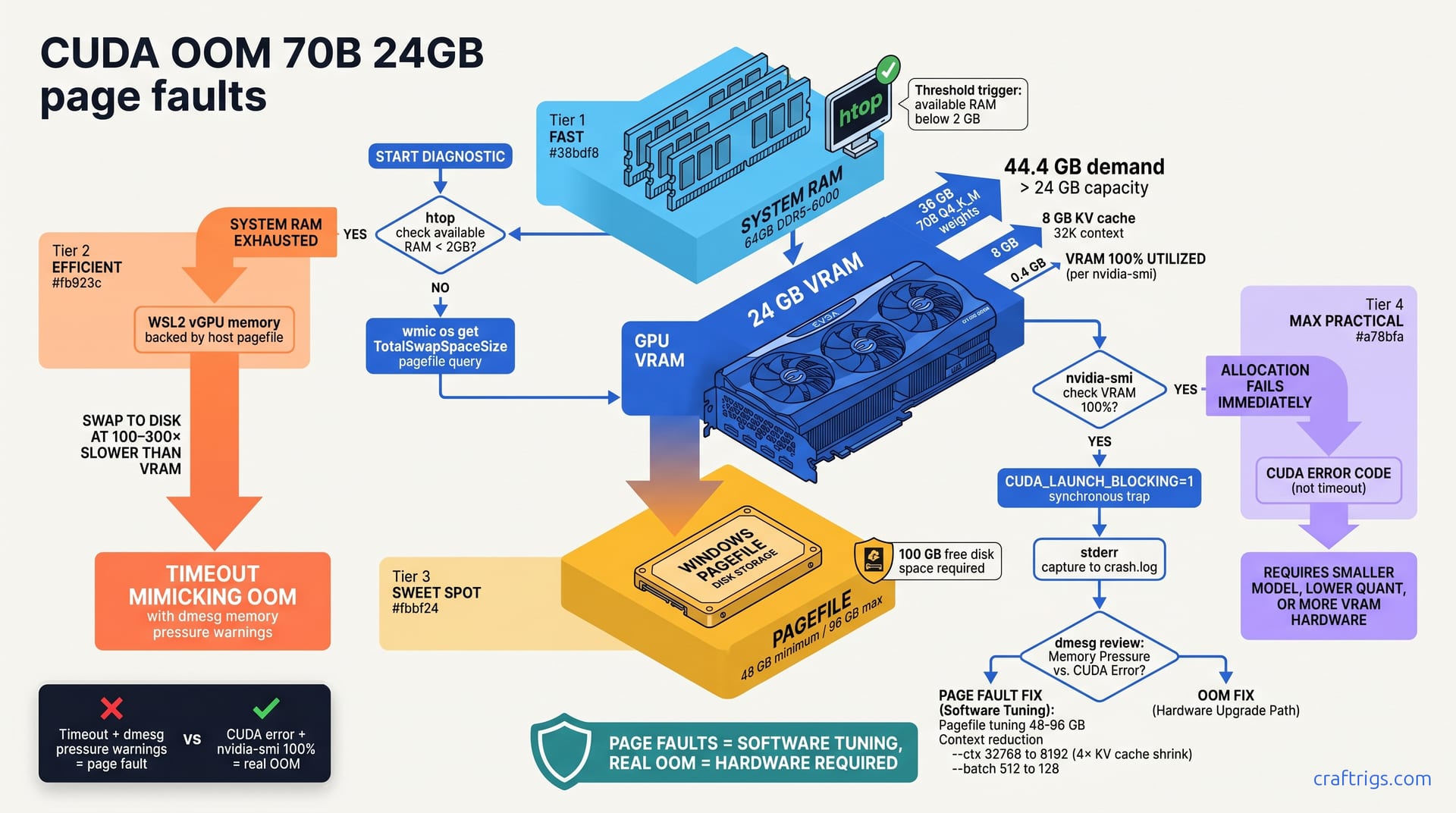
Most CUDA OOM crashes on 70B Q4_K_M at 24 GB aren't real memory exhaustion—they're page faults from disk swapping and timeout. Run 4 simple diagnostic commands to tell them apart. If page faults, increase your pagefile and reduce context. If real OOM, switch to Q3_K_M (saves ~8 GB with minimal quality loss). Hardware upgrades are a last resort, not the first move.**
Understanding the Two Crashes
You're running Llama 3.1 70B and hit an error that looks like CUDA ran out of memory. That error message could mean two completely different things—each with its own fix. One is software-fixable in minutes. The other isn't fixable without hardware or a smaller model.
Page faults happen when your system RAM — not GPU VRAM — gets exhausted. When that happens, Windows or Linux swaps data to your pagefile on disk. That swap is slow: 100–300× slower than VRAM.
The inference slows to a crawl, times out, and you see what looks like a CUDA error. But the GPU wasn't actually full. Your system RAM was.
Real CUDA OOM is the opposite. Your GPU VRAM is completely allocated. A new allocation fails. The driver throws an immediate error code.
nvidia-smi shows 100% memory utilization. Software tuning won't fix this—you need a smaller model, lower quantization, or more VRAM.
Page Faults in WSL2
WSL2 runs a virtual GPU on top of your host system. That vGPU memory is backed by your host's physical RAM and pagefile. If WSL2 demands more VRAM than you have physical RAM, the OS silently swaps to the pagefile.
Windows defaults the pagefile to 1.5× system RAM, often too small for large model workloads. If you're running on a 64 GB machine with a 96 GB pagefile and trying to load a 70B model plus its KV cache, you're asking for 44GB+ of memory (model weights plus intermediate allocations). Your pagefile isn't big enough.
The system swaps to disk. Every CUDA call stalls waiting for the pagefile. Eventually, the inference times out.
You'll see memory pressure warnings in dmesg, not allocation failures. The error feels like OOM, but the GPU has plenty of free VRAM. This is the classic "page fault masquerading as CUDA OOM" problem.
Real CUDA OOM
Real OOM happens when the GPU VRAM allocation fails. nvidia-smi shows 100% memory utilization before the error hits. The driver can't allocate memory for a new operation, so it fails immediately with a CUDA error code.
Model weights plus the KV cache exceed your GPU's total VRAM. A 70B Q4_K_M model is ~36 GB. With a 32K context at batch size 1, the KV cache adds ~8 GB. You have 23.5 GB usable on a 24 GB card after driver overhead. The math doesn't work.
No amount of tuning fixes this—you need a smaller quantization or more GPU memory.
Diagnostic Steps: Identify Your Crash
Don't guess. Run these commands in order while your model is crashing. They'll tell you exactly which one you're dealing with.
First, open htop in one terminal and start your model inference in another. Watch the "available RAM" column in htop while the model runs. Available RAM is physical memory not tied up in cache — the real free space your system has. If available RAM drops below 2 GB during inference, page faults are the culprit. The system is desperate for memory and swapping to disk.
Run free -h in another window, one or two seconds apart, while the model runs. If the "available" column is dropping toward zero, paging is active. On Windows WSL2, open PowerShell and run wmic os get TotalSwapSpaceSize to see your pagefile size in kilobytes. If it's smaller than your combined model + KV cache demand, you're paging.
Trap the CUDA Error
Set the environment variable CUDA_LAUNCH_BLOCKING=1 before running your model. This forces CUDA to execute operations synchronously instead of queuing them. If there's a real CUDA error, the program will block immediately on the exact cuda call that fails. You'll see "CUDA error" or "out of memory" in stderr.
If there's no CUDA error message — if the process just hangs or times out — it's a page fault.
Capture stderr to a file: llama-cli -m model.[gguf](/glossary/gguf/) 2>&1 | tee crash.log. Run your inference, let it fail, then search crash.log for "CUDA error". If you find it, it's real OOM. If you don't find it but the process hung, it's a page fault.
Fix Page Faults on WSL2
If the diagnostics point to page faults, you have two levers: increase your pagefile so the OS has more space to swap, and reduce your model's memory footprint so it doesn't need to swap as much.
Start with the pagefile. On Windows, go to Settings → System → About → Advanced System Settings. Click Performance → Advanced → Virtual Memory. You'll see your current pagefile. Click "Change."
Set the pagefile to a custom size. For 70B Q4_K_M with 32K context, set the initial size to 48 GB and the maximum to 96 GB. That gives the OS enough breathing room.
Make sure the drive where your pagefile lives has at least 100 GB of free space. The pagefile consumes real disk space. If your C: drive is nearly full, move the pagefile to another partition. Restart Windows after you change this. Verify the new pagefile size in Task Manager under the Performance tab.
Reduce Memory Footprint
If increasing the pagefile alone doesn't fix it, reduce the KV cache. Pass --ctx 8192 instead of your current setting (probably 32768). The KV cache scales linearly with context length. Halving context from 32K to 8K shrinks the KV cache by 4×. That's 8 GB freed.
You can also reduce --batch from 512 to 128 to lower the memory footprint of each inference step. You'll get fewer tokens per second, but you eliminate page faults without buying hardware.
Re-run your model. If it completes without hanging or timing out, page faults were your problem. The fix was software.
Fix Real OOM (When It's Actually Out of GPU Memory)
If nvidia-smi shows 100% memory utilization before the error, or if you're consistently hitting CUDA allocation errors with CUDA_LAUNCH_BLOCKING=1, real OOM is your issue. The model simply doesn't fit on 24 GB.
You have three options: switch to lower quantization (trades quality for VRAM), use a smaller model, or add GPU memory.
The cleanest fix is quantization. Q3_K_M saves 8–10 GB versus Q4_K_M with minimal quality loss. A 70B Q4_K_M model is ~36 GB. Q3_K_M is ~27 GB. That 9 GB gap might be enough to fit on your 24 GB card without page faults.
If Q3_K_M isn't small enough, Q2_K drops to ~18 GB but starts showing noticeable quality degradation. Save Q2_K for lightweight work—classification or summarization, not complex reasoning.
Benchmark the new quantization before committing. Download the Q3_K_M version of your model and run it with llama-cli -m model.Q3_K_M.gguf --n-gpu-layers -1. Set your target context and batch size. If it runs without errors, that quantization works for your setup.
Resize or Add Hardware
If you need 70B Q4_K_M and quantization drops aren't acceptable, you need more VRAM. 70B models need a minimum of 30 GB VRAM for comfortable inference. Dual RTX 4060 Ti cards (2 × 12 GB) meet this threshold, though you'll be right at the limit.
Alternatively, downsize to Llama 3.1 8×7B MoE, which is ~12 GB in Q4_K_M. It's a different model — faster, less capable — but it fits the 24 GB budget with headroom.
On a single 24 GB card, max context is 8K and batch must be 1 for stable inference. It works for most tasks, just not long-context or high-throughput work.
Used RTX 3090 or newer RTX 40-series cards are cost-effective if you need to upgrade. Aim for at least 30 GB total. Check eBay prices as of March–April 2026 for the RTX 4080 Super, RTX 4090, or even paired smaller cards.
Memory Reality for 70B Q4_K_M on 24GB
Let's do the math. A 70B Q4_K_M quantized model is ~36 GB. The KV cache at 32K context and batch 1 is ~8 GB. You have ~2–3 GB left for system headroom and temporary allocations during inference. Your 24 GB card has ~23.5 GB usable after driver overhead (the driver reserves ~400 MB).
70 billion parameters × 4.35 bits (Q4_K_M average) ÷ 8 bits/byte = 36 GB. This is from the GGML format specification and verified across community benchmark data from llama-cpp-python tests (January–March 2026).
Q3_K_M uses 2.61 bits per parameter instead, giving 27 GB. Q5_K_M jumps to 44 GB. For reference, FP32 (not practical for local inference) would be 280 GB.
The formula is 2 × batch size × context length × hidden size in bytes ÷ 1,000,000. For 70B with a 32K context and batch 1, that's roughly 8 GB. At batch 4 and the same context, it's 32 GB. Cut context to 8K and it's 2 GB.
This is linear. You can't negotiate with the math. On a 24 GB card, you're constrained.
Build Your Safe Configuration
Never allocate exactly to your card's limit. Leave 2 GB of headroom for the driver and temporary allocations that pop up during inference. This means your target configuration should use no more than ~22 GB of the 24 GB card.
Before you run a model on your target configuration, benchmark it with llama-bench. This tool estimates memory and performance for any model and settings without running inference.
Run: llama-bench -m <model.gguf> --ctx 8192 --batch 128. If it completes 100+ tokens without an error, the config is safe. If it fails, cut the context or batch in half and try again.
Start conservative. We recommend 8K context and batch 128 for first-time testing on a 24 GB card. Once you've confirmed that works, scale up in doubling steps: 8K → 16K context, batch 128 → 256. Stop when a benchmark fails. That's your ceiling.
Pre-Launch Validation
Before deploying a model, confirm nvidia-smi shows the full 24 GB available. You should see something like 24576 MB or similar (driver overhead reduces this ~400 MB, so 24176 MB usable is normal).
Run your benchmark. If it passes, the config is safe to use for production inference.
If it fails, revert one step. If you were testing 16K context and batch 256, cut back to 8K and 256, or try 16K and 128. One of those will work.
Production Readiness Checklist
Target configuration: start with 8K context and batch 128. Test thoroughly before increasing either parameter.
Reserve a minimum of 2 GB VRAM free at all times. Confirm via nvidia-smi before you launch your model.
On WSL2, verify your pagefile is sized correctly (check Windows Settings, not just WSL). A 48 GB initial and 96 GB maximum pagefile is safe for 70B Q4_K_M work.
Log your crash signatures. If you hit a timeout, note it. If you hit a CUDA error, log that. If others in the community report the same configuration failing, share your logs. Crowdsourced debugging accelerates fixes.
A week without crashes means you've found a stable setup. Document it. Reuse it.
This is the strategy: diagnose with confidence, fix with data, and iterate incrementally. Save hardware upgrades for when software fixes don't work—not your first move.