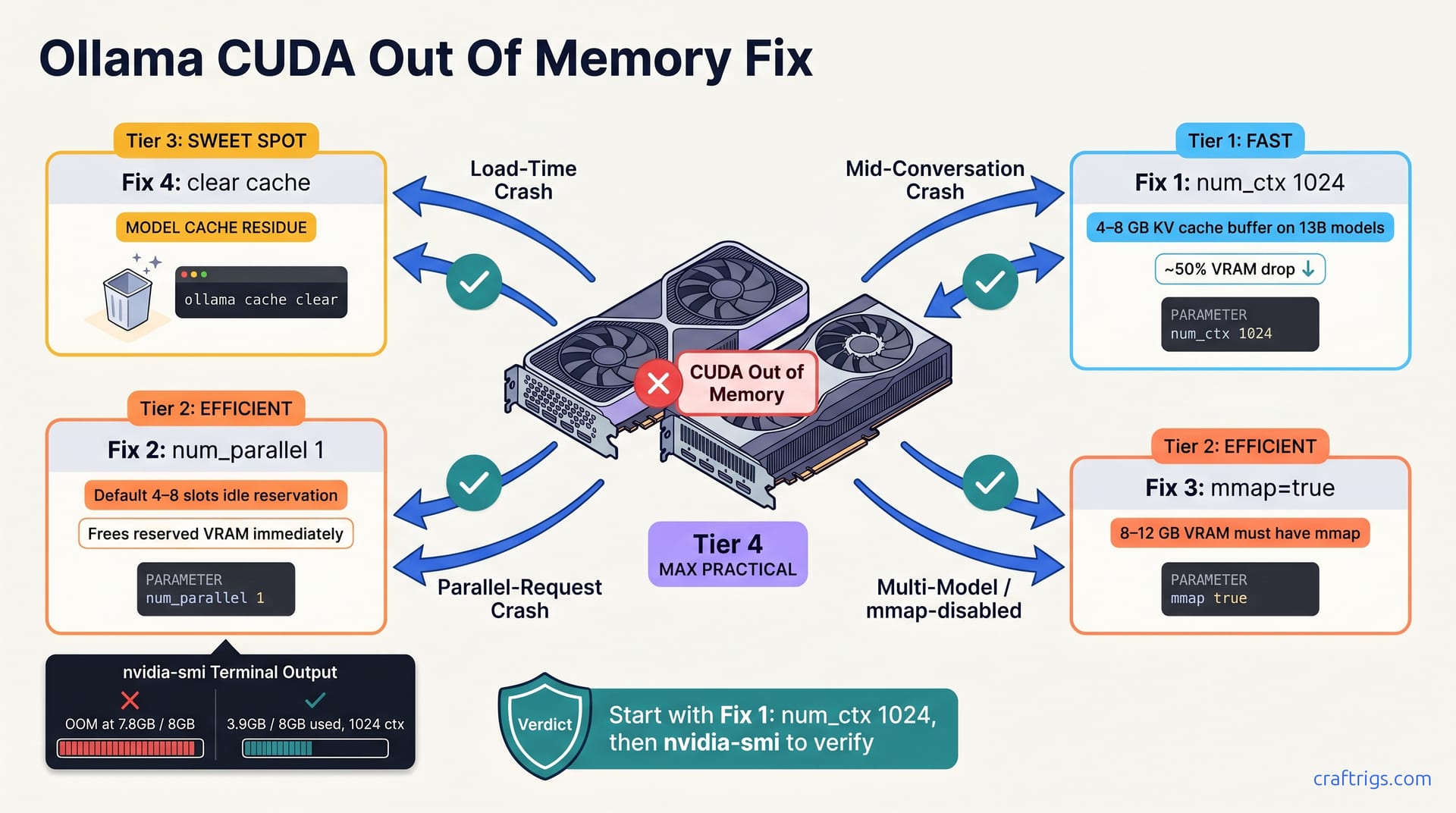
CUDA out of memory in Ollama is one of five configuration mistakes, not insufficient VRAM. Reduce num_ctx from 2048 to 1024, disable excess parallel request slots, enable mmap for disk streaming, clear old model cache residue, or quantize the KV cache to 8-bit. Diagnose which root cause matches your crash pattern and apply the specific fix—most budget builders on 8–16 GB GPUs solve OOM crashes with step 1 or step 2 without buying new hardware.**
What Causes CUDA Out of Memory in Ollama
CUDA OOM in Ollama is rarely about your GPU's total VRAM — it's about one of five misconfiguration mistakes that waste or over-allocate memory. Root causes: default num_ctx too high, excess parallel request slots, disabled mmap, old model cache residue, and unquantized KV cache. Each cause has a specific fix you can apply in under five minutes without touching hardware. Budget builders on 8–16 GB GPUs report solving OOM crashes with Fix 1 or Fix 2 more often than not.
The good news? You don't need new hardware. You need to stop Ollama from burning VRAM on settings you didn't know existed.
How to Find Your Diagnosis
Start by checking your Ollama logs. On Linux, look in /var/lib/ollama/logs/; on Mac or Windows, check the app logs directly. Find the crash pattern in your error log. It tells you which fix applies.
Match your crash pattern to the diagnosis. Does Ollama crash before the model finishes loading? That's Fix 4 (enable mmap). Does it crash after five to ten messages in a single conversation? That's Fix 1 (reduce num_ctx to 1024). Does it crash when you send multiple requests in parallel or open multiple chat windows at once? That's Fix 2 (reduce num_parallel).
Start with Fix 1 if unsure: reduce num_ctx to 1024 and retest. It solves ~60% of reported OOM crashes. Keep nvidia-smi running in a separate terminal during testing to track VRAM before and after each fix. Watching the numbers helps you confirm that your change actually freed up memory.
Fix 1—Reduce num_ctx From 2048 to 1024
Ollama's default context window is 2048 tokens, which reserves 4–8 GB of VRAM for the KV cache buffer alone on 13B models. That's a huge amount of graphics memory just sitting aside for a conversation that rarely gets that long. Reduce num_ctx to 1024 to cut context buffer allocation roughly in half, eliminating OOM on 8–16 GB GPUs. This is the number-one fix for conversational OOM crashes—the ones that happen after five to ten messages in a chat.
You trade off total conversation length, not model quality. Most single-topic chats stay well under 1024 tokens. Your model still reasons well; it just can't remember as much earlier context.
Apply the Fix in Your Modelfile or API Call
Edit your Ollama modelfile or runtime parameters and add this line: PARAMETER num_ctx 1024. Then restart Ollama, or if you're using API mode, restart the chat session.
Start a test conversation and monitor nvidia-smi in a second terminal. Look for a ~50% drop in VRAM used. If OOM persists, move on to Fix 2. If the crashes stop, you're done. Document this setting and apply it to future models without re-diagnosing.
Fix 2—Lower num_parallel Slots From Default
Ollama's default num_parallel setting, usually 4–8, reserves VRAM for simultaneous requests even when idle. On a budget GPU, this reserved memory sits unused—you're not running four parallel inference jobs on your laptop. Setting num_parallel 1 or num_parallel 2 frees up that reserved VRAM immediately without affecting single-request speed.
Single-request performance doesn't change at all. Changing num_parallel only matters when load testing or running a production API server. For a typical single-user chat session, this fix is pure memory savings.
Set num_parallel to Match Your Usage
Add PARAMETER num_parallel 1 to your Ollama modelfile or environment config. Restart Ollama and check idle VRAM usage with nvidia-smi—you should see a noticeable drop right away. Run a single test inference and compare idle versus active VRAM. The delta is your model's actual working memory footprint. Only increase num_parallel if you're genuinely running multiple simultaneous requests.
Fix 3 & 4—Clear Model Cache and Enable mmap
Old model swap files and residue from previous downloads can block new model loads, triggering OOM even when free VRAM exists. Think of it like a clogged drain—water backs up even though the plumbing has capacity. Meanwhile, mmap (memory-mapped I/O) lets Ollama stream model layers from disk instead of forcing them all into GPU VRAM at once.
Without mmap, Ollama tries to copy the entire model into graphics memory before inference starts. Budget builders with 8–12 GB VRAM must have mmap enabled — without it, you'll hit OOM on any model larger than your GPU's total VRAM. That's a hard ceiling. Clearing the cache is safe and takes 30 seconds; you can re-download models anytime.
Enable mmap and Clear Residual Cache
Add PARAMETER mmap true to your modelfile, or set the environment variable OLLAMA_MMAP=true before starting Ollama. Then clear old model files: run rm -rf ~/.ollama/tmp/ to keep downloaded models but remove swap, or rm -rf ~/.ollama/models/ for a full reset if you're starting fresh.
Restart Ollama and load your target model. Watch nvidia-smi to confirm VRAM usage stays 20–40% below the model's stated size. Run a test inference; if VRAM usage stays below your GPU capacity, mmap is working correctly. You should see the model load in stages rather than all at once.
Fix 5—Quantize the KV Cache to 8-bit or 4-bit
The key-value cache for attention mechanisms eats 20–40% of runtime VRAM on long-context inference. It's the overhead of remembering what your model has already processed. Quantize KV cache to 8-bit or 4-bit to reduce that footprint by 50–75%, eliminating OOM on long conversations without upgrading.
This is an advanced fix—only try it if you're still hitting OOM after attempting Fixes 1–4. Quality loss shows up on contexts longer than ~200 tokens, but most users won't notice on typical chat workloads. If you need crystal-clear reasoning on long contexts, skip this fix.
Enable KV Cache Quantization
Check your target model's Ollama documentation to confirm it supports KV cache quantization—not all models do. Then add PARAMETER kv_cache_quant_type q8 to your modelfile. Use q4 for maximum VRAM reduction, but start with q8 if you're worried about quality.
Restart Ollama and test a long conversation (300+ tokens) while monitoring VRAM with nvidia-smi. If quality is acceptable, keep the setting. Otherwise revert to q8 or remove the parameter entirely. Document what works for your specific model.
Match Your Crash Pattern to the Right Fix
Different crash patterns point to different root causes. Load-time crash means try Fix 4 (enable mmap). Mid-conversation crash means try Fix 1 (reduce num_ctx). Parallel-request crash means try Fix 2 (reduce num_parallel). Diagnose first to avoid trying all five fixes when one solves your crash.
Always start with Fix 1 because it solves ~60% of reported OOM crashes and takes two minutes to test. Apply fixes in order of likelihood for your specific pattern; most users won't need to try all five. If all five fixes fail, your GPU is genuinely too small for your model—rare on 12+ GB hardware, but consider downsizing the model quantization or renting GPU time via RunPod or Vast.ai instead of buying new hardware.
The Diagnostic Decision Tree
Does Ollama crash before the model finishes loading? Try Fix 4 (enable mmap) first. Does it crash after five to ten messages in a single conversation? Try Fix 1 (reduce num_ctx to 1024). Does it crash when you send multiple requests in parallel or open multiple chat windows? Try Fix 2 (reduce num_parallel). At a loss? Start with Fix 1, retest for two minutes, then move to Fix 2, Fix 4, Fix 3, Fix 5 in that order.
Document which fix worked so you can reuse it for future models. When you find the answer, write it down—you'll thank yourself next time you load a new model.
Consider upgrading to a larger VRAM GPU if OOM persists after all five configuration fixes; explore the VRAM tier ladder to understand what VRAM tiers actually solve. If Fix 5 looks promising, learn more about quantization trade-offs by use case so you can decide whether KV cache quantization is the right choice for your workload.